
Bulk importing leads into GymOS
You may bulk import lead data into GymOS. Typically, this is something you would do only once, at the commencement of your move to GymOS.
To import lead data into GymOS:
- Ensure you have completed configuring the main GymOS functions.
- Download the lead import template, attached to the end of this article (scroll down).
- Extract the lead data from your current system.
- Add the lead data to the import template, ensuring you heed the guidelines below.
- Select Bulk Import from the Settings section of the main navigation menu.
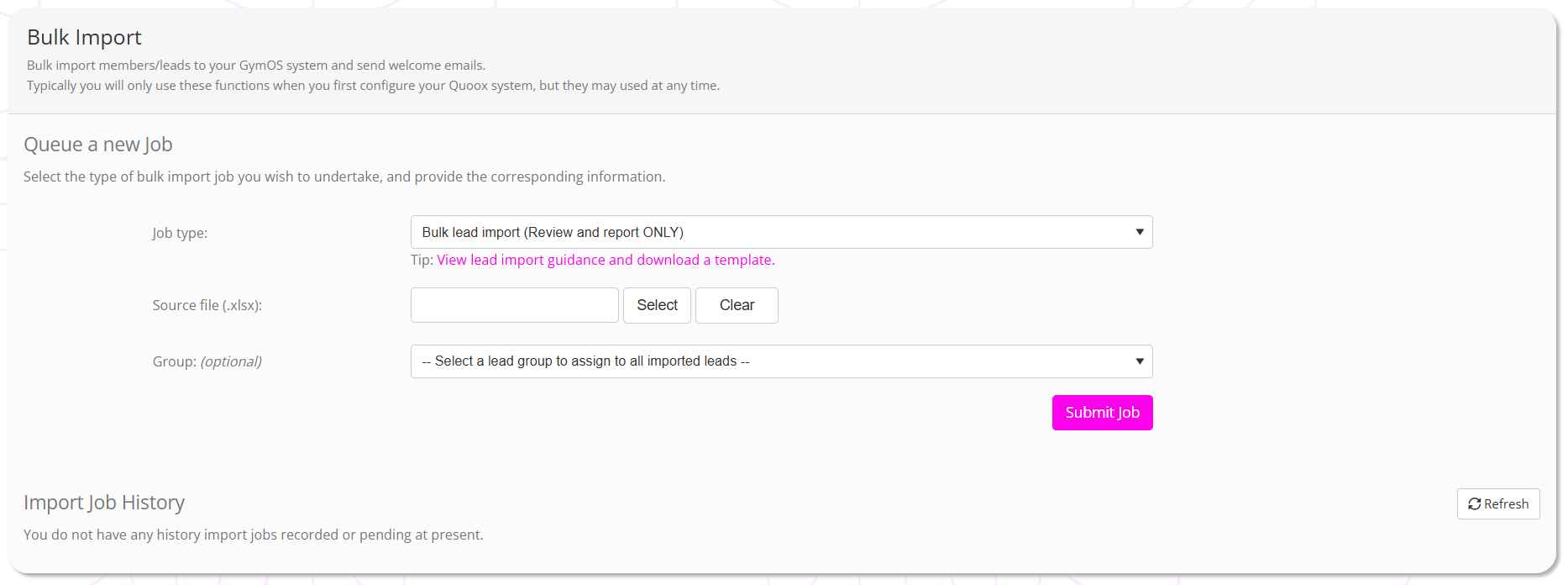
- From the Job Type option, it is recommended you first select Bulk lead import (Review and report ONLY)
- In the Source file (.xlsx) box, select the lead import spreadsheet that you have populated.
- Optionally, select a lead group to assign to all of the lead you are importing.
- Click the Submit Job button.
GymOS will commence processing the import as a background task. You can click the Refresh button to track progress.

- Once the job has completed, check the status.
- From the Select drop-down in the Actions column, select View Process Log to determine the cause of any errors. Remedy these accordingly.
- Once you have had a successful test run, click Re-run and import records option to reprocess the import, but this time actually adding the data to the system.
- Verify that the import has completed successfully and that the data is as you wish. If you need to remove data and re-run, you can select the Delete imported leads option from the Select drop-down in the Actions column.
Note: Bulk imports do not fire triggers or any other functions. The process is a safe, controlled, static import.
Filling in the template
For us to be able to import your data successfully, it is important that you heed the following:
- The columns must remain titled as per the spreadsheet.
- The columns must remain in the order as per the spreadsheet.
- You cannot add or remove columns to the spreadsheet.
- The spreadsheet includes an example row, which you should remove.
- All of the fields are mandatory.
- Mobile and email addresses must be unique. You cannot have two leads with the same contact detail.
- Do not put landline numbers in the mobile phone field. These must be mobile numbers only, as they are used for sending SMS messages.
- Mobile numbers should either be a valid format for your country (E.g. 07803 123456), or fully qualified international numbers (+44 7803 123456)
- Data will be imported with the capitalisation provided, so we suggest taking a few minutes to make sure your data is “clean” and correctly presented.
- The lead creation date will be set to the date of the import.
- The GDPR and marketing acceptance fields will be set automatically, and thus you should ensure you have permission to import the data you provide us.
We are here to help you get set up with your system. If you have any questions, please ask us.