Booking a member on to a session
Whilst most members will typically book themselves on to a session, you may also do it on their behalf via the administration portal.
To book a member on to a session:
- Navigate to Schedule from the main menu.
- Navigate to the date/time of the session for which you wish to book the member.
- Either double-click on the session or right-click and select View/Edit Bookings from the menu.
- Click the Book Member button.
- Start typing the name of the member in the text box, and select them when they appear in the list.
- If you wish to book them as a confirmed attendee, click . If you wish to book them on to the waitlist, click .
Note: From within the administration portal, you can overbook a session. This is by design.
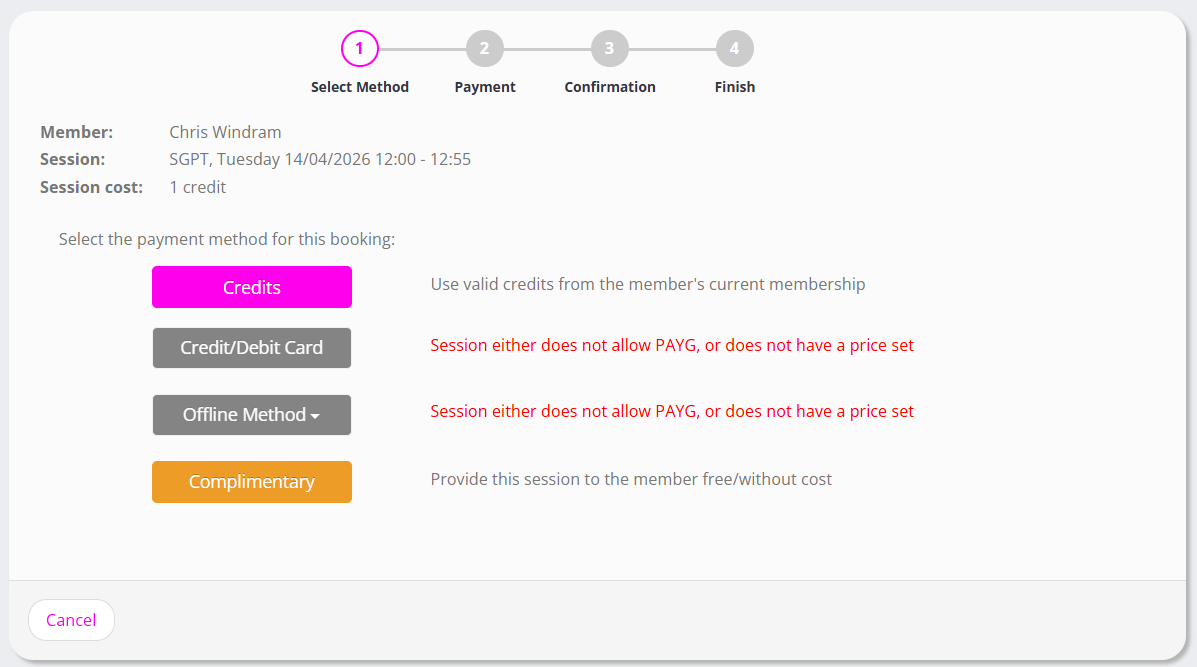
- Select the member’s payment method for the booking. If a given method isn’t available or valid, the reason will be displayed.
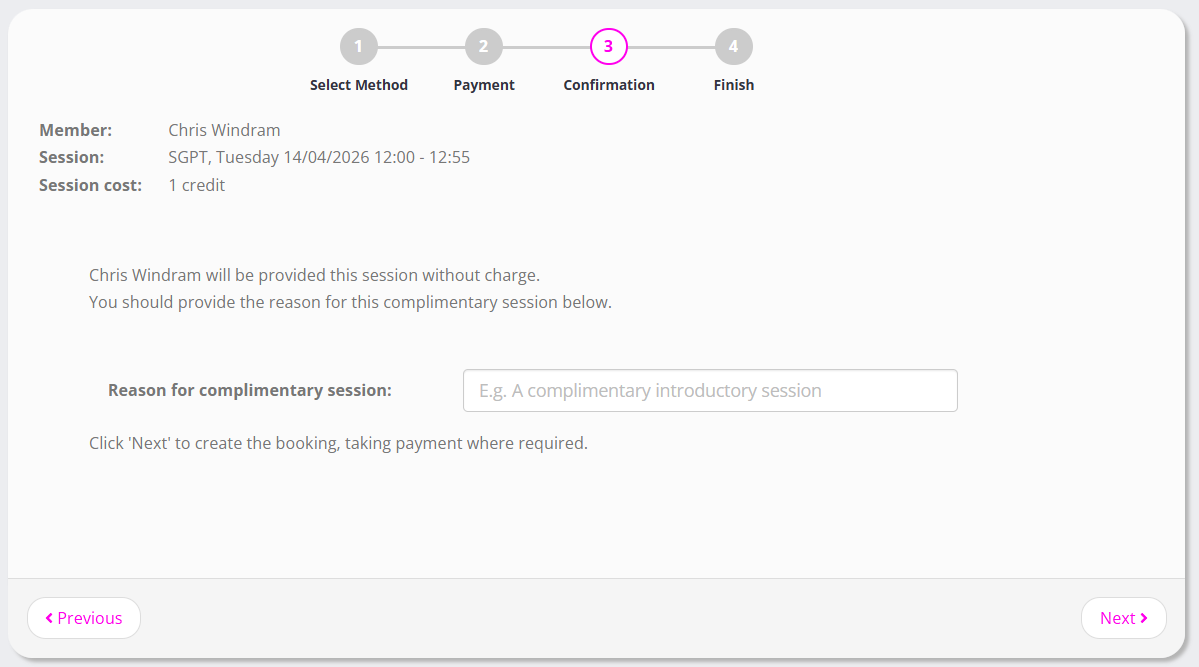
From within the administration portal, you also have the option to book the member on a complimentary basis (I.e., without charge). - You will be asked to confirm the payment method and, if you selected “complimentary”, to provide a reason as to why it is being provided as such.
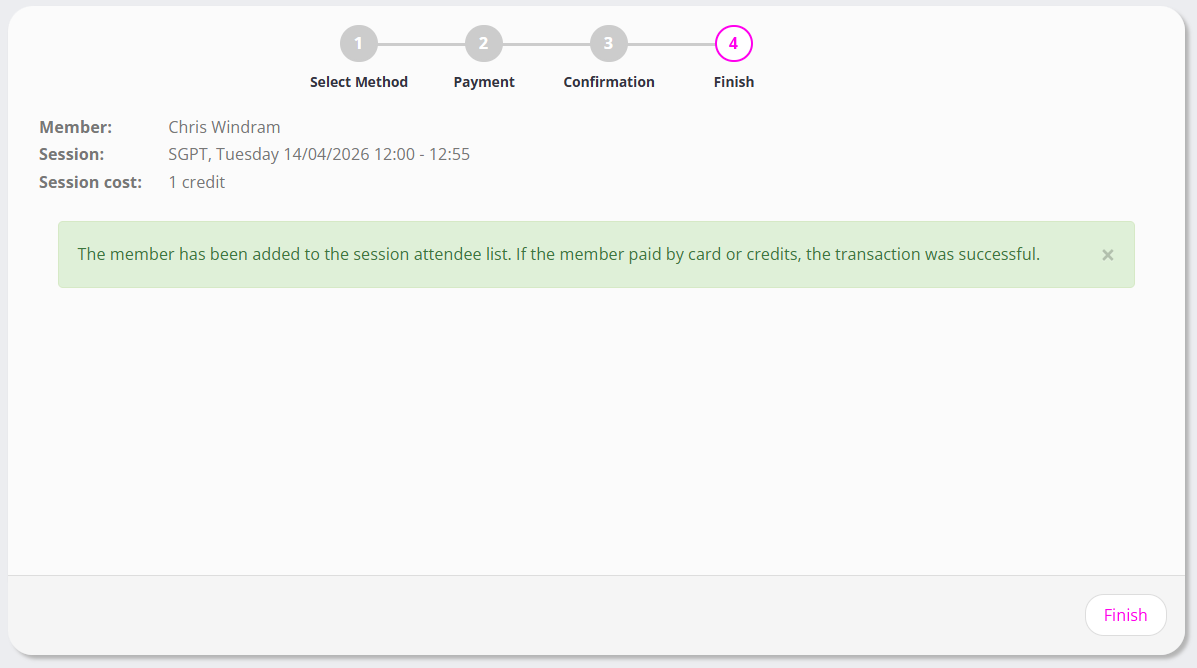
- The final screen will confirm that the booking has either been completed, or advise of any payment issues that arose.