
Recording a discussion in the FitnessHub app
Scribe records on the FitnessHub app, signed in as a member of staff. This article walks through a recording from start to finish. Before your first one, read Getting a good recording.
Where to start
Open My Account and choose Consultation Appointments. From there you can start Scribe in three ways:
- From a DropSlot booking (recommended). Today’s in-person bookings show the Scribe button, a quill, from an hour before they start. Tap it, and everyone on the booking is filled in for you.
- From the appointment. Open the booking, and choose Record this consultation with Scribe from Select an action.
- Without a booking. Tap Scribe an impromptu meeting, above the list, and choose who is taking part.
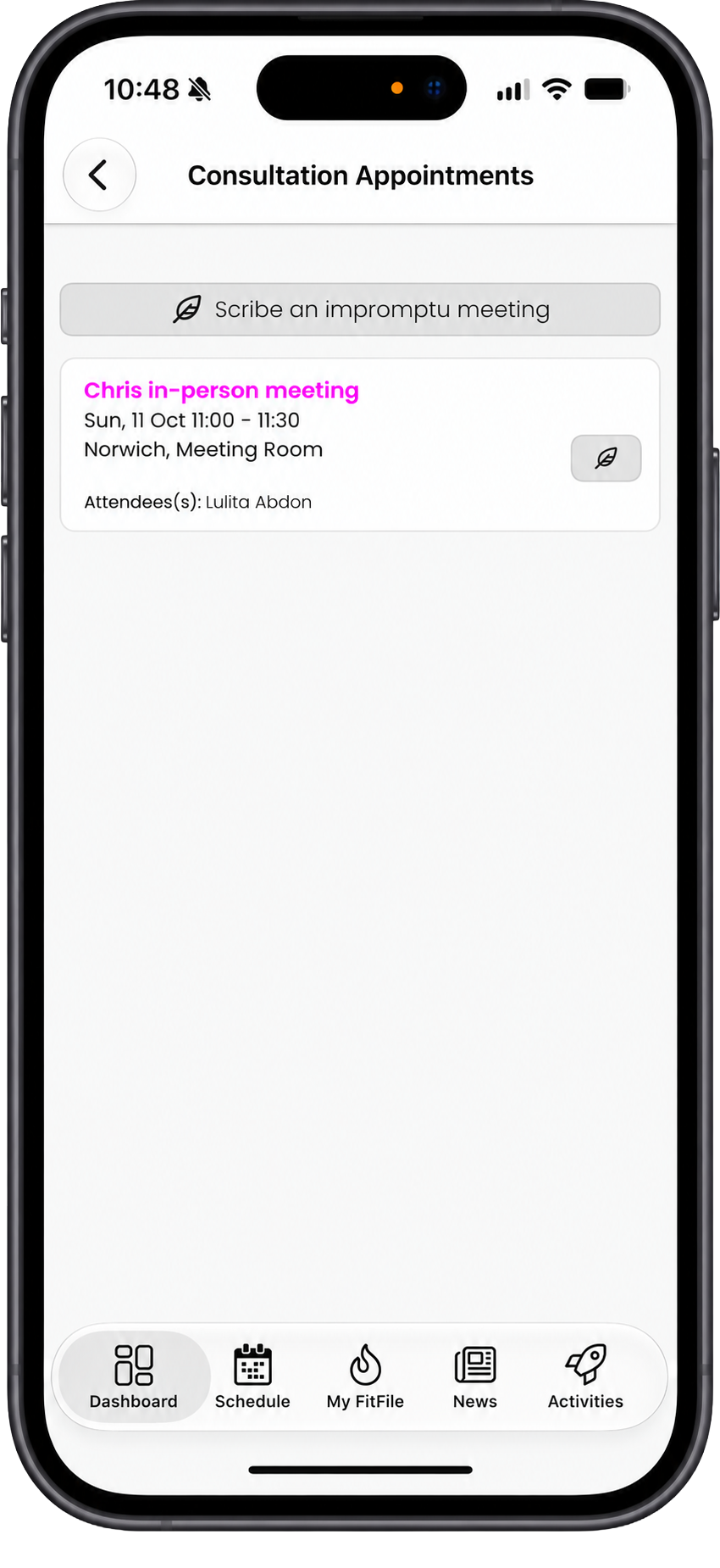
The Scribe button appears only on in-person bookings. A telephone booking shows Konduo’s call button instead. You can record more than one discussion on a booking, which is handy when someone comes back with something they forgot to mention.
Choosing who is taking part
For an impromptu meeting, the Who is taking part? page opens. Type three letters or more of a name to search your members, leads and colleagues, and tap each person to add them. Then tap Next.
- Choose at least one member or lead.
- You can choose up to six people, you included. You are always included, so you never need to add yourself.
- A colleague you add is counted as a voice and named in the transcript, but nothing is added to their record.
- Someone not on GymOS cannot be chosen. Add them as a lead in the administration portal first.
Getting ready
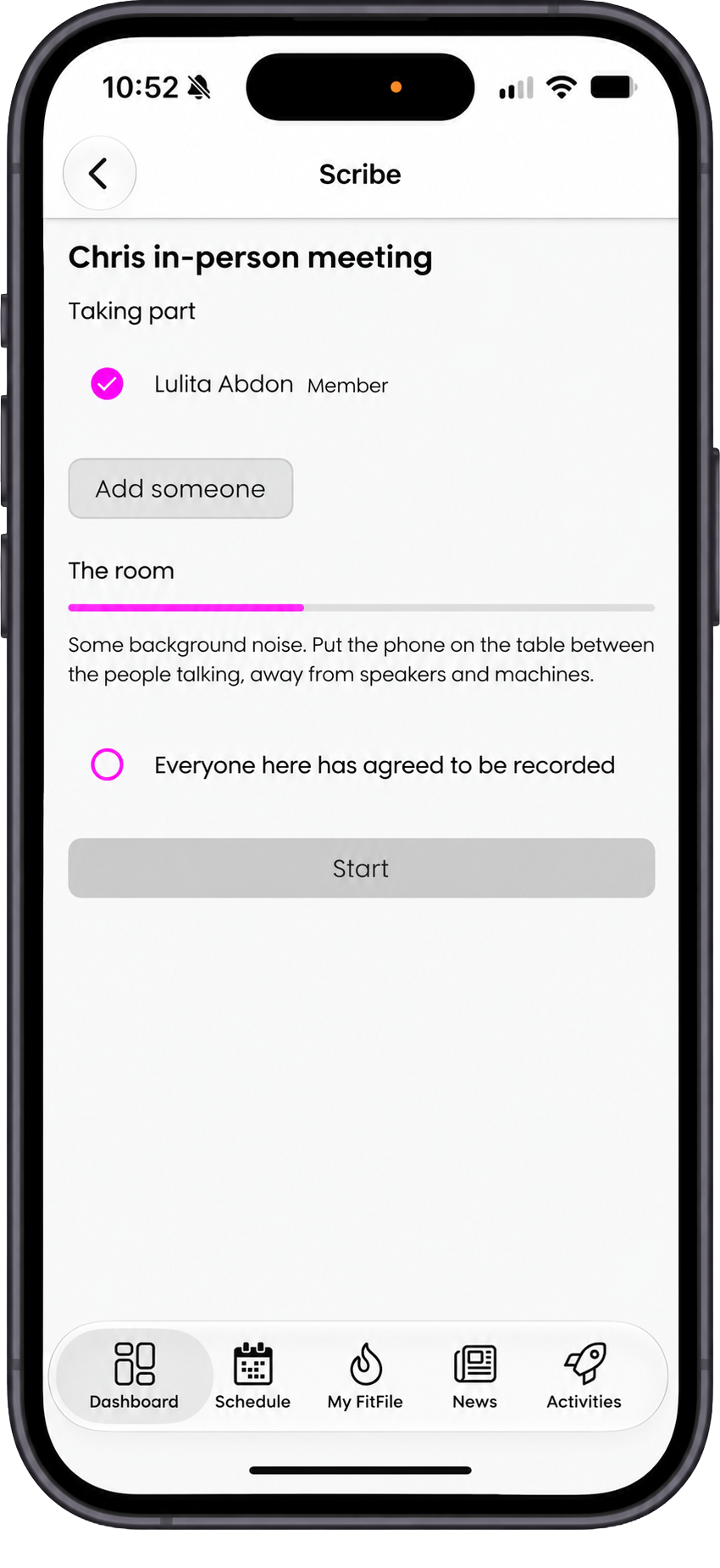
The Scribe page opens, headed with the type of consultation, or In-person discussion for an impromptu meeting. The first time you reach it, the phone asks for permission to use the microphone: allow it.
- Check who is ticked under Taking part. From a booking, everyone booked starts ticked: untick anyone who hasn’t come. Their booking is left for you to mark as a no-show. Tap Add someone to add anyone else.
- Check the room. Under The room, Scribe tells you how noisy it is and where to put the phone.
- Ask everyone if they are happy to be recorded, and tick Everyone here has agreed to be recorded.
- Put the phone on the table between you, with the volume up, and tap Start.
The announcement
When you tap Start, the phone plays the announcement out loud through its loudspeaker, and shows its words on screen. It takes about seven seconds, and recording begins as soon as it finishes.
If anyone objects, tap Cancel. You go back to the ready screen, and nothing is recorded or kept.
While you are recording
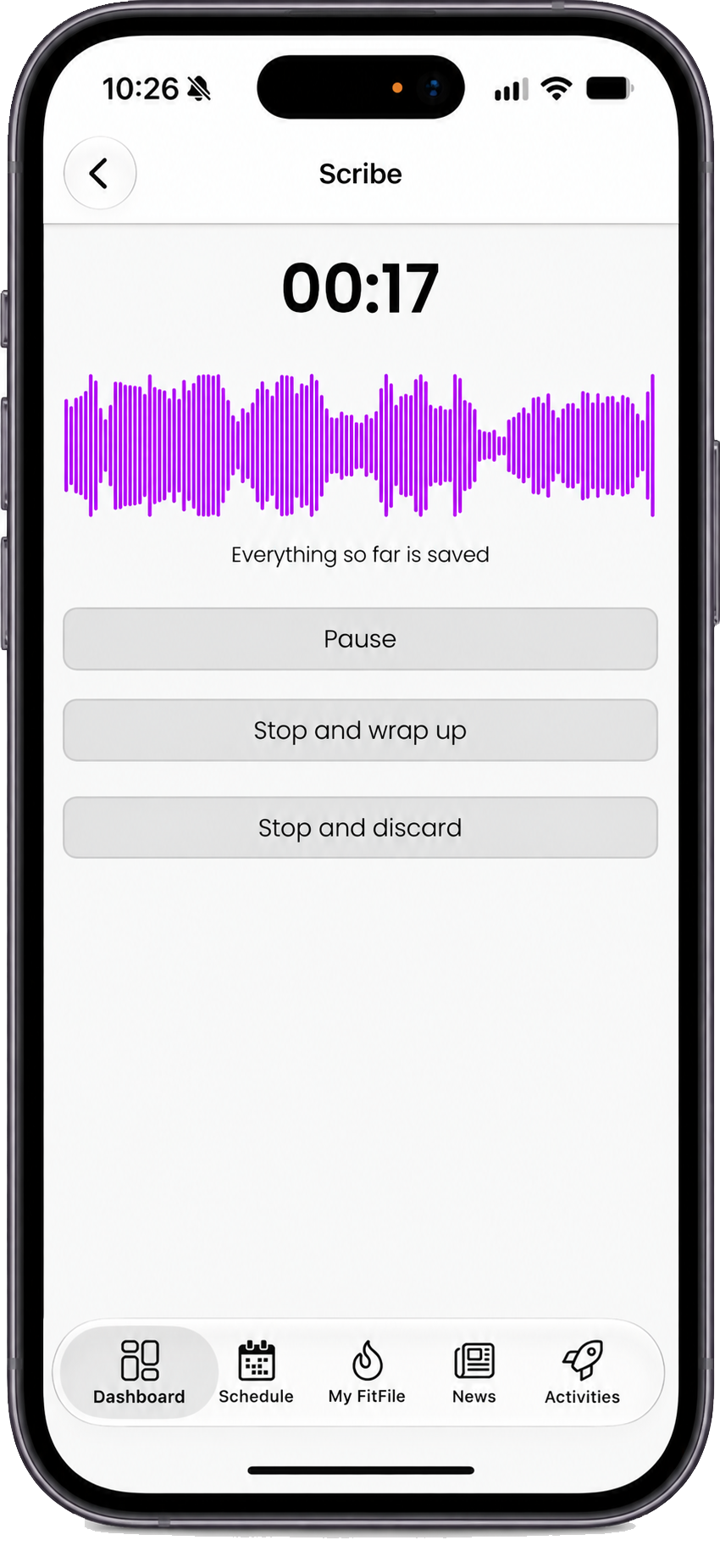
- The timer and the waveform show that Scribe is hearing the room. The words are not shown as you speak: the transcript is made when you stop.
- Saving. Scribe saves the recording about once a minute. The page says Everything so far is saved when all of it has reached GymOS, Saving… while it is sending, or Saving on the phone – will upload when back online if the signal has dropped. Recording carries on either way.
- Pause and Resume. Tap Pause at any point, for example while someone takes a call, and Resume to carry on. Paused time is not recorded or charged, and the transcript marks where the pause was.
- Interruptions pause Scribe automatically. If a phone call comes in, or another app takes the microphone, Scribe pauses and says Paused – tap Resume when you are ready. It never resumes by itself.
- You can lock the phone or switch to another app. Scribe keeps recording in the background. On Android a notification says Scribe is recording; on an iPhone the phone shows its own recording indicator.
- Maximum 2 hours recording time. From one hour and fifty minutes, Scribe warns you that it will stop, and at two hours it stops and wraps up by itself. Everything recorded is kept. A discussion left paused for an hour wraps up by itself too.
While you are recording, you cannot make a Konduo call, sign out, or switch to another profile. Notifications you tap are kept until you finish.
Finishing
There are two buttons for finishing:
- Stop and wrap up keeps the discussion. The moment you tap it, the discussion is recorded against the booking (or a new one), everyone ticked is marked as attended, and the contact is logged on each member’s and lead’s record. If the recording is under 15 seconds, Scribe asks whether you want to discard it, since that is usually a mistake.
- Stop and discard deletes the recording. Nothing is kept, transcribed, charged or added to anyone’s record.
Wrapping up
After Stop and wrap up, the page shows the consultation type and a Notes box. Add anything you want to remember, or leave it blank and Scribe writes the notes from its summary. Tap Done, and you are back where you started.
- Your notes are added to each member and lead in the discussion. You can change them for each person afterwards, in the administration portal.
- You do not wait for the transcript. The phone finishes sending the recording in the background, and the transcript and summary usually follow within a few minutes, in the administration portal. See Reviewing discussions in the administration portal.
- Leaving the page without tapping Done is the same as Done with blank notes.
Keep the app open with a connection until the recording has finished sending, especially after a long discussion or one recorded without a signal. If you try to sign out before then, the app tells you a recording is still uploading.
If the app closes while you are recording
If the phone’s battery runs out, or the app is closed during a recording, nothing saved is lost. The next time you open the app, it says You have an unfinished discussion. Everything saved up to that point is kept and transcribed: tap Add notes to wrap it up, or Not now to let Scribe write the notes.
- On an iPhone, swiping the app away stops the recording. Use the Home screen, or lock the phone, instead.
- On Android, swiping the app away does not stop the recording: it carries on in the background. To get back to it, open the booking’s Scribe button again.
If a recording is still on your phone a day later, you receive a reminder to open the app and finish sending it.
Common questions
I can’t see the Scribe button on a booking.
It appears on in-person bookings for today, from an hour before they start, once your gym has switched Scribe on. Make sure you have the latest version of the FitnessHub app. For anything else, use Scribe an impromptu meeting.
Do I need a signal to record?
You need a connection to start. Once you are recording, Scribe carries on if the signal drops, and sends the rest when it returns.
What happens if someone calls me during a discussion?
Scribe pauses while you are on the call. Tap Resume when you are ready to carry on.
Can I see the transcript on the phone?
No. The transcript and summary are in the administration portal, on the record of each member and lead who took part.
Someone didn’t turn up to the booking.
Untick them before you start. Their booking is left for you to mark as a no-show.
Can I record a discussion and a Konduo call at the same time?
No. Only one of them can be in progress at once.