
Widget: Staff Noticeboard
The staff noticeboard is a convenient way of sharing important messages with your team. Messages may be ad hoc or may be linked to specific member records. Notices may also be focused on a given venue, in multi-venue operations.

Unread notices are displayed in bold. The author of the notice is shown alongside the message title. You can view a given notice message by clicking on the icon. This will open the message for viewing and mark it as “read”. You can mark all messages as read by clicking the icon.
By default, the list of unread notices filters to the last 7 days. This period may be altered from the drop-down period list, and the checkbox can be deselected or selected to show all or just unread messages. Clicking the Important only checkbox will restrict the listing to those messages tagged as “important”.
If you are the author of the notice or have manager privileges, you can click the icon to edit the notice, or the icon to delete the notice.
Adding or editing a notice
To add a new notice, click the button. This will open the notice dialog box. Clicking the icon will do the same, but the content will be populated with the existing message.
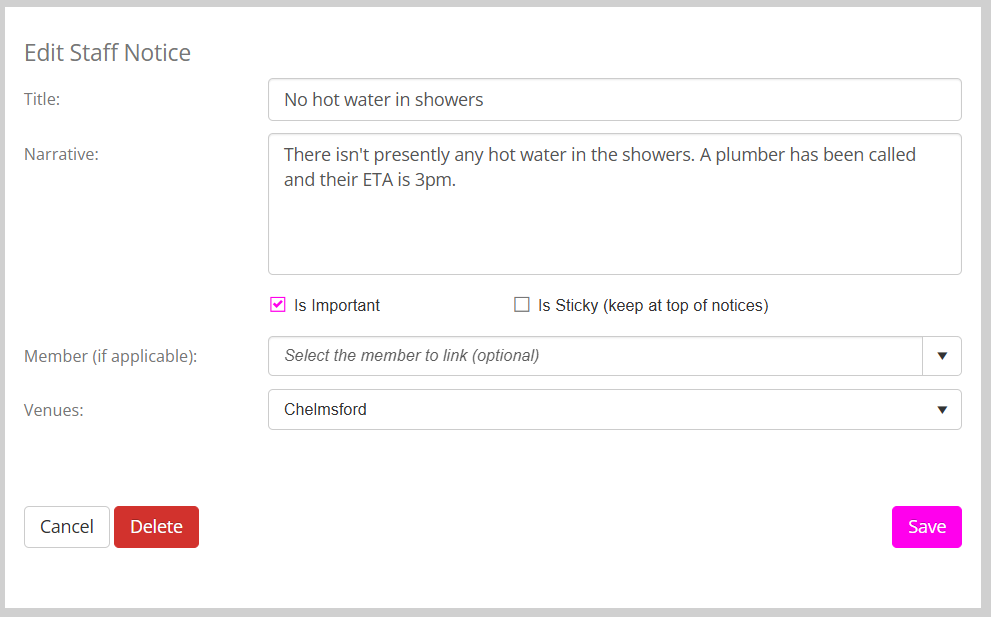
Complete the fields, as described within the pop-up. You can check the Is Important checkbox to tag the message as being important. Checking the Is Sticky checkbox will keep that notice at the top of the messages list – giving it additional prominence.
You can optionally choose to associate the message with a particular member, which will provide an additional link to the member record. You may further associate the message with a given venue, which restricts the visibility of that message to only when that venue is selected on the dashboard.
Clicking the button will commit or update the message.