
Adding/creating an employee shift
You can create employee shifts from within the Shift Manager, or the Shifts tab of a given employee record.
To add a shift, click the Add Shift button. This will open the shift configuration pop-up window, which is the same for when editing a shift.
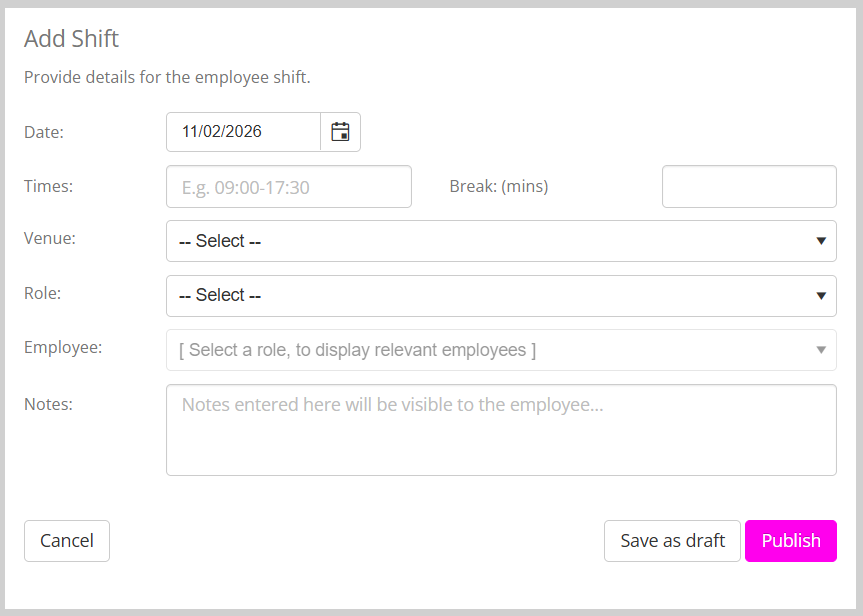
By default, the date will default to the current date, but you may change this as you wish.
You may provide times in various formats, but the easiest (non-ambiguous) time format is that of the 24hr clock. For example, “09:00 – 17:30”.
Select the venue at which the shift is going to occur, and the appropriate role. The list of role options is derived from Employee roles in Lists & Groups. Once you have selected a venue and role, the employee list will refresh.
The list of employees will be those who have been allocated the corresponding venue and role on the roles & remunerations tab of their employee record.
Optionally provide notes for the shift. These are visible to the employee.
Finally, save the shift by clicking either the Save as draft or Publish button. If you opt to publish the shift, it will immediately become visible to the employee in their GymOS FitnessHub mobile app, and they will receive an email notification of their shift allocation typically within 15-minutes.
An existing shift may be deleted by clicking the Delete button.