
Drop-in Sessions (E.g., Open Gym)
The Drop-in Session type is designed for use in specific circumstances. It is a variant of the regular session type and is designed for sessions where attendees may arrive and leave at any time during the scheduled duration.
A real-world example of this type of session is “open gym”.
There are several key differences between a drop-in session and a regular session that are important to understand. For a drop-in session, the differences are:
- Typically not pre-booked, but a simple check-in via the app upon arrival.
- Unlimited in terms of capacity.
- No waitlist due to unlimited capacity.
- No RoboNudge reminders, as typically not pre-booked.
- Attendees may check in any time during the duration of the session.
- Payment (where applicable) is taken either during booking or during check-in, whichever occurs first.
- Attendees are “assumed” to have left a given period of time after check-in, as may be configured on the session type.
- Attendees may explicitly check out, but GymOS cannot enforce it.
- A member may attend the same session more than once, as long as they have been checked out of their first attendance.
- Popup “toast alerts” may be enabled that display when a member either checks in to a drop-in session, or when there is a problem with their membership (E.g., overdue payment).
- There is no late cancellation. If a member has made a pre-booking, they may cancel without penalty at any time up until the session start time. The member cannot cancel after the session has commenced, and this would need to be done by a team member.
- A booking is different from a check-in, and members that have pre-booked should still check in upon arrival.
- If a member books via the member portal (as opposed to the app), they will be automatically checked in if the session has already started.
- Drop-in sessions are reliant on the member being able to check in via the mobile app, so the “allow GPS check-in” setting is ignored for this session type.
- Attendance counts are not shown to members.
The concept is that you would schedule a single drop-in session (E.g., Open Gym) for the entire period the session runs.
You may schedule multiple sessions in a day if there is a period of inaccessibility between sessions (E.g., morning & afternoon sessions with a lunch break).
If your open gym operates 24 hours a day, you should schedule one 24-hour session starting at midnight. Do not attempt to span drop-in sessions across multiple days.
Creating a drop-in session
Sessions of type “drop-in session” are created via the usual manner, by selecting the Drop-in Session option.
The options differ slightly from those of a standard session, as shown below:
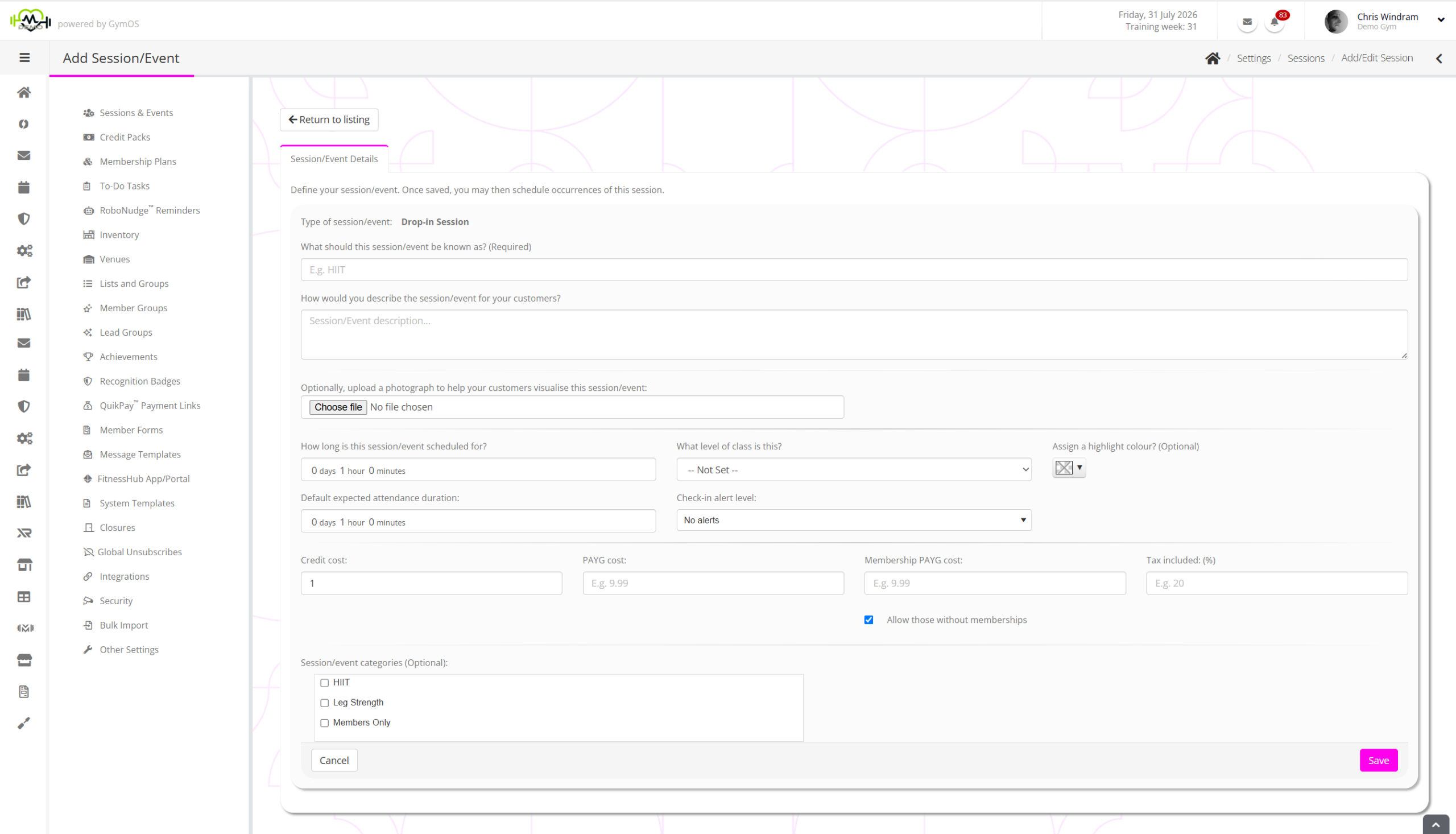
The two fields specific to drop-in sessions are:
- Default expected attendance duration
This should be set to the typical time you would expect a member to stay at the session after arriving. For example, this might be 1 hour. This is used to determine an estimation of how many people are likely to be in the gym.
This setting may be overridden for each session scheduled. - Check-in alert level
You may have GymOS create drop-in session activity “popup toast alerts” on browsers logged in to the GymOS portal. This setting applies across all sessions of this type.
The option levels comprise:- No alerts
No popup alerts are raised. - All self-check-ins
An alert is raised for every member that checks-in to a session. - Issues and warnings only
Raise alerts only when a member has an overdue payment, or when their check-in fails.
- No alerts
Scheduling a drop-in session
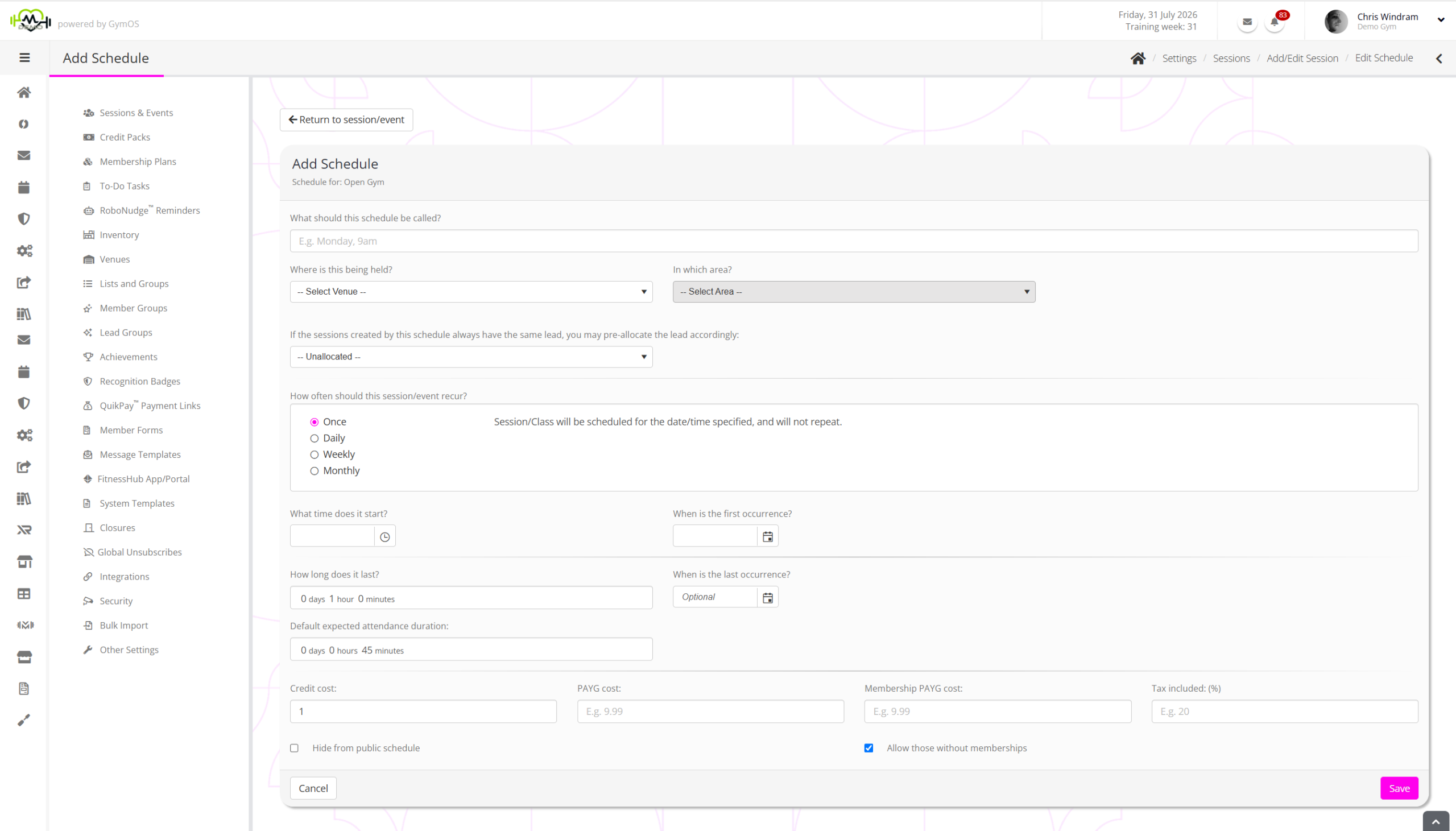
Drop-in sessions are scheduled in the same manner as regular sessions, with matching differences on the fields that are provided:
Managing a drop-in session
The management of a drop-in session is very similar to a regular session with a couple of differences:
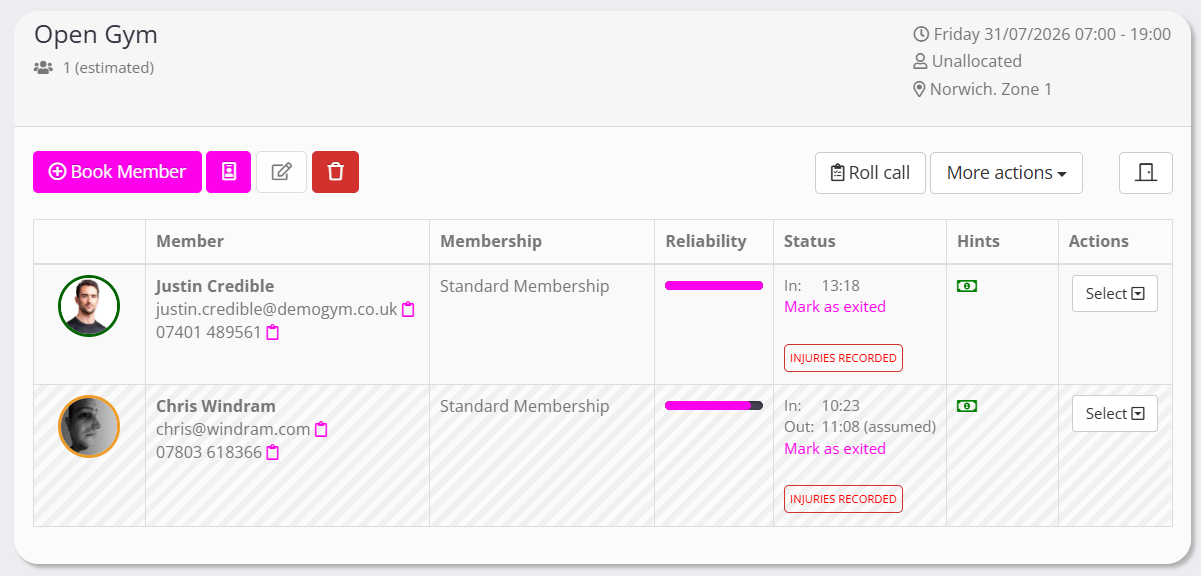
Functions related to wait lists are not applicable, and are not shown.
The status column shows the time that the member checked in to the session. It will also show the known time they left, if they checked themselves out. If the member does not check out, they will be assumed to have left after the assumed attendance duration time has elapsed. In this circumstance, the “out” time will show with an “(assumed”) suffix.
Clicking the Mark as exited link against a member marks them as having checked out at the time you click the button.