
Member status
Members within GymOS may be assigned a status. These are configurable and under your control.
By default, the member status is configured as a traffic-light system with the options: Requires Attention, Be aware, and Satisfactory. The default setting is Satisfactory.
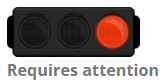
You can modify the definitions of the three colours within GymOS settings (see below). As an alternative, you may specify your own member statuses (of any number), and these become assignable against a member from a drop-down list.
Configuring your status options
The status options are configured within the Member Settings area of the main GymOS Settings page.
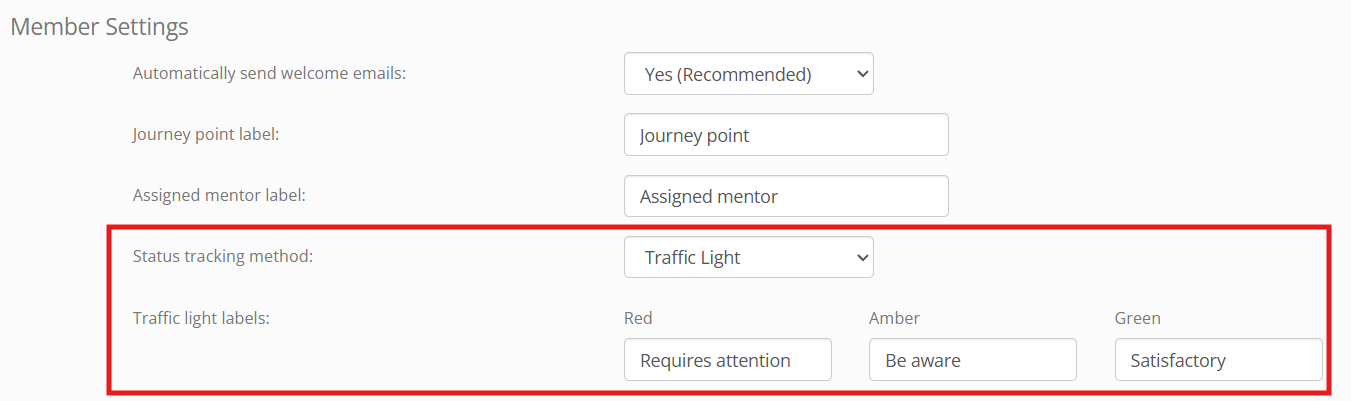
Within the status tracking method there are two options:
- Traffic light – Use the default 3-colour traffic light visual, with the definitions as provided in Traffic light labels.
- Custom configuration – Use custom member statuses, which you can configure as you wish.
Configuring custom statuses
Having selected custom configuration from the Status tracking method option, you can then configure your list of status options.
Custom member statuses are configured by going to Settings Lists and Groups Custom Member Statuses
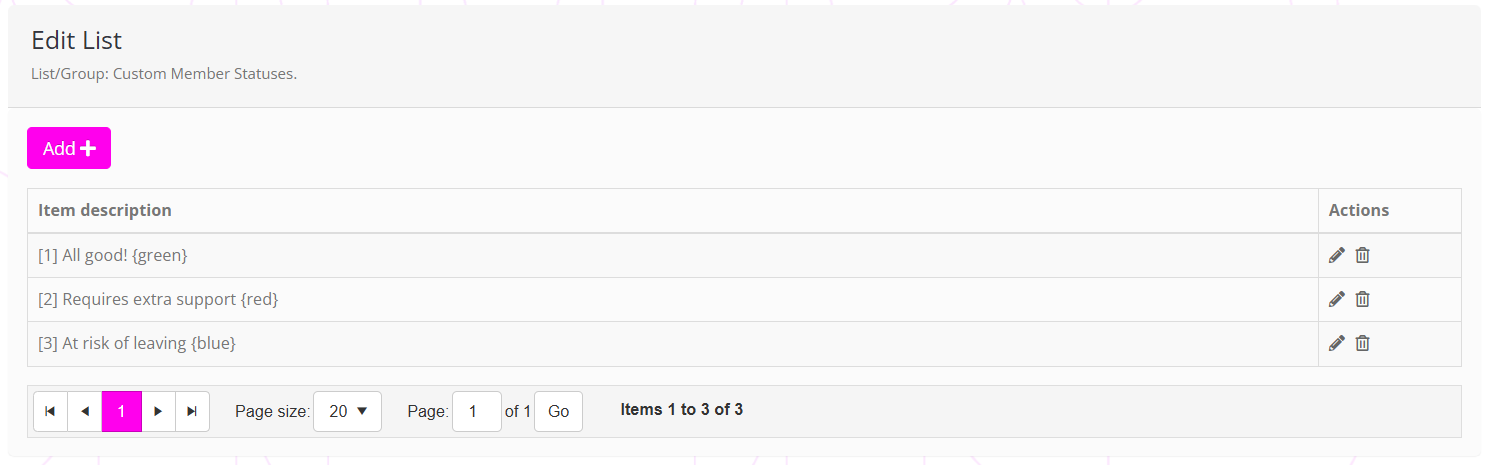
The list items are admistered as per the normal method for configuring lists and groups.
There are two additional “tricks” available for the custom member statuses list:
- You may optionally prefix the status name with a number in square brackets ([]). This tells GymOS the order to display the statuses in.
- You may optionally suffix the status name with a colour in curly brackets ({}). This tells GymOS the colour to use as the corresponding highlight for the member avatar. Note: The colour names available are the standard HTML colours.
Assigning a status
To assign a status to a member:
- For the traffic light system, click on the colour you wish to assign.
- For the custom status method, select the status from the drop-down list.
In both cases, the update will be applied immediately. There is no “save” button (or equivalent) that needs to be clicked.