
Member tab: Forms
The Forms tab on the member record is where you will find the forms & questionnaires allocated and responded to by the given member. These are distinct from the member forms, which are completed internally by team members.
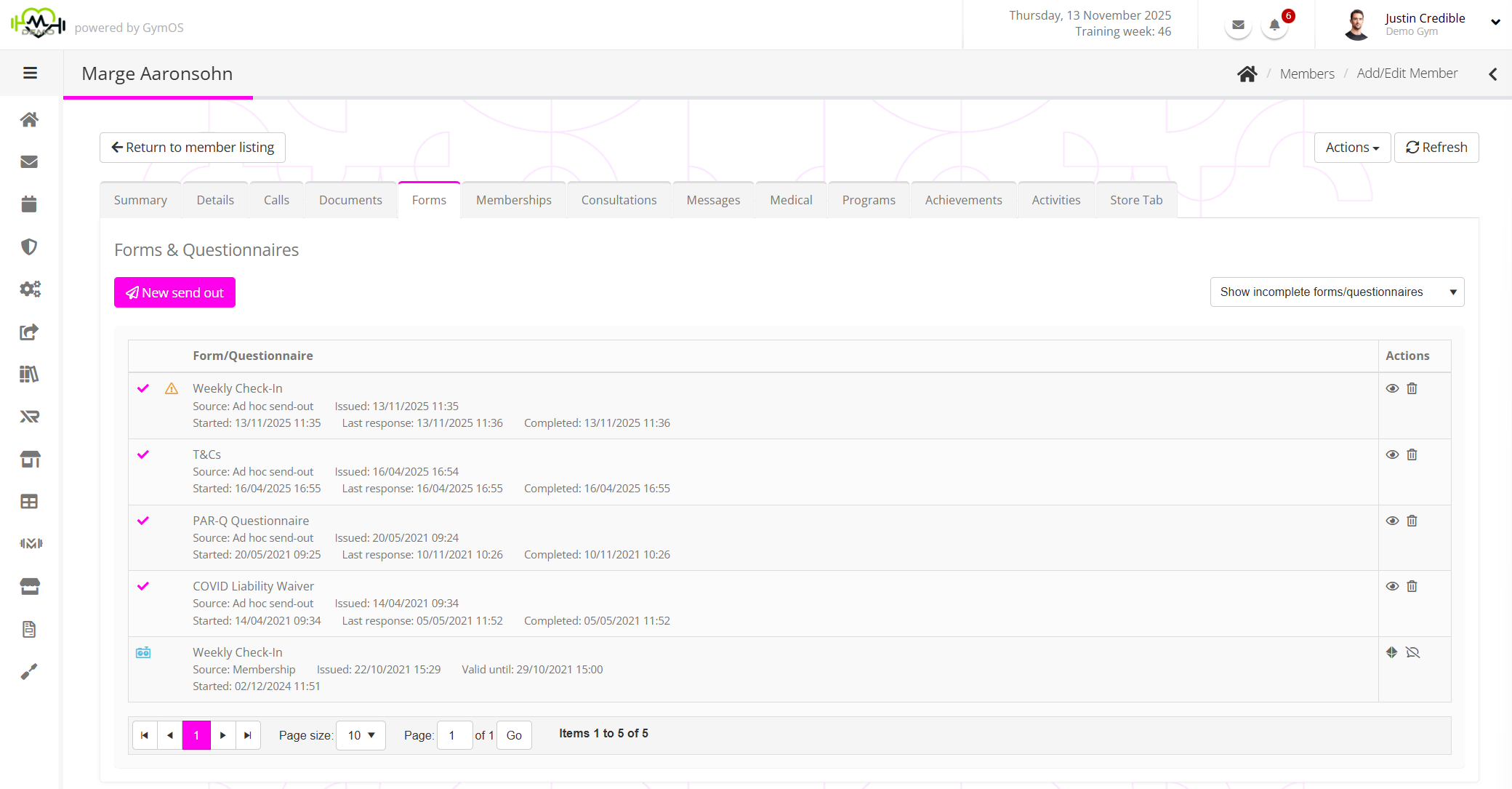
The listing is paginated in reverse chronological order, with the most recently completed form displaying first.
By default, the listing includes incomplete forms. Selecting the Hide incomplete forms/questionnaires option from the drop-down filter option will hide forms that are not yet fully complete.
The information displayed for each form may include:
- an icon indicating that the member has completed the form.
- an icon indicating that the member has commenced the form, but has not completed it.
- an icon indicating that the member has not yet started completing the form, but that it is not yet due.
- an icon indicating that the member has not yet started completing the form, but it is now overdue.
- an icon indicating that one or more of the answers provided by the member has triggered an alert.
- Name of the form.
- An indication of the manner in which the form was assigned (E.g., “Ad hoc send-out”).
- Date and time at which the form was issued.
- Date and time at which the form must be completed by to avoid a block on bookings.
- Date and time that the member commenced completion of the form.
- Date and time that the member last completed a question on the form.
- Date and time at which the member completed the form.
- Date and time at which the form expires and, if not completed, ceases to be visible to the member.
Subject to the context and completion state of the form, different actions are available.
- View the completed form (also accessible by double-clicking the form row).
- Permanently delete the completed form.
- Cancel the form completion request.
- Log in to FitnessHub as the member, and open the selected form.
Viewing a completed form
The are two routes for viewing a completed form:
- Click the icon in the actions column.
- Double-click the row of the form of interest.
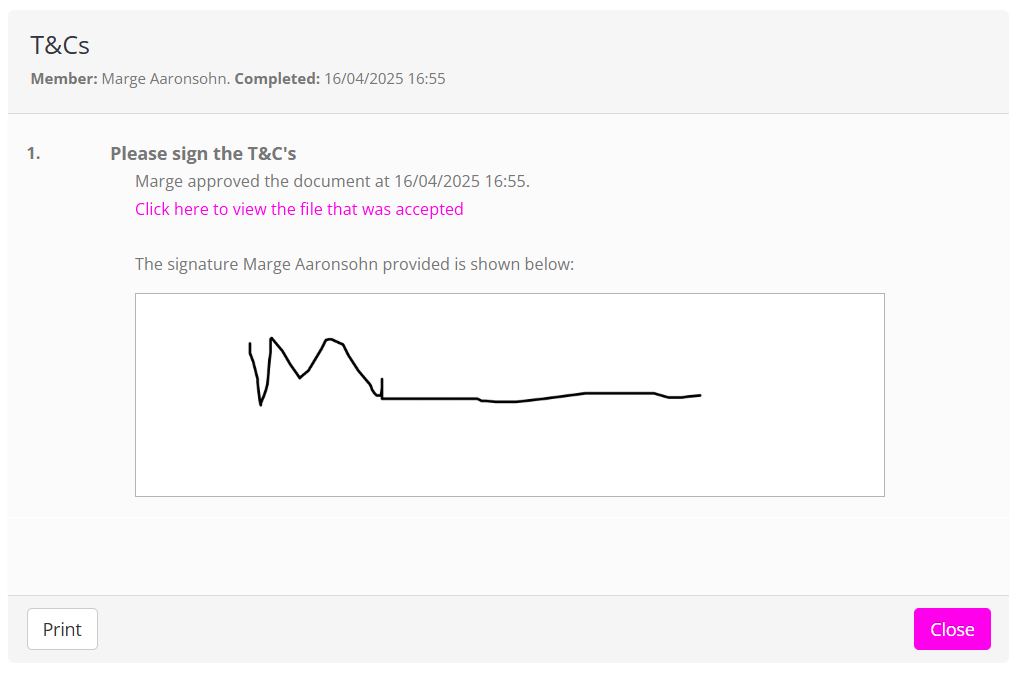
The completed form will open in a pop-up window. The form may be printed by clicking Print.
If the form had an associated document with it (E.g., a membership contract), a link will be provided to the precise file that the member was shown and that they gave their acceptance to.
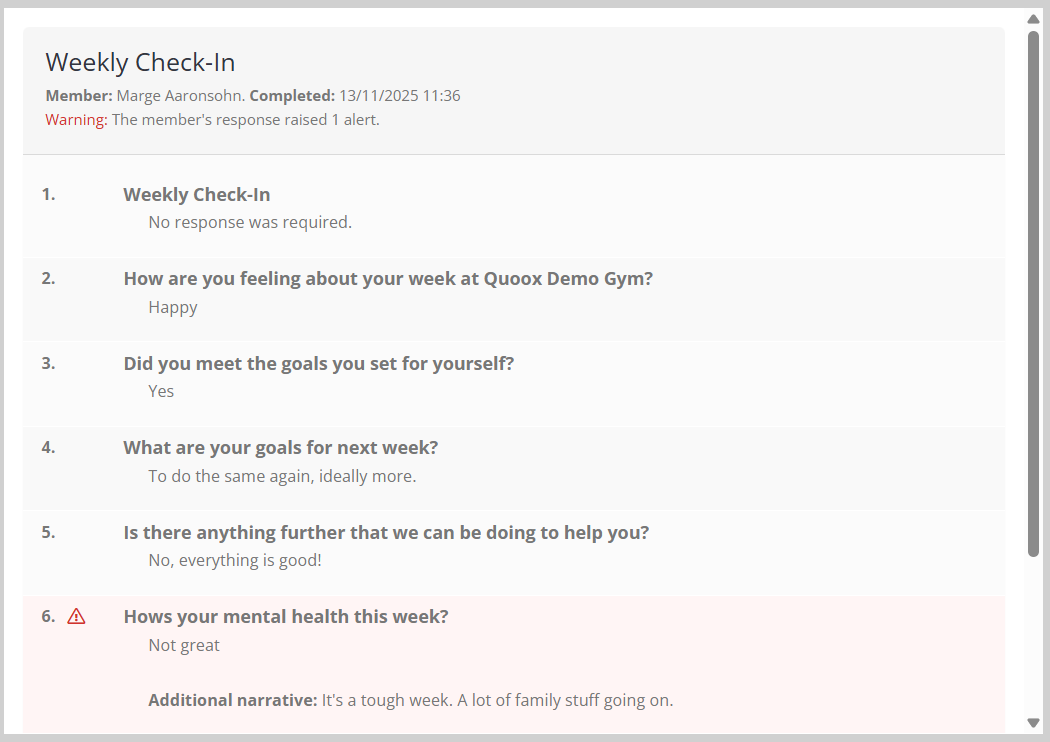
If any of the responses provided by the member flag an alert, that response will be highlighted and an symbol displayed alongside.
Sending out a form or questionnaire to a member ad hoc
There are many ways within the GymOS system to send a form or questionnaire to a member for completion. One of those methods is the New send out button on the Forms tab of the member record.
You can find information about this and the other send-out methods in the Sending a form or questionnaire article.