
Member tab: Medical
The Medical tab on the member record is where you can record details of any current injuries that a member may have, along with other medical notes. These are then available to coaches on the gym floor via functions such as roll-call.
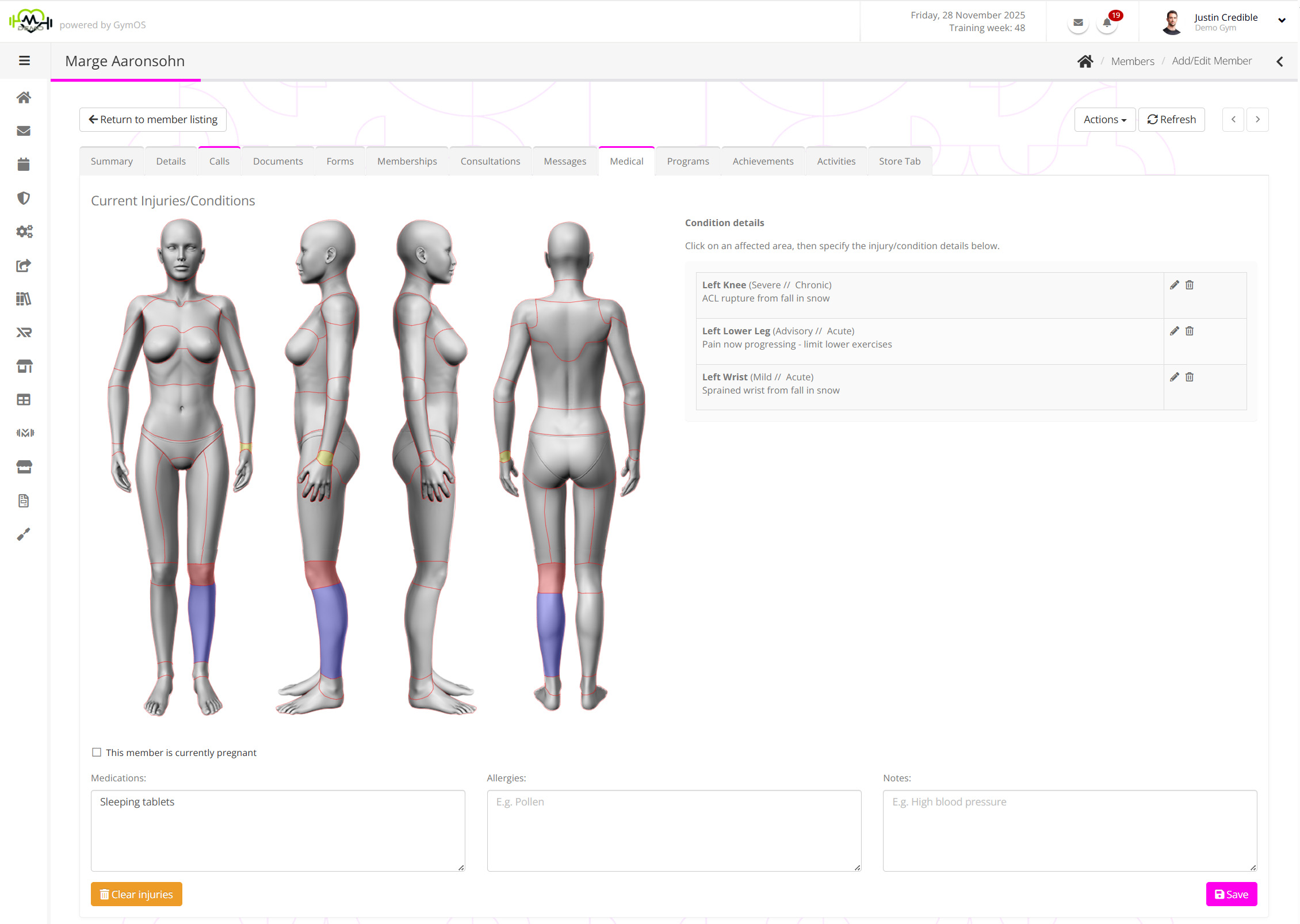
The top section of the page depicts a male or female avatar, with current injuries marked on it. Further details of these conditions/injuries are then listed on the right-hand side of the page.
Underneath the injuries/conditions section is space for recording information on current medications, allergies, and ad hoc (medical related) notes. A checkbox is also provided to indicate if the member is presently pregnant.
Selecting the member avatar
The avatar takes the form of either a male or a female body. The type of avatar assigned to the member is determined by the Gender set against their profile, which you can edit via the details tab, or they can edit via the mobile app.
Recording an injury or condition
To record an injury or condition:
- On the member avatar, click on the area of the body that is affected. The new condition box will appear at the top of the condition details section.
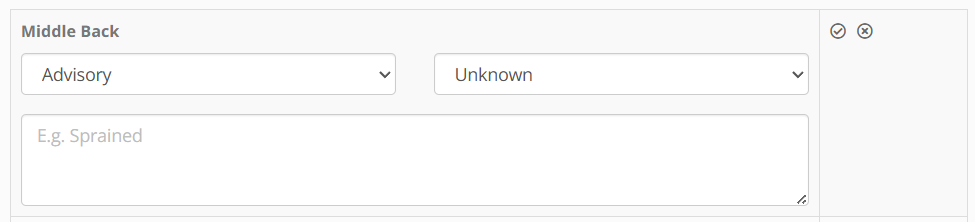
- Select the severity of the injury from the drop-down list.
- Select the acuteness of the injury from the drop-down list.
- Optionally add notes regarding the injury (recommended).
- Click the icon to add the injury, or to cancel.
- Record any further injuries as required.
- Click the Save button to commit the changes.
When you save an injury record, GymOS will begin creating a PDF record of the injury. After a few moments, you will find this document available in the documents tab of the member record.

Editing or deleting injuries
You can edit a specific injury by clicking the icon alongside the given injury. Clicking will delete it. Make sure to click the Save button to commit this update or deletion.
Clicking the Clear injuries button will reset the entire injury record.