
Member tab: Summary
The Summary tab is the default tab for the member record. It is packed with at-a-glance data, including the member’s contact details, membership status, and lifecycle information, as well as a wealth of statistics and graphs that provide a visual or numerical summary of the member’s behaviour.
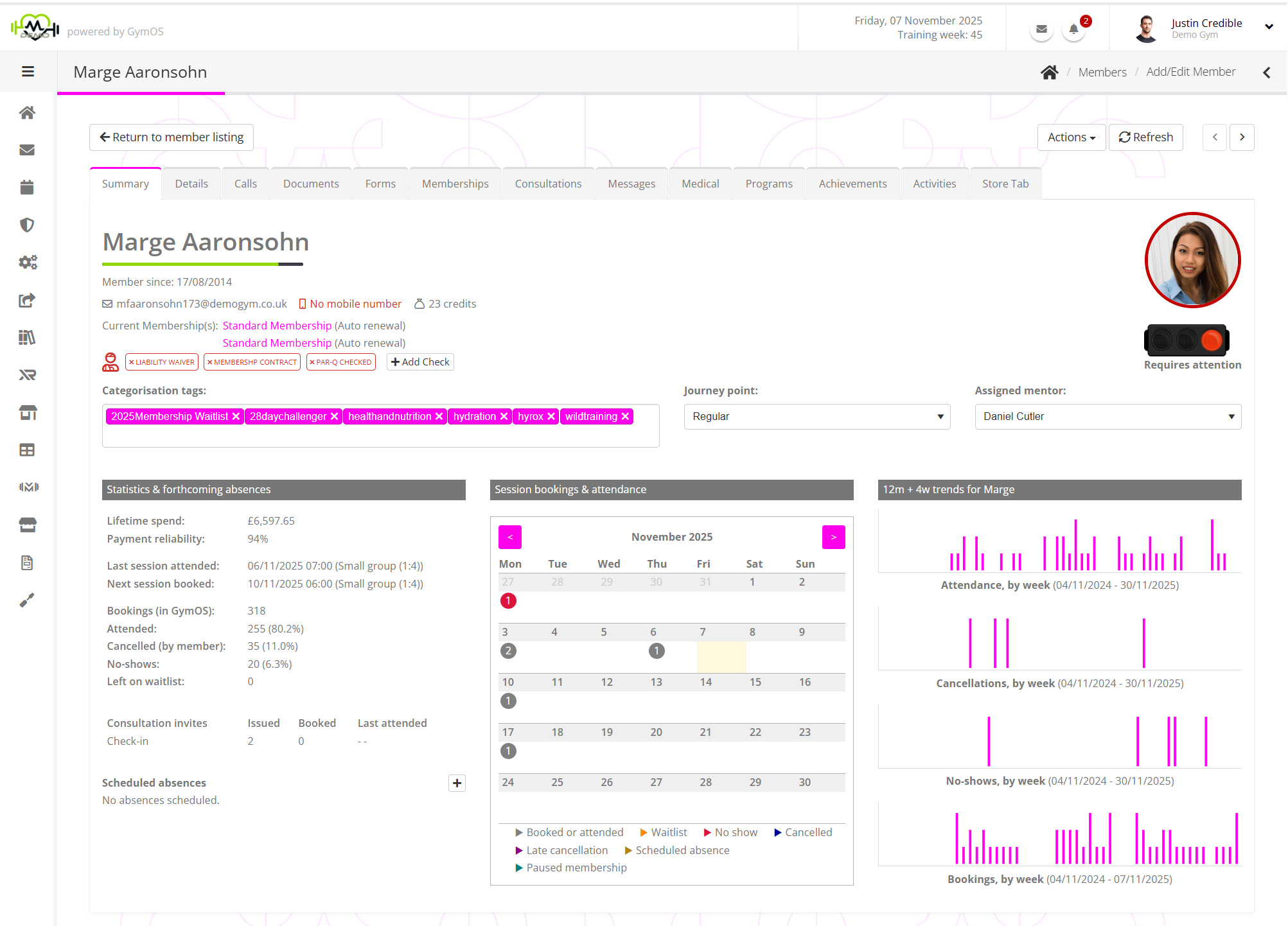
A lot is going on on this tab, so let’s break it down into sections:
- Personal and contact details
- Member status
- Current memberships
- Checks & assignments
- Statistics, graphs and scheduled absences
Personal and contact details
The personal and contact details for the member form the top part of the page.

This area features:
- The member’s name, which you may click on to copy it to your clipboard.
- A visual indicator of the member’s reliability. Learn more…
- The date upon which the member record was created. (I.e., “member since”).
- The contact email and mobile number for the member. You may click on either of these to copy them to clipboard.
- If relevant, the family group to which the member belongs.
- The number of credits presently available to the member. Clicking on the credits takes you to the credit section of the member record, where you may view more details.
- The member’s avatar (if provided). The avatar will have a surrounding coloured border which also reflects the member status, detailed further below.

Member status
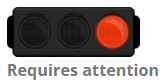
The member status indicator is, by default, a traffic light; however, if a customised set of options is configured, it displays as a drop-down list.
The status may be changed by either clicking on the traffic light, or by selecting a new option from the drop-down list.
To find more information about member statuses and how to use/configure them, click here.
Current memberships

Within GymOS, a member may have zero, one or more memberships. The summary page provides a snapshot list of the membership types assigned to the member and their renewal status.
Clicking on any given membership takes you through to the memberships section of the Memberships tab.
Checks & assignments

The checks & assignments area comprises four distinct sets of functions.
- Document checks
This function is perfect for keeping track of things like licence renewals, etc. Learn more… - Categorisation tags
Tags are a great way of grouping members, which you can then use in a multitude of ways elsewhere in GymOS. Learn more… - Journey point
The member’s journey point is a configurable list of options. It is the intended means by which you can identify where a member is in their lifecycle with you, and could range from “Trialist” to “Lapsed member”. Learn more… - Assigned mentor
An employee may be assigned to a member as their “mentor”. Mentors are generally assumed to have a greater responsibility for the well-being of a given member, and various GymOS functions have options relating to mentors. Learn more…
Statistics, graphs and scheduled absences
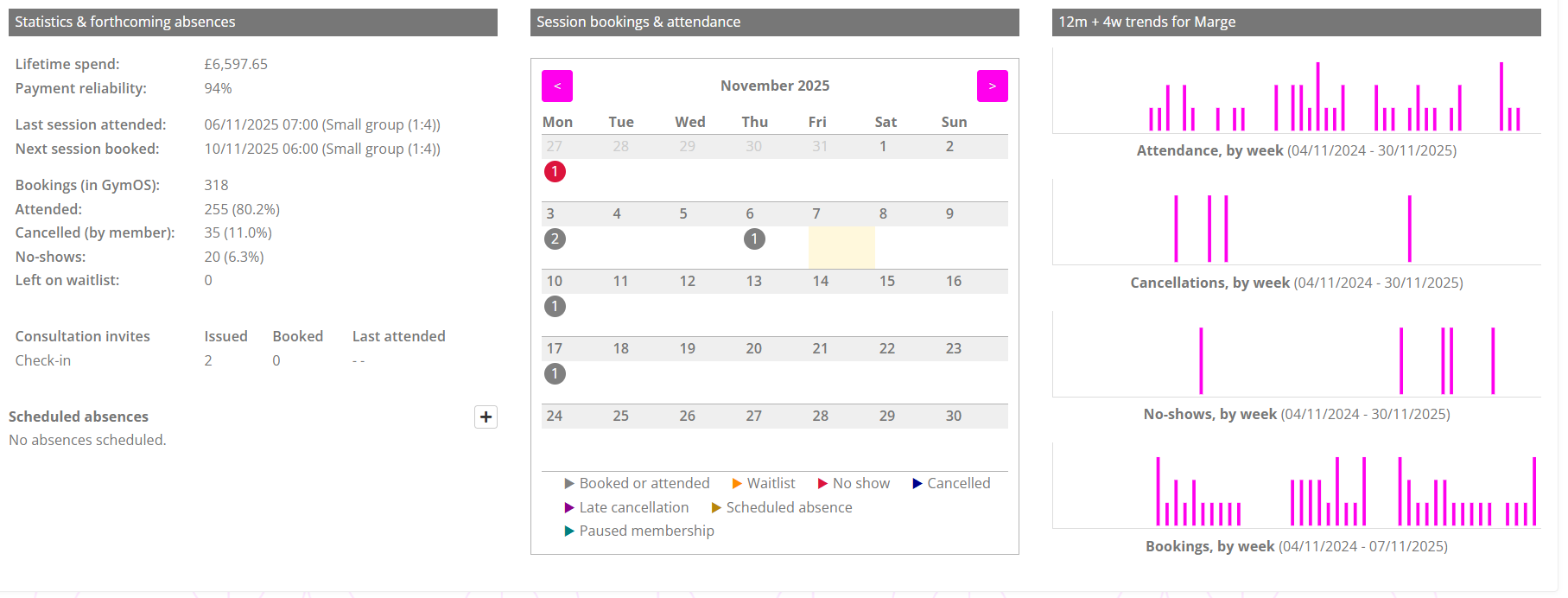
The statistics, graphs and scheduled absences section is broken into three distinct columns.
Statistics & forthcoming absences
In the first column, you can see some critical headline statistics for the member.
Managers can see the member’s lifetime spend and payment reliability, but this is hidden from regular employees.
Other statistics include their reliability in booking and attendance. It is also possible to easily view their last booked session, as well as their next booked session.
The DropSlot statistics provide a summary of the number of invitations issued, along with the bookings made and appointments attended. This enables you to see those members who aren’t booking/attending their check-in sessions or other appointments.
The last section of the left-hand column is where you can see the member’s forthcoming scheduled absences.
Session bookings & attendance
The middle column provides an interactive monthly calendar, allowing you to visually view the booking and attendance patterns for the member’s training sessions. You can navigate the months using the < and > buttons. The current day is marked with a beige background.
12m + 4w trends
The third, right-hand, column provides four bar-chart spine graphs. These show:
- Atttendance, by week
- Cancellations, by week
- No-shows, by week
- Bookings, by week
The first four can be compared column by column to spot trend variances. The “bookings, by week” graph shows an additional four weeks from the current date, so the status of future bookings can be visualised.