Scheduling an ad hoc session
Sessions are typically created on a scheduled basis by scheduling recurring sessions. However, from time to time, you may wish to create/add a one-off or ad hoc session.
To schedule a new one-off/ad hoc session:
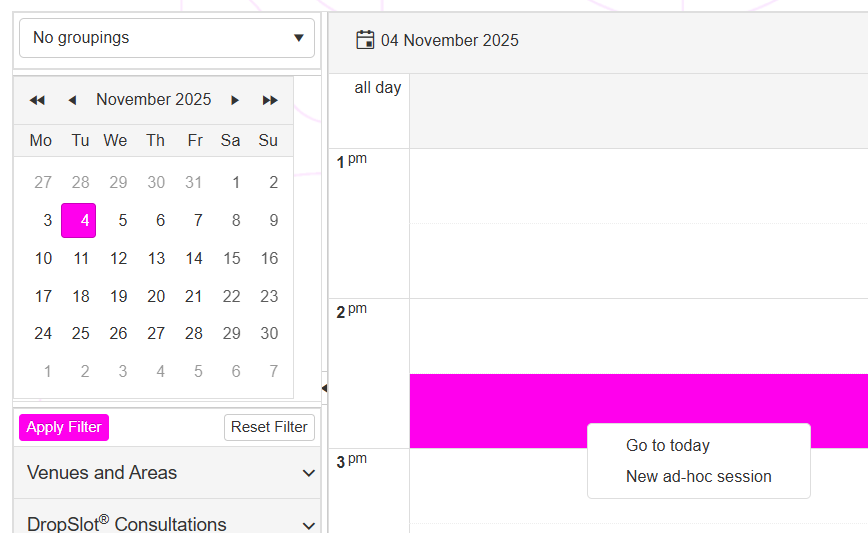
- Left-click on the timeslot in the schedule where you wish to create the session. Make sure that you are on the desired day.
- Right-click to reveal the context action menu.
- Select New ad hoc session from the menu.
The pop-up window for adding or editing a session will be displayed:
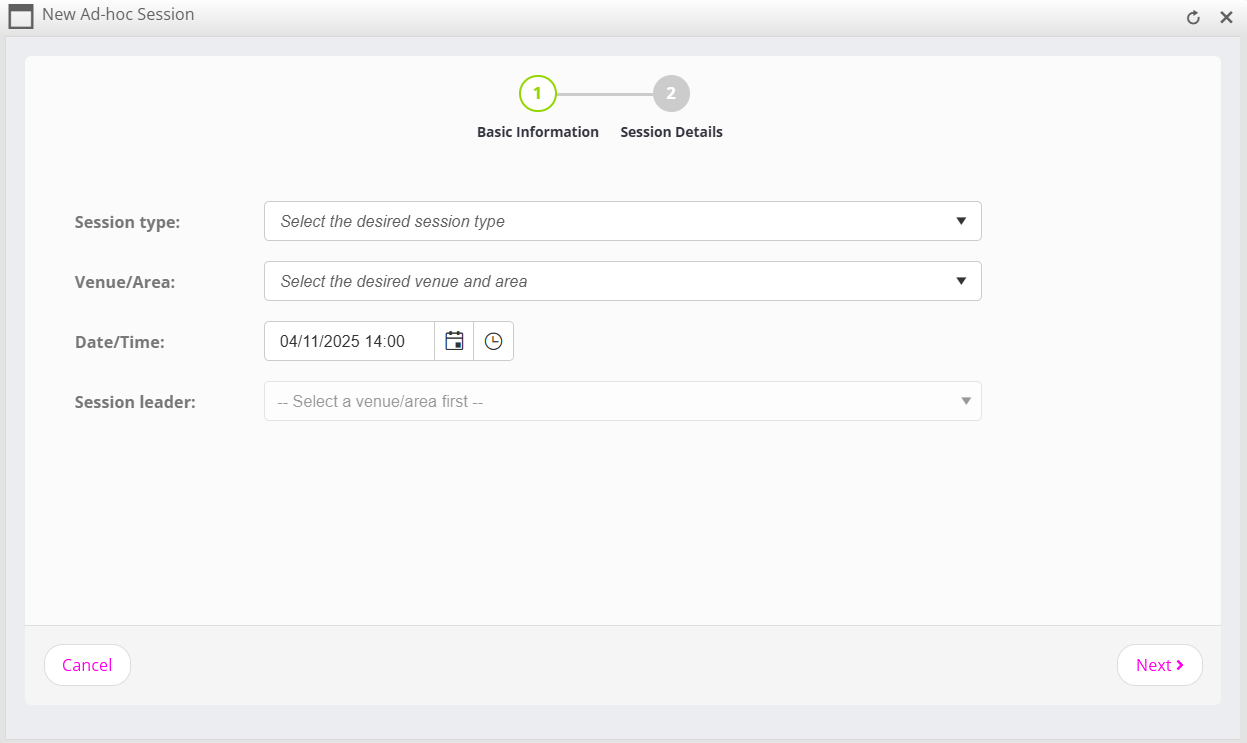
Adding a new session is a two-step process. Firstly, you provide the basis session type information, and then supplement it with additional details.
Basic Information
To configure your ad hoc session, firstly provide information about the type of session, the location, and the date/time:
- Session type
From the drop-down list, select the type of session that you wish to add to the schedule. - Venue/Area
Select the venue and sub-area in which the session will take place. - Date/Time
By default, the date and time will be pre-filled for the time slot you selected. Check the entry, and make any amendments as you wish. - Session leader
The session leader is the lead coach for the session. While highly recommended, you may choose to leave the session unassigned. You can assign or re-assign the session at any point up until the session commences.
Session Details
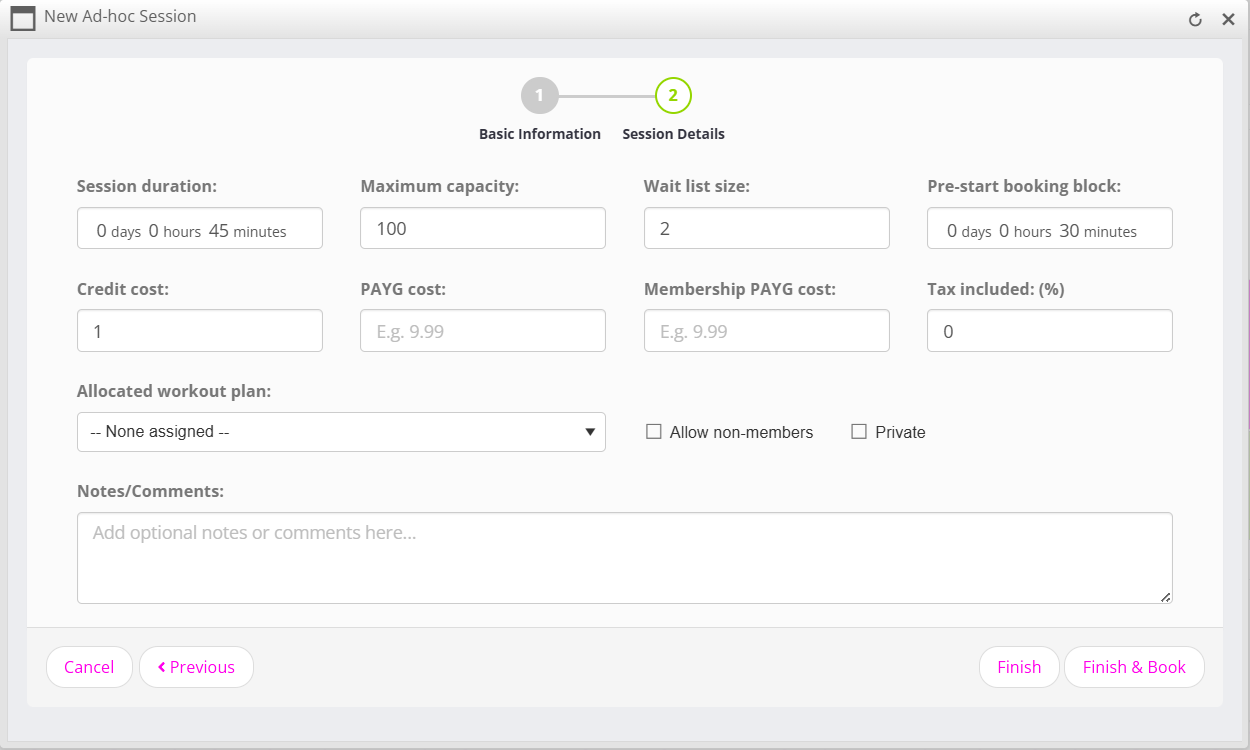
Having configured the basic information for the session, the session details pane uses this to pre-populate further fields that you may then configure as you wish.
The fields are largely self-explanatory, but we offer the following additional qualification:
- Pre-start booking block
This is the period immediately preceding the commencement of the session in which bookings may no longer be made. A setting of 0 days, 0 hours, 0 minutes means that bookings can be made right up until the start time of the session. - Credit cost
A credit cost of 0 means that the session is free. Leave the credit cost blank if you do not wish payment by credit to be an option. - PAYG cost
A PAYG cost of 0 means that the session is free. Leave the PAYG cost blank if you do not wish payment by card to be an option. - Membership PAYG cost
If populated, this provides a different PAYG to those with memberships than those without. By default the Membership PAYG cost will be the same as the PAYG cost. - Allocated workout plan
Assign a workout plan or trackable training program to the session.
Click Finish to create the session and close the window. Click Finish & Book to schedule the session and immediately open the bookings window for the new session.