Editing a scheduled session
Once a session has been created (or scheduled) and is appearing in the session schedule, it is a standalone item – in that it is “orphaned” from any schedule that created it. It can now be edited without affecting any other sessions. The benefit of this approach is that you can tweak the criteria for some sessions ad hoc, without needing to create entirely new session schedules.
Note: It is only possible to edit sessions up until their scheduled start time. Once a session has passed the start time, it may no longer be edited.
There are two primary means for editing a scheduled session:
- From the Schedule, right-click on the session of interest and select Edit Session
- From within the bookings window for a given session, click the button.
The edit pop-up window
When you select to edit an existing session, it is displayed in the session edit pop-up window:
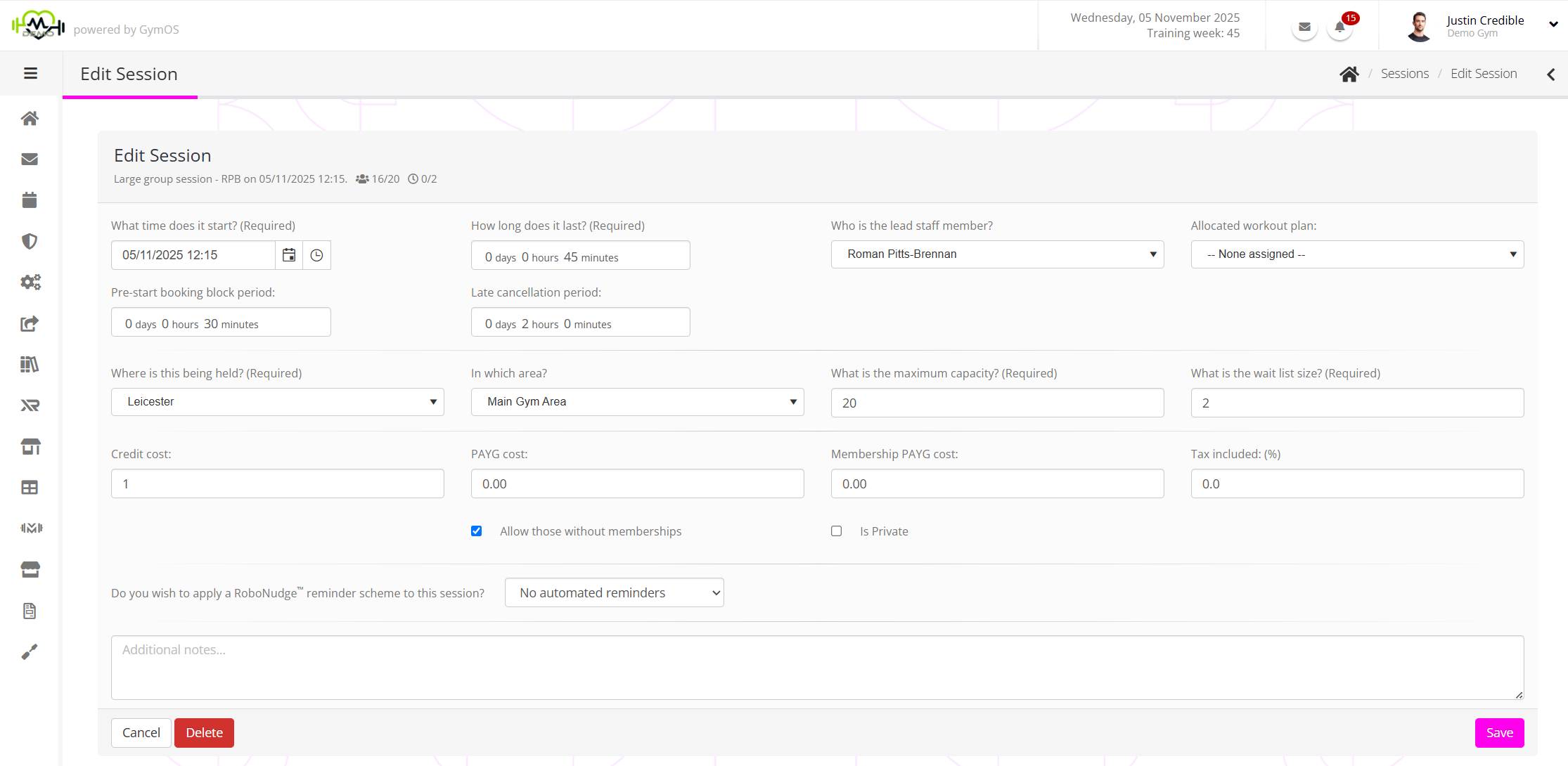
The edit form comprises the same structure and fields as the second step of the create ad hoc session form.
Edit your session as you wish and click the Save button.
Note: The changes you make do not affect any existing bookings. If you change the time of the session, it will be updated in the member’s app, feeds, and listings. However, we recommend that you message the people booked onto the session to make them explicitly aware of the change to their booked session.