Selling apparel and more via the Store
The store within GymOS is available in the GymOS Administration Portal for team members and in the FitnessHub Member site for members.

To learn how to add items to the store for sale, read the Adding inventory to the store article.
The store is accessed by selecting Store from the main navigational menu.
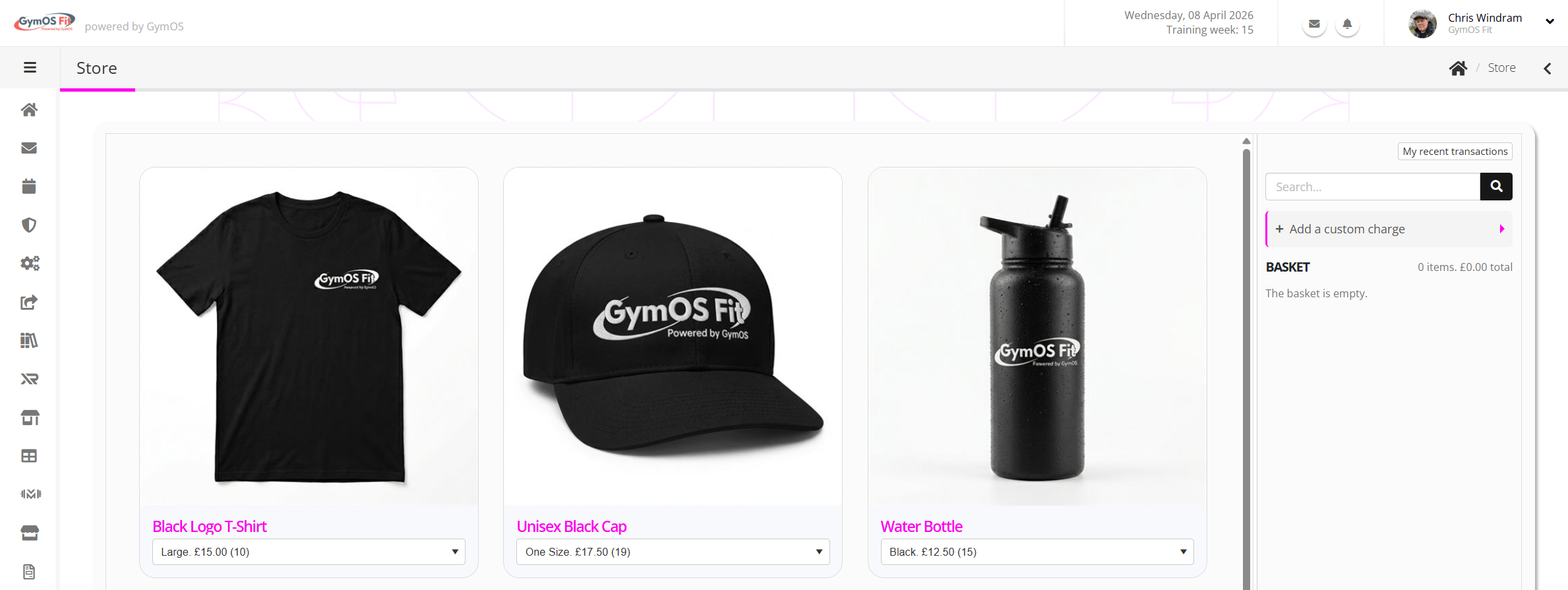
The list of articles available for purchase is displayed. You may refine the list by typing in the Search… box and clicking the icon.
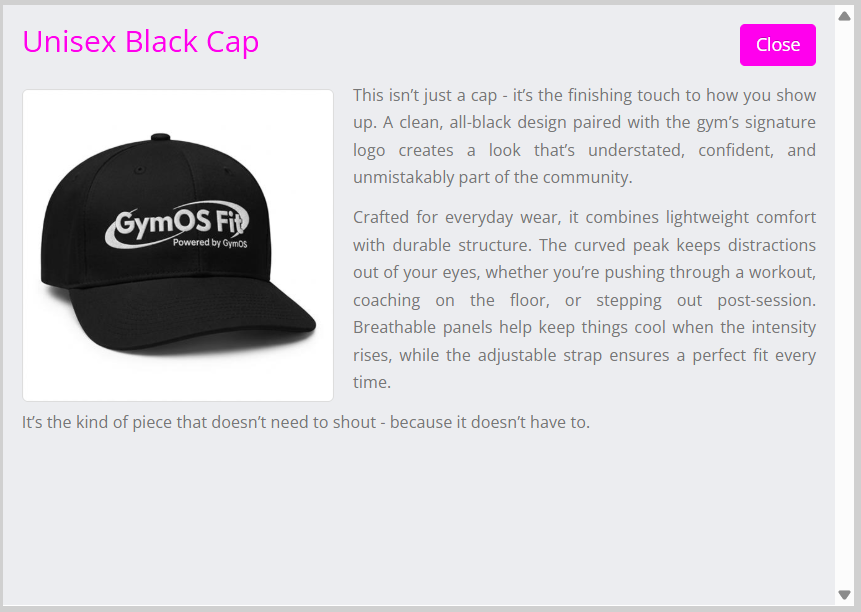
Clicking on an item, shows the popup description with more detail:
Adding an item to the basket
To add an item to the basket, select the variant from the drop-down list in the product box. Click the ADD TO BASKET link at the top of the product. The item will be added to the basket, shown on the right-hand side of the page.
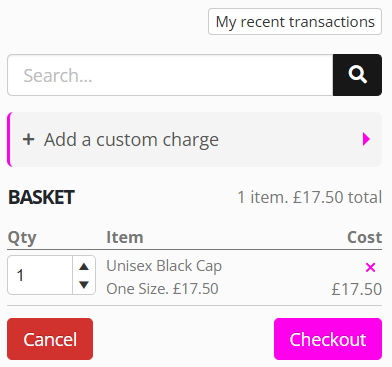
Repeat the process for all of the items you are selling.
Checking out
Having added the items you are selling to the basket, click the Checkout button. This will open the checkout window.
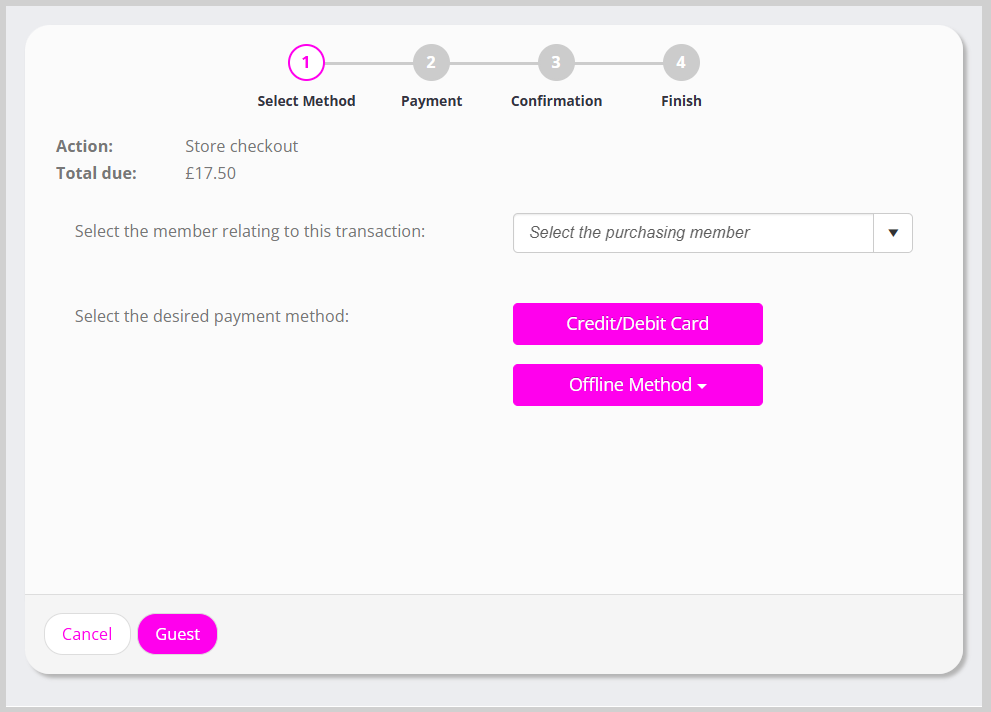
If the person making is not a member, click the Guest button (at the bottom of the page).
- Start typing the name of the member to whom you are making the sale, and click their name when it comes up.
- If they are paying by card, click the Credit/Debit Card button, or select an alternate method from the Offline Method drop-down list.
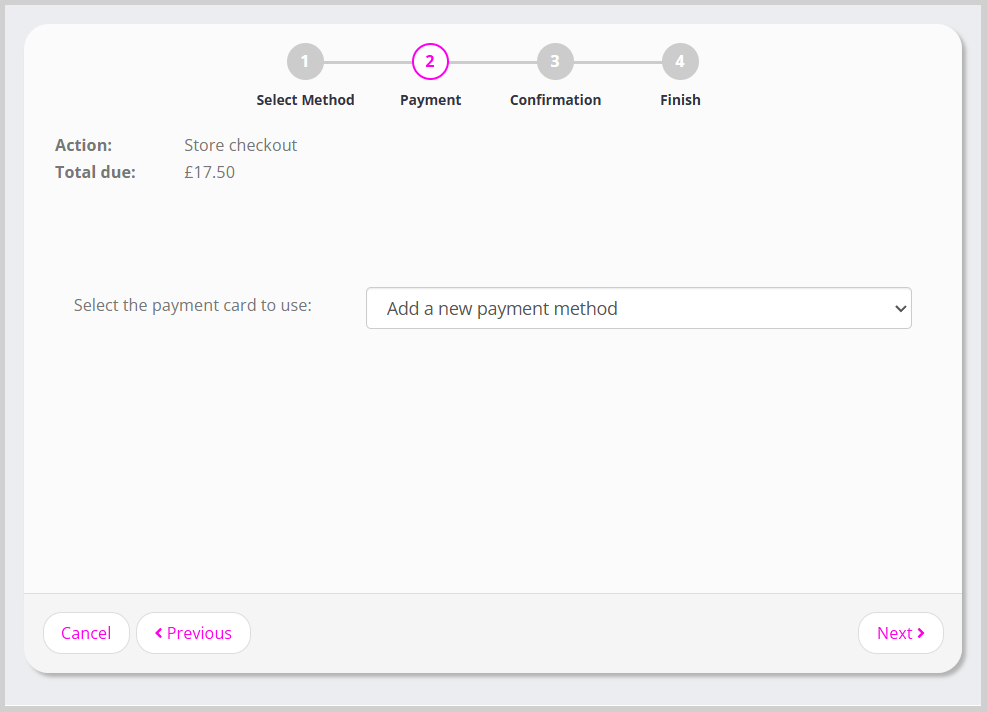
- GymOS will display the available payment methods stored against the member record. You may select an existing method, or Add a new payment method. Click the Next button. You may also opt to add the transaction to the member’s tab, for payment later.
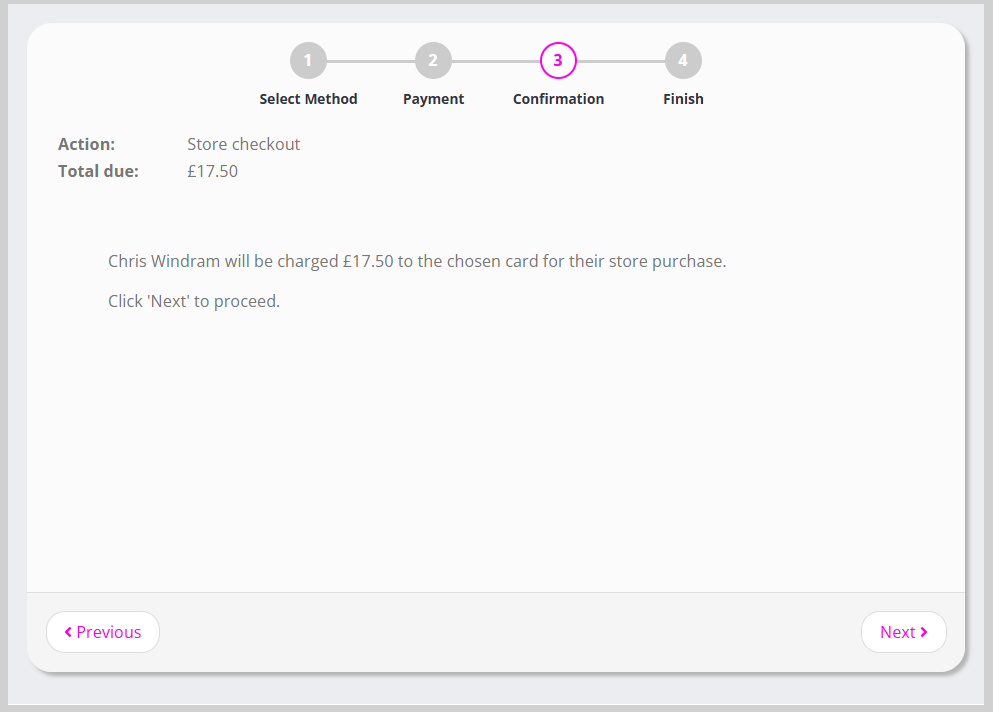
- GymOS will show the amount to be transacted. Click the Next button to make the payment.
Do NOT close the window until the payment confirmation is shown.