
Sign-up questions
You may optionally add further questions to the sign-up form for your campaign via the Sign-Up Questions tab.

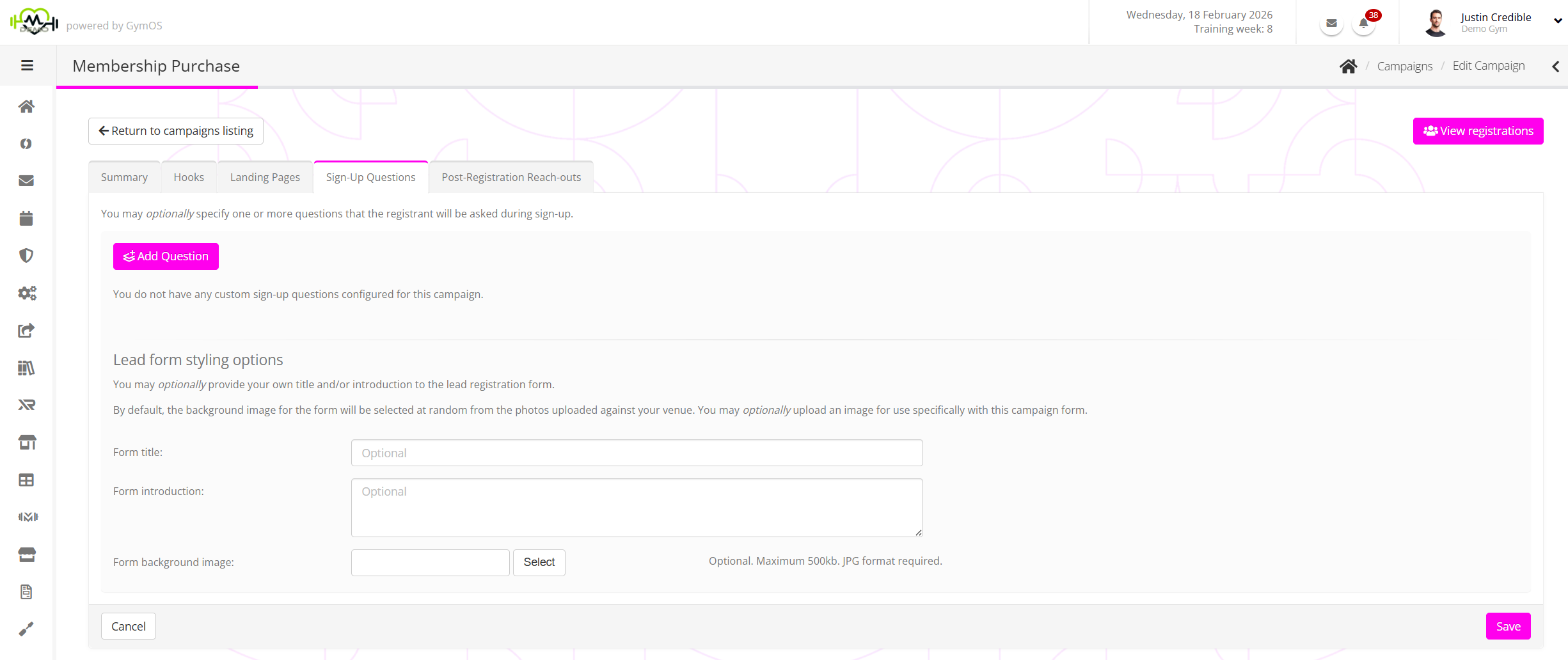
The sign-up questions tab comprises two main sections:
Questions

Existing questions are listed, with the information for each comprising:
- Question – The question you are asking the registrant.
- Type – The type of response method.
- Req’d – Whether the question is mandatory.
- Actions, comprising:
- – Edit the question.
- – Delete the question.
A new question is added by clicking the Add Question button. This adds a new row to the bottom of the questions listing.

For each question, you should provide:
- The question to be asked.
- A “placeholder” answer guide, which is displayed in the background of the answer box.
- The response method offered (Single-line text box or multi-line text box).
- Whether the question is mandatory and the lead cannot register without completing it.
Click to add the question, or to abort. Make sure you click the Save button, having added all of your questions.
Lead responses
When a lead registers against your campaign, the lead record is created. The campaign will show in the Campaign Registrations section. Click the icon to download the responses to your additional questions from the lead as a lightweight, browser-compatible HTML file.
Lead form styling options
This section of the Sign-Up Questions tab provides additional optional configuration options for presenting the lead registration form.
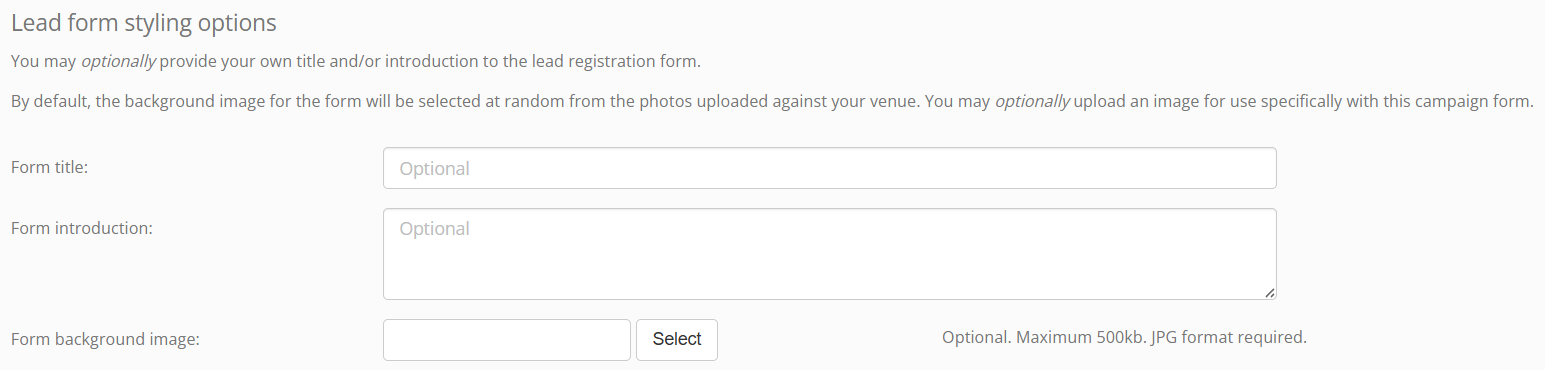
Typically you would provide a title for your form in your landing page wrapper. However, you can specify a form title by providing a value in the Form title box. Additionally, the form may be prefixed by introductory text, as provided in the Form introduction box.
By default, the form will be displayed on a blank canvas. If you wish to specify the background cover image for the form, you may upload a jpg image of up to 500Kb in size.