
Lead tab: Summary
The Summary tab is the default tab for the lead record. It comprises at-a-glance data, including the lead’s contact details, campaign registrations and campaign appointments.
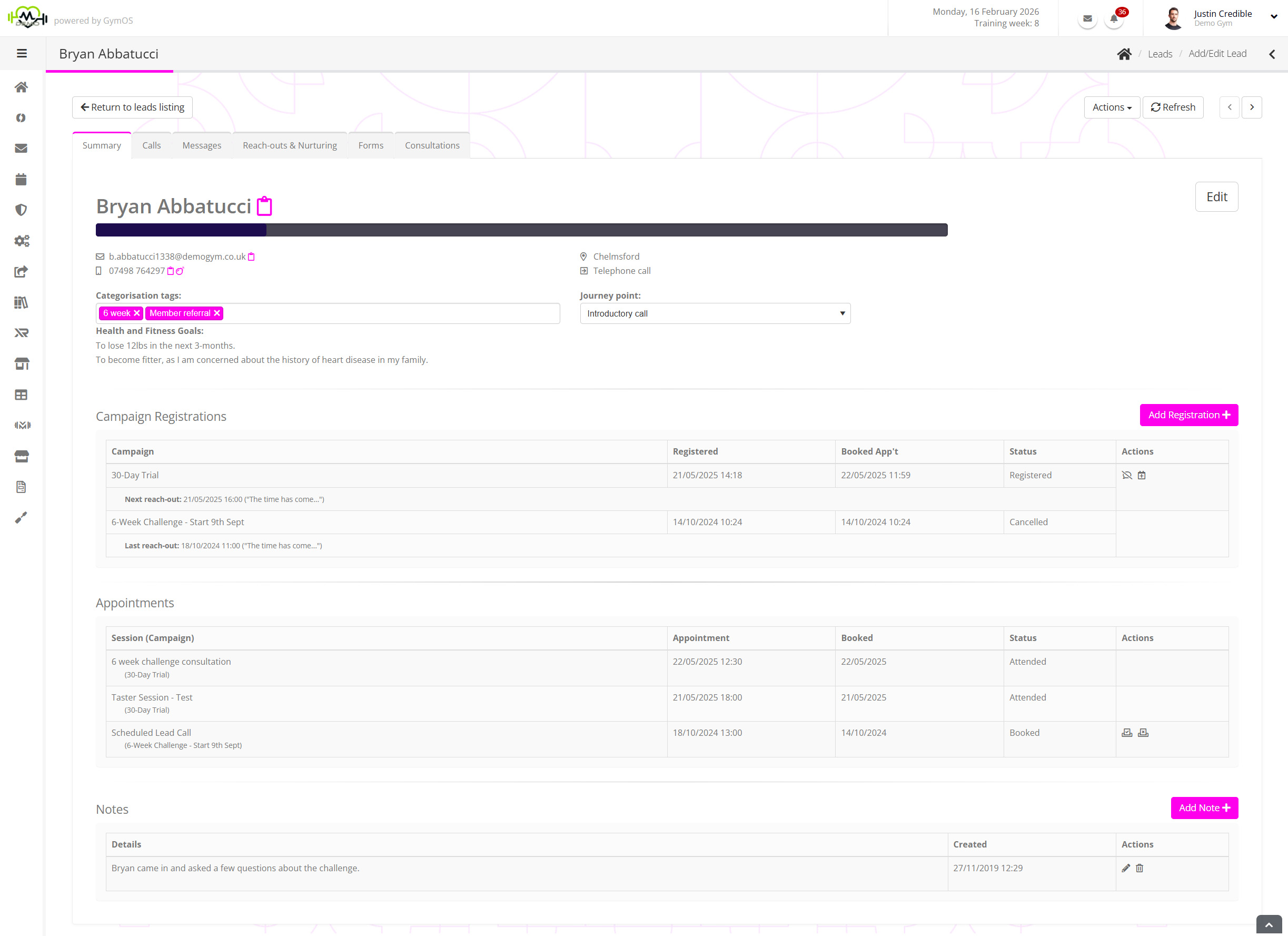
The tab comprises multiple sections:
Personal and contact details
The personal and contact details for the lead form the top part of the page.

This area features:
- The lead’s name.
- The contact email and mobile number for the lead.
- The preferred venue assigned to the lead.
- The enquiry source via which the lead originated.
Where present, you may click on the icon to copy the corresponding information to the clipboard on your device.
Assignments

The assignments area comprises categories and the lead journey point.
- Categorisation tags
Tags are a great way of grouping leads, which you can then use in a multitude of ways elsewhere in GymOS. Learn more… - Journey point
The lead’s journey point is a configurable list of options. It is the intended means by which you can identify where a lead is in their lifecycle with you, and ranges from “Lead” to “Converted” or “Terminated”. Learn more…
Campaign Registrations

When a lead registers against a campaign, or a campaign is assigned to the lead manually, the campaign appears in the campaign registrations listing.
The information displayed for each campaign comprises:
- The name of the campaign.
- The date/time at which the lead registered on the campaign.
- If applicable, the date/time of any appointment booked by the lead arising from the campaign.
- The status of the campaign against the lead (E.g., Registered or Cancelled).
A campaign may be assigned to a lead by clicking the Add Registration button and following the guidance in the Assigning a campaign to a lead article.
A campaign and the corresponding reach-outs may be cancelled for a given lead, by clicking the icon.
To allocate a lead to a campaign appointment (marketing session), click the icon and follow the guidance in the Booking a lead into a marketing session appointment article. You might, alternatively, also consider using a DropSlot consultation, which might be more appropriate and offer greater flexibility.
Appointments

Within the Appointments section, you can see the marketing sessions that the lead has booked via a campaign, or that they have been added manually. These are not DropSlot consultations; they are found on the Consultations tab.
For each marketing session appointment, the information shown is:
- The name of the session, and the campaign from which is originated.
- The date/time of the scheduled appointment.
- The date/time that the booking was made.
- The current status of the appointment booking (E.g., Booked, Attended, Cancelled)
A lead’s attendance for a session can be marked via the bookings screen or by clicking the icon. Similarly, their non-attendance can be marked by clicking the icon.
Notes

Ad hoc notes may be recorded against a lead and are displayed at the bottom of the lead’s summary tab.
To add a new note, click the Add Note button. A new row will be added to the top of the notes table.

Provide the details of the note, and click to save the note, or to abort it.