
Using Konduo in the FitnessHub mobile app
Your team can make Konduo calls from their phones, in the FitnessHub app. The dialler in the app is the same one used in the administration portal, so it works in exactly the same way: this article covers what is different on a phone.
Konduo must be switched on for your gym, and you need to be signed in to FitnessHub as a member of staff. Members never see Konduo in the app.
Opening the dialler
- The phone icon at the top of the screen, beside the Ask Alphie icon, opens the dialler from anywhere in the app.
- My Account has a Konduo™ Dialler option.
- DropSlot: your DropSlot consultations, and DropSlot appointments whose location is Telephone, have a call button that opens the dialler ready to call that person.
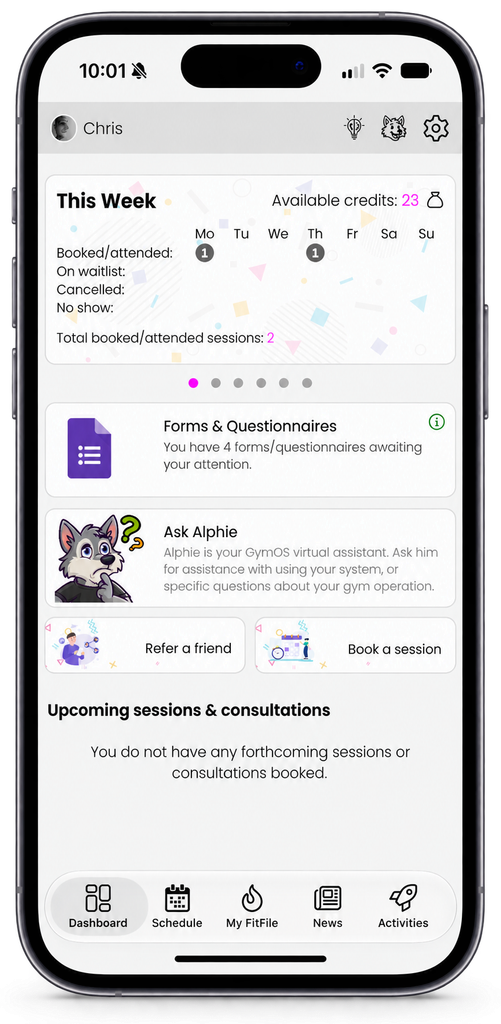
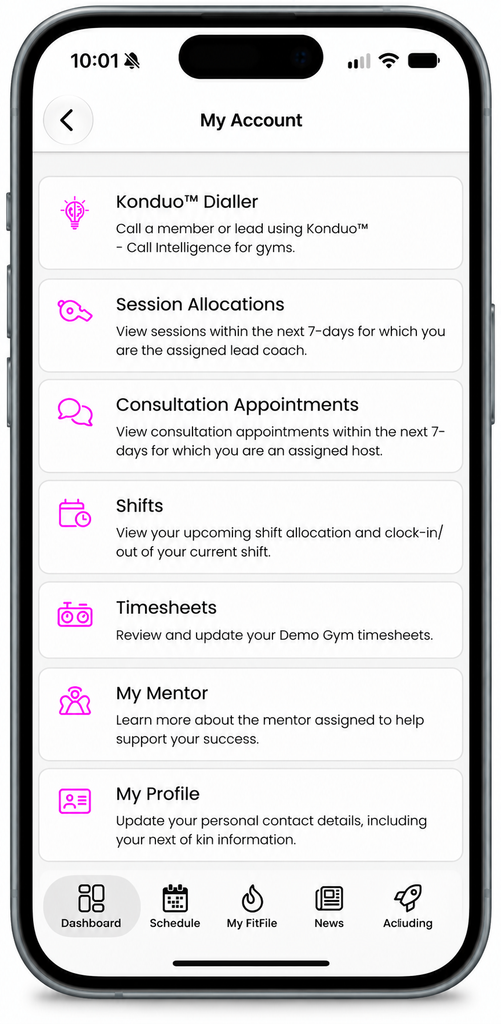
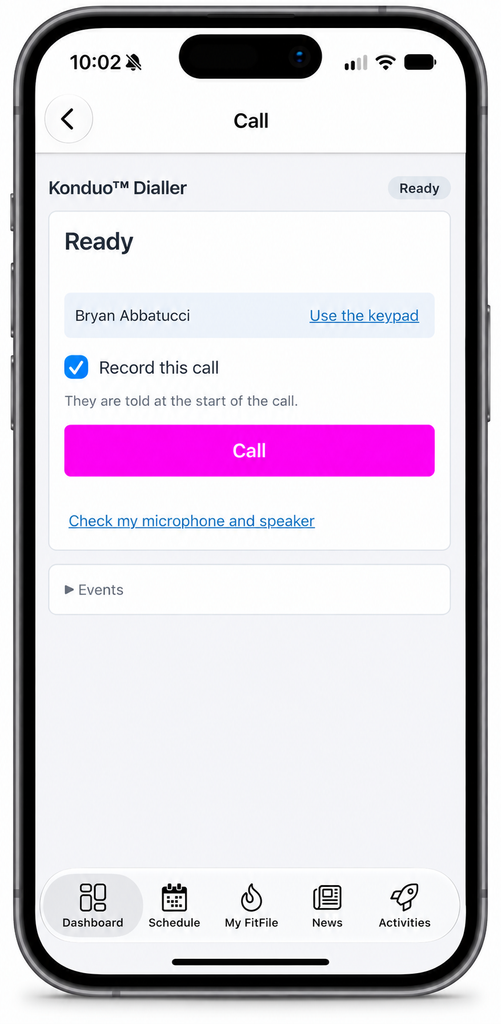
In the dialler, type a name into Find a member or lead, or use the keypad. As in the portal, keypad calls are not linked to a member or lead.
The first time you call
The app asks for permission to use your microphone the first time you open the dialler. Choose Allow.
If you chose Don’t allow, the app tells you that calling needs the microphone. Turn it on for FitnessHub in your phone’s settings, then try again:
- iPhone: Settings → FitnessHub → Microphone.
- Android: Settings → Apps → FitnessHub → Permissions → Microphone.
Making the call
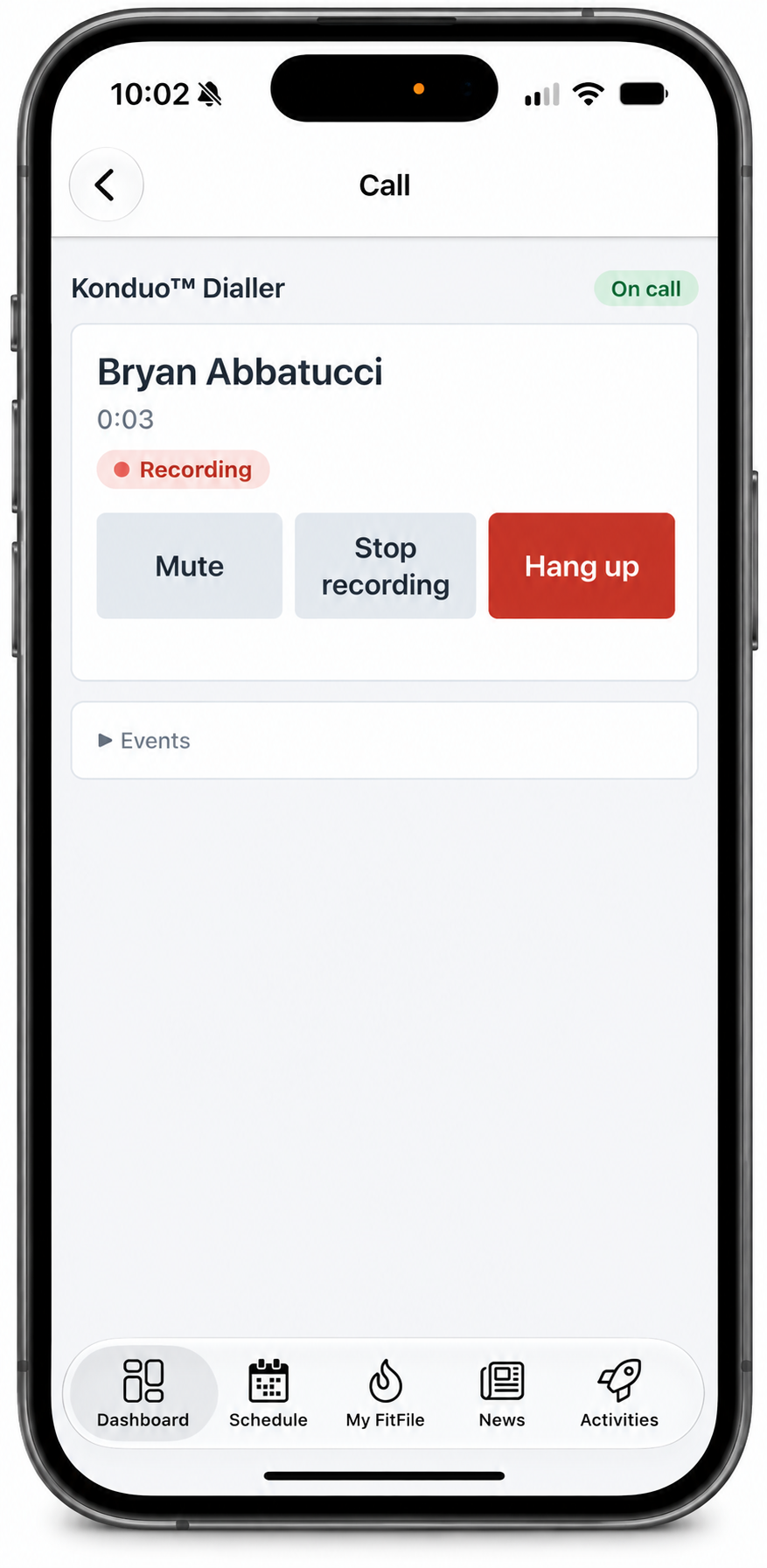
Placing a call, the recording choice, muting, stopping the recording and hanging up all work as they do in the portal. See Using Konduo in the administration portal.
- The call plays through the phone’s earpiece, like a normal phone call.
- When you hold the phone to your ear, the screen turns off so that your cheek cannot press anything.
Stay in the app during a call
While you are on a call, keep FitnessHub open.
- You cannot leave the call screen during a call. Hang up first, and you will be asked to wrap the call up.
- If you switch to another app, or your phone locks, for more than a few seconds, the call ends. The person you called hears a short message telling them the call was interrupted, rather than silence.
- If you come straight back, within about five seconds, the call carries on.
- An incoming phone call on your handset can also interrupt a Konduo call.
Whatever interrupts a call, the call is still logged with its real length, and the wrap-up is waiting for you when you return.
Wrapping up
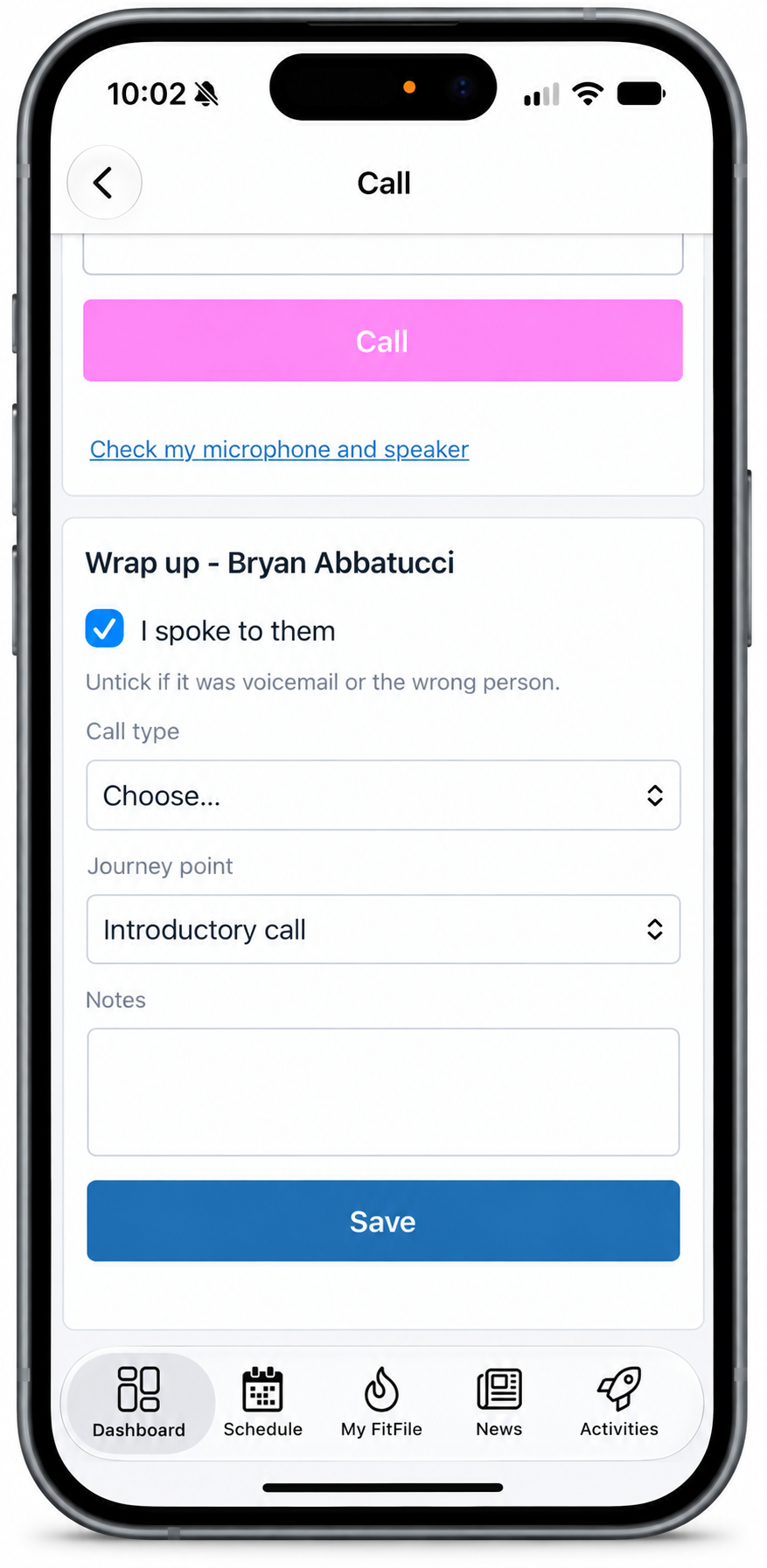
The Wrap up panel is the same as in the portal: confirm whether you spoke to them, choose the call type, update the journey point, add any notes, and click Save. See Using Konduo in the administration portal for what saving does.
Tips for calling from a phone
- Find somewhere quiet. A phone’s microphone picks up the gym floor.
- Keep your phone charged, and on a good Wi-Fi or mobile data connection. Konduo calls use data, not your phone’s minutes.
- Konduo calls show your gym’s number, not your own mobile number.