Self-check-in Kiosk
The Self-check-in Kiosk provides a means for members to check themselves into a session, as an alternative to checking themselves in using the GymOS FitnessHub mobile app or having a coach check them in as part of roll-call.
The kiosk can be run on a laptop, desktop, touchscreen computer, or mobile tablet. The kiosk runs in a browser, so the system requirements are minimal, and almost any device of the listed type can be used. You will need an Internet connection.
Optionally, a scanner can be connected to the kiosk, allowing members to scan the barcode using their GymOS FitnessHub mobile app and further streamline the check-in process. Learn more about Enabling the scanner feature.
Launching the kiosk
The kiosk may be launched in one of two ways:
- Left-clicking the button on the dashboard. This will open the kiosk and, for security, log you out of GymOS.
- Copying the kiosk URL by right-clicking on the button on the dashboard, selecting Copy link address and then pasting that URL into a browser on the kiosk device.
Note: The kiosk URL varies per venue, so ensure you have the correct venue selected for the location that the kiosk will be deployed.
The self-check-in process
The self-check-in process has been designed to be as quick and easy as possible. It has also been designed to protect the privacy of those attending sessions.
Important: The self-check-in window is from 15 minutes before a session is scheduled to start, until 15 minutes after a session is scheduled to end.
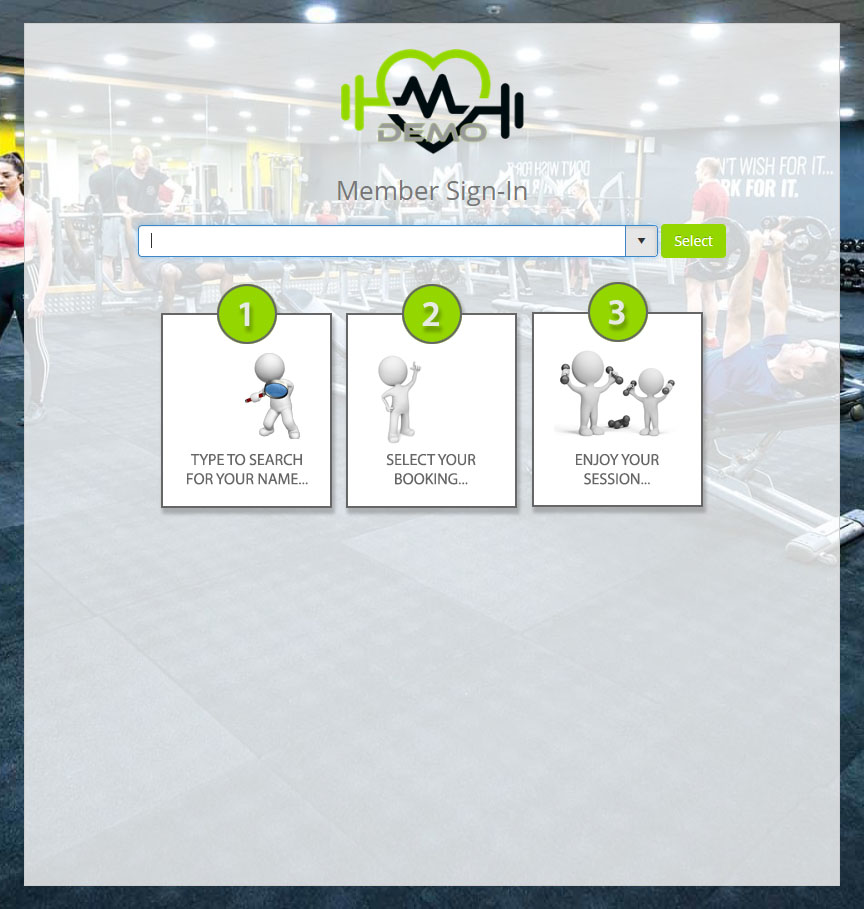
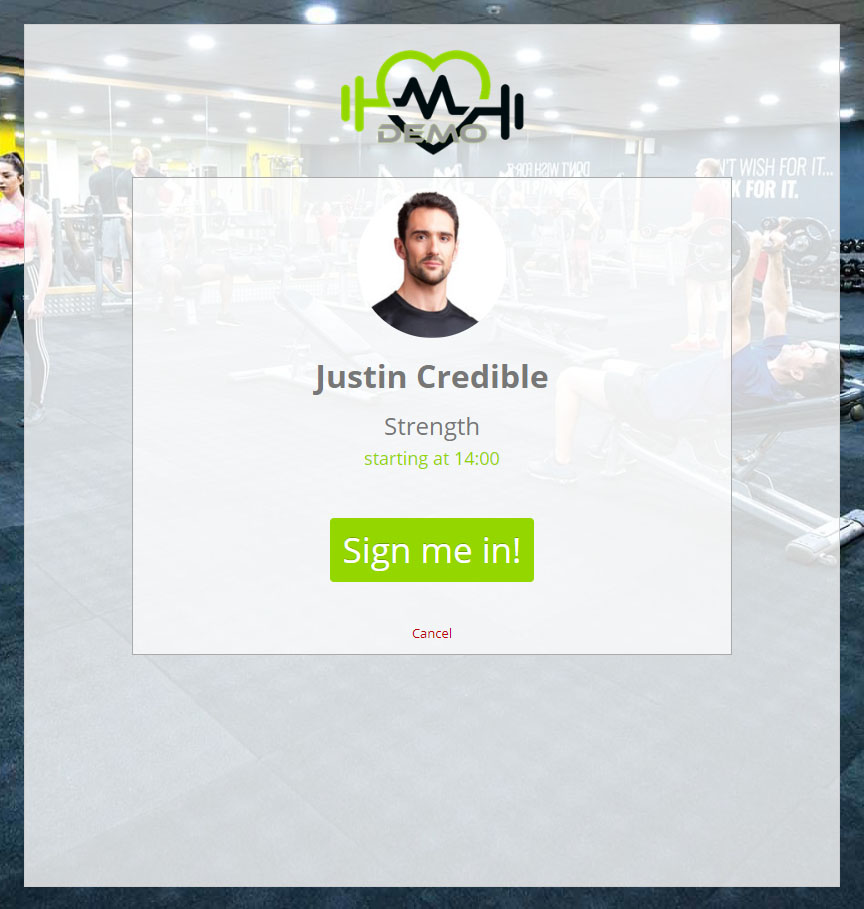
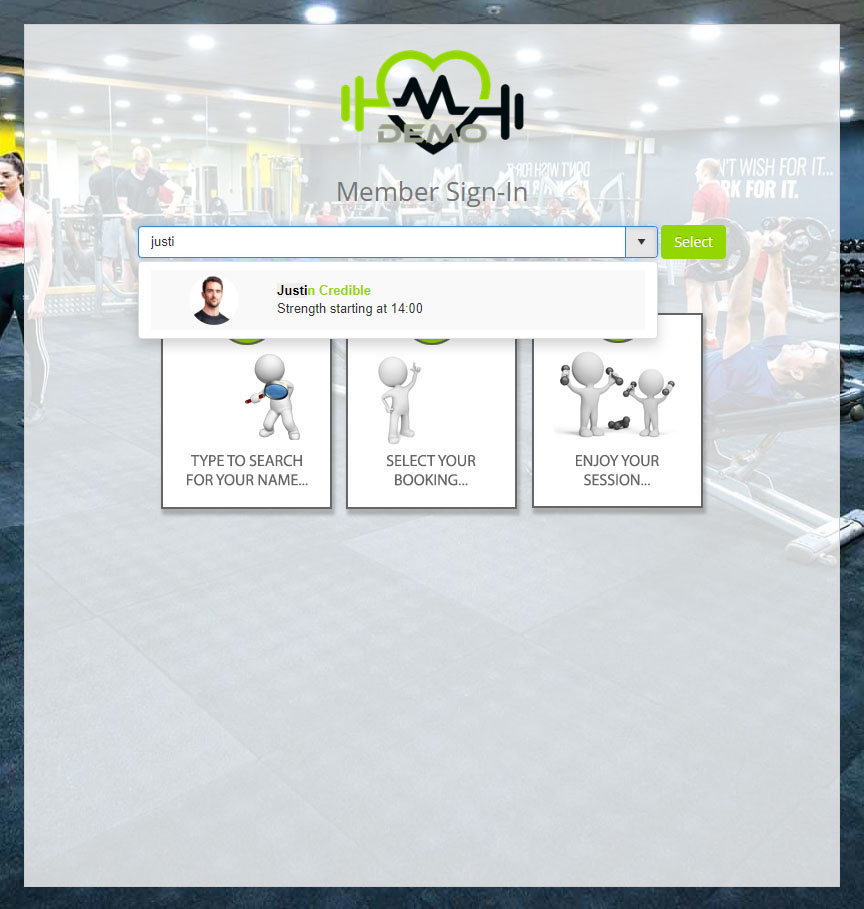
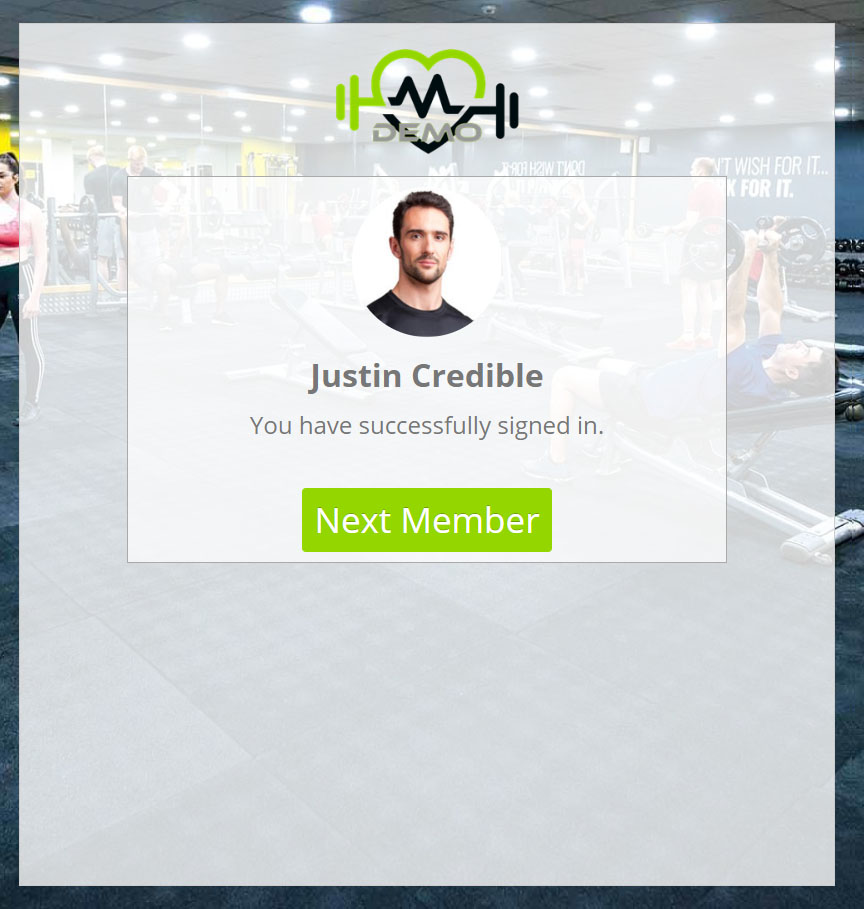
To check-in to the kiosk manually (without using the optional scanner), the member follows these steps:
- Starts entering their name in the text box, and click on it when it comes up.
- Verifies that the booking displayed on the screen is the one that they want to check-in to.
- Clicks the Sign me in! button.
- The kiosk will confirm a successful check-in.
Styling the kiosk
There are several style elements for the kiosk for which you have control:
- The kiosk will use the colours that you select within the Settings area of GymOS.
- The logo is taken from the logo that you upload within the Settings area of GymOS.
- The background images are chosen at random from the photograph(s) you upload in the Venue photos area of GymOS.
Reversing a check-in
If you need to reverse a check-in, you can do so from the Bookings Screen within GymOS.