
Creating a DropSlot booking for a member
Typically a member will book their own consultation via the member portal or the member app. However, there may be times when you need to create the booking on their behalf.
The article details how to create a DropSlot consultation booking for a member from within the GymOS administration portal. You may find full documentation regarding the numerous ways that DropSlot may be used in the Creating and managing DropSlot consultations article.
To create a DropSlot booking for a member, follow these steps:
- Navigate to the Calls & Consultations tab on the member record.
- You have two options:
- If the member already has a DropSlot invitation assigned that you wish to use, click the icon alongside the invitation.
- If an invitation does not already exist, click the Book now button on the consultations tab. From the Event to book list, select the event that you wish to book the member on to and click Book now in the pop-up window.
- The consultation booking process will commence for the selected member and the given event type.
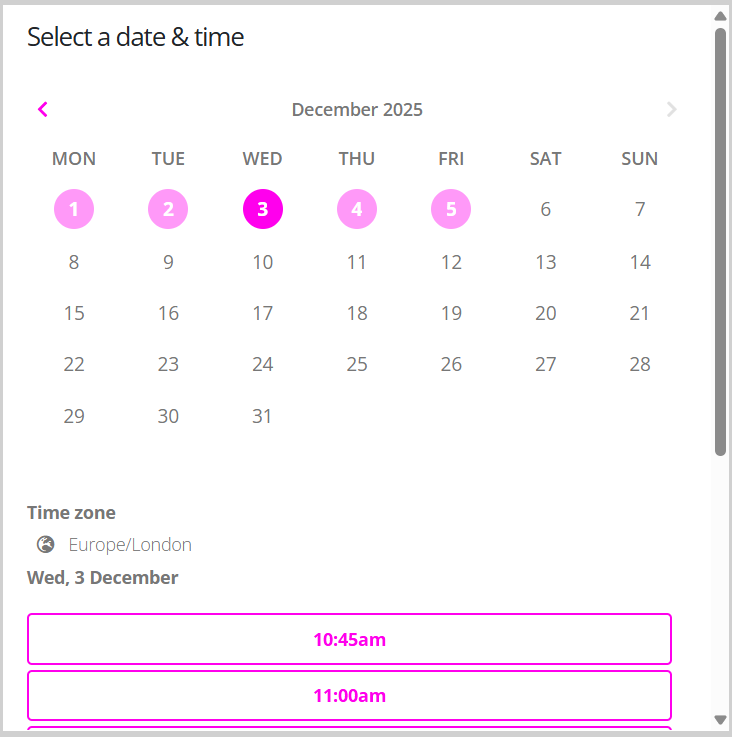
- Step through and complete the booking process.
Once you have completed the process, the booking will show in the Forthcoming Bookings section of the Calls & Consultations tab. If it does not, click the Refresh button at the top of the member record (not the browser refresh button).