
Member tab: Activities
The Activities tab on the member record is where you can add and amend a member’s payment methods, view their booking activity, see their payment transactions, and review any triggers that have been fired against their member record.
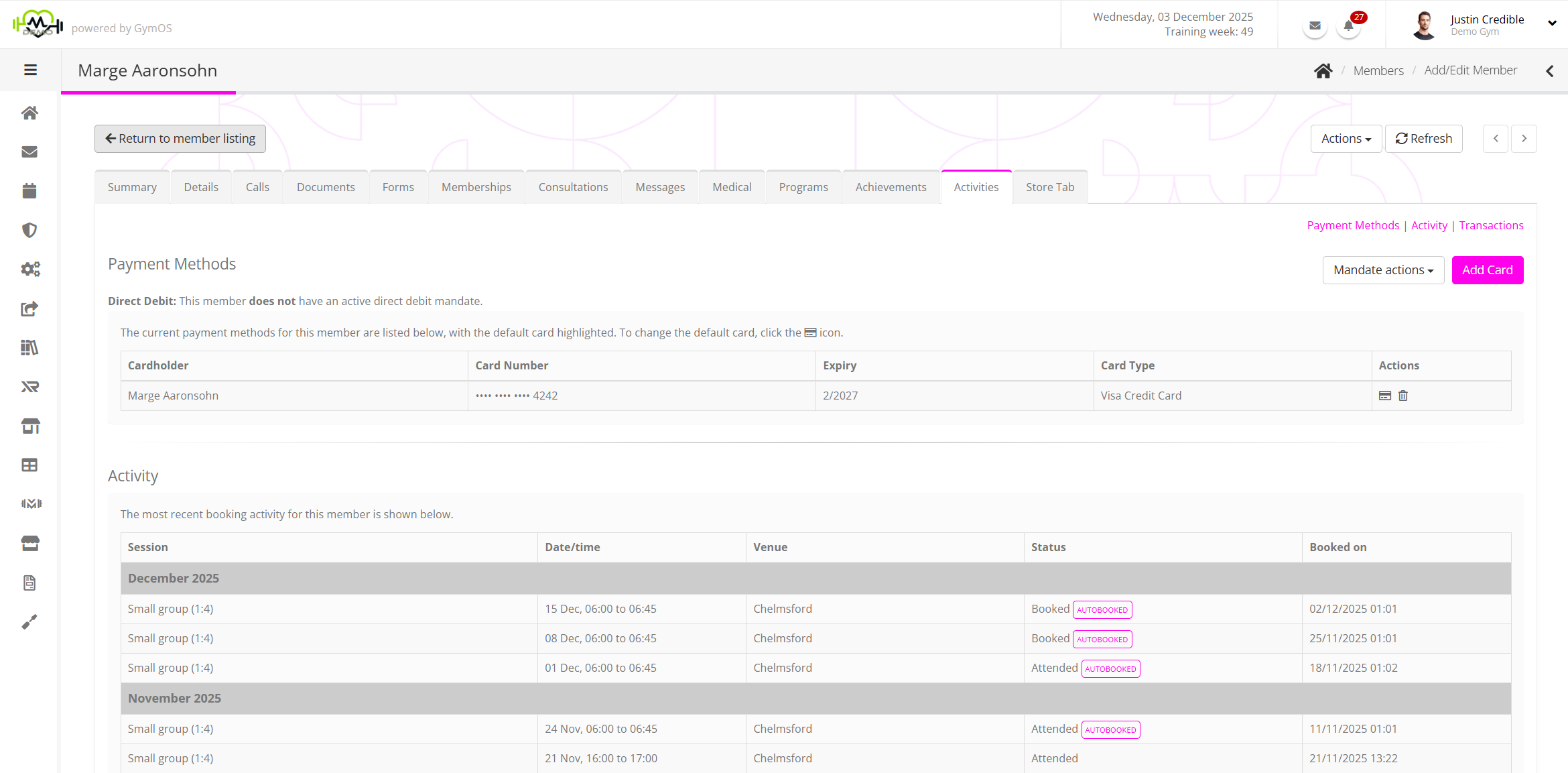
The Activities tab is split into four distinct sections:
Payment Methods

The Payment Methods section allows you to view the payment methods currently set up for the given member, including debit/credit cards and Direct Debit mandates.
Typically, to observe PCI compliance and other financial privacy guidelines, you should have the member set up their Direct Debit mandate or add their payment card via the GymOS Member App or the FitnessHub Member Portal. However, if necessary, you can also set up a mandate or add a card to the member record through the administration portal.
To add a new payment card, you would click the Add Card button and follow the process outlined in the Administering debit/credit cards for members article.
To set up a new Direct Debit mandate, select the Create a mandate option from the Mandate actions drop-down and follow the process outlined in the Administering Direct Debits for members article.
Activity
The Activity section enables you to view the session bookings for the member, both historically and for upcoming sessions. The listing is grouped by calendar month, and ordered by the start time of the session in reverse chronological order (latest first).
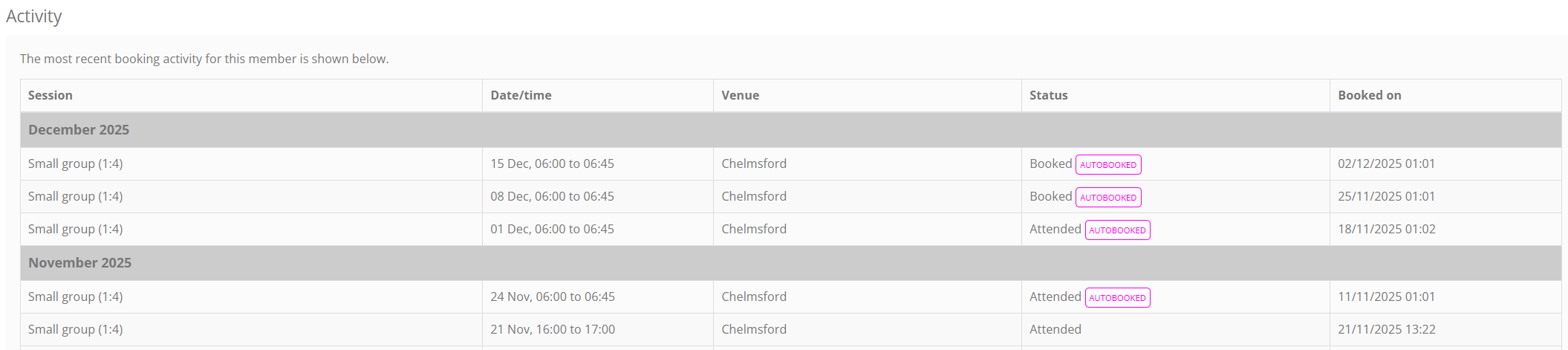
As well as showing the status of the booking (E.g., Booked, Cancelled, No Show, etc.), the status column may contain some additional flags or indicators.
The AUTOBOOKED tag indicates that GymOS automatically booked a session as a result of an auto-booking configuration for the member.
If a session was cancelled and subsequently refunded, this is indicated by the presence of a icon.

Transactions
Within the Transactions section of the Activities tab, you can find the members’ payment history. This is considered to be a financial record and, as such, cannot be edited or adjusted within the GymOS system.
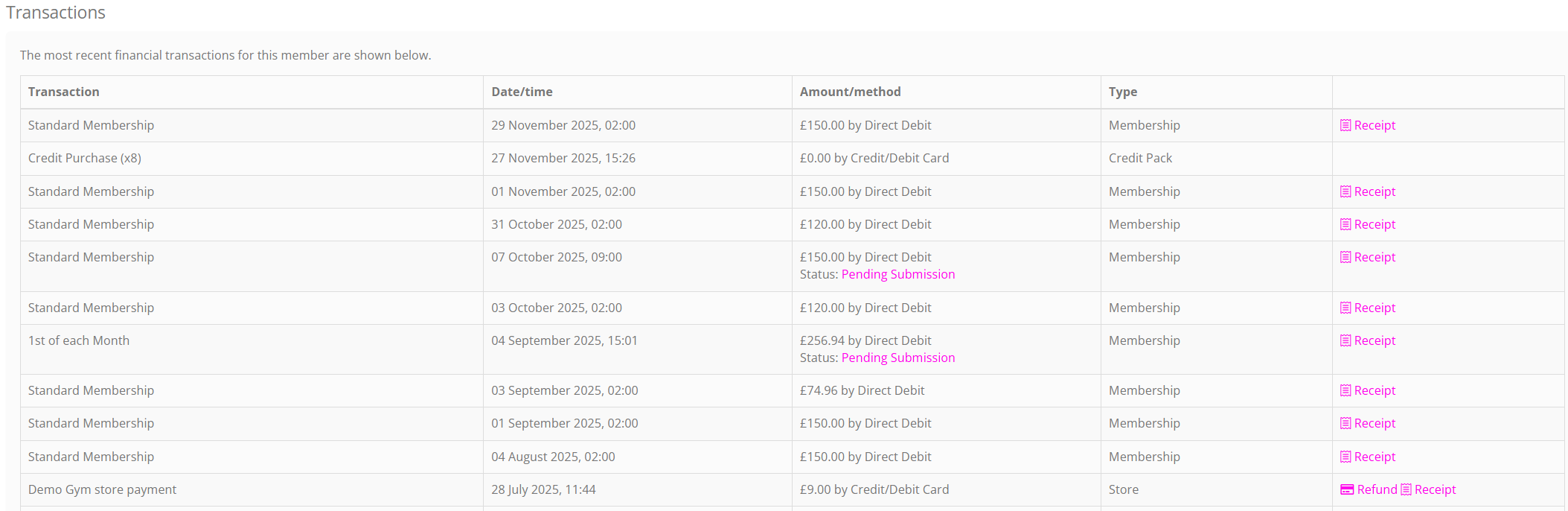
The list of the members transactions are displayed in reverse chronological order (most recent first).
If a payment is being made by Direct Debit, the amount/method column will show the status of the Direct Debit payment.
By default, any successful payments made by credit/debit card will issue the member a receipt. If the payment is made by any other means (I.e., GymOS doesn’t know at the time of the transaction if the payment has been received), an invoice is generated. The Receipt link associated with a transaction can be clicked to have GymOS create an email to the member with a receipt for the transaction. This can be useful if the member requires a receipt against which to claim from their business or an insurance company.
If payment was made by credit or debit card, the transaction may be refunded (in full) by clicking the Refund link. Pending or failed Direct Debits may be handled by clicking the Retry or Cancel links accordingly.
Note: GymOS does not support partial refunds. You may administer those via Stripe directly or by direct bank transfer (see below). Direct Debits do not support refunds, and refunds for payments taken by this method should be made by Direct bank transfer.

If you need to re-sync a transaction with your bookkeeping system, click the Resync link.
Triggers Actioned
The Triggers Actioned section of the Activities tab lists those event triggers that have “fired” against the member record in recent times. The list of fired triggers is shown in reverse chronological order (most recent first).
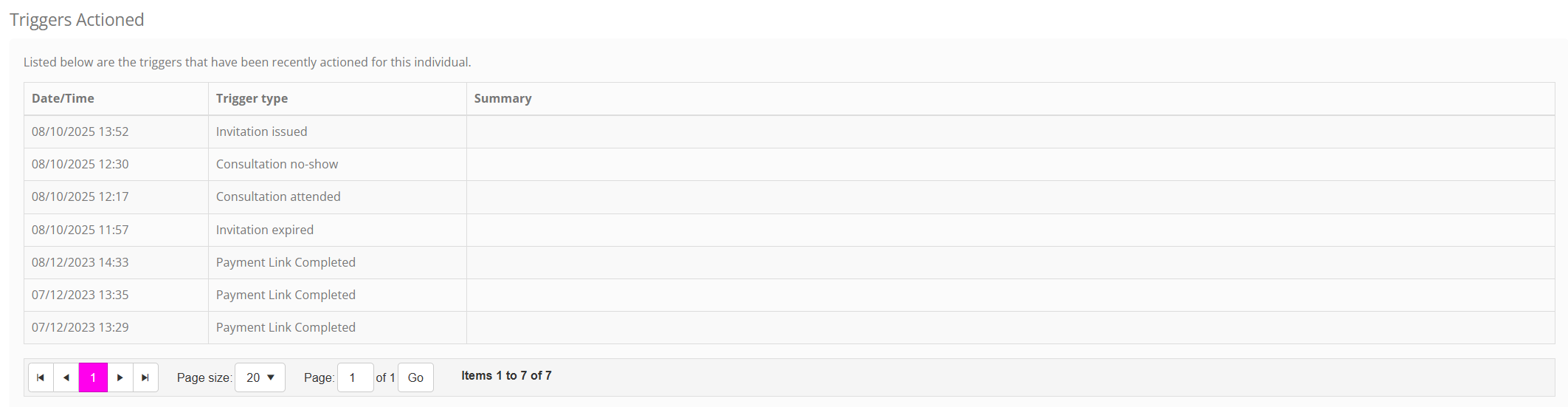
This listing is likely something that you won’t look at regularly. Still, it is a valuable reference for determining why something has happened on a member record – and if it was the result of an event trigger that you have configured.