Administering debit/credit cards for members
In a typical scenario, and to support PCI compliance, you would ask your members to add their card via the FitnessHub member portal (recommended), or the GymOS FitnessHub mobile app. This avoids you handling any card data.
Members may add one or more cards to their record and change their default payment card. They are, however, unable to remove cards themselves.
If necessary, you may add a member’s card details via the GymOS administration interface. You will require the member to be present when you do this, as it is likely that their bank will require a two-factor authentication as part of the process.

Card listing
The list of current cards recorded against the member’s record may be found in the Payment Methods section of the Activities tab on the Member record.
Sufficient details are provided to enable identification of a particular payment card. To ensure PCI compliance, full card details are not available anywhere within the GymOS system. All financial data, such as card details, is stored by Stripe and does not exist in the GymOS database.
To set a card as being the default, click the icon. To delete a card, click .

Adding a new payment card
To add a new card on behalf of a member via the GymOS administration portal, click the Add Card button. This will open the pop-up window shown below.
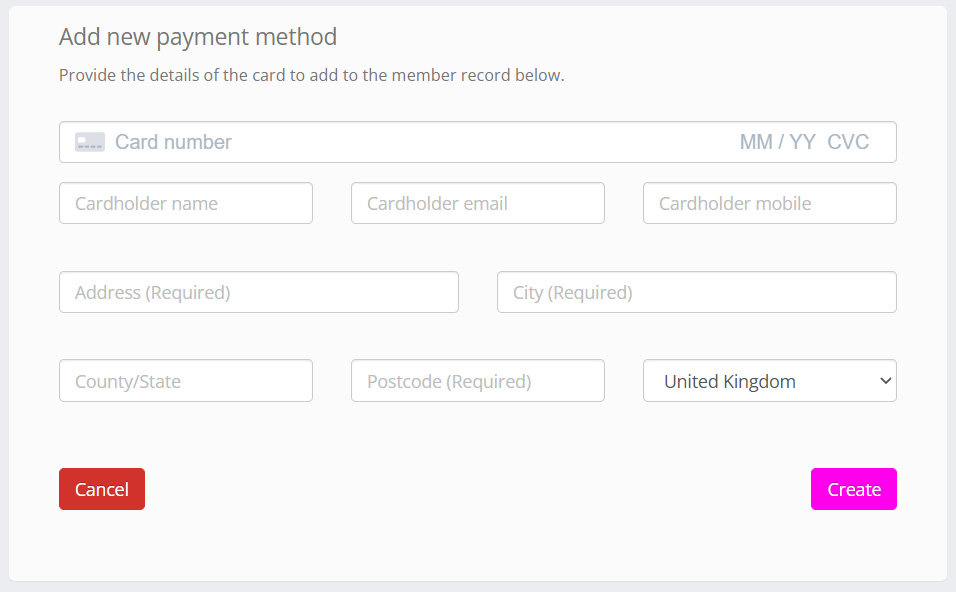
If the member has already entered address information in their membership profile, it will be pre-filled. Enter the card details accordingly, and click the Create button.
Secure Customer Authentication (SCA): When adding a card, you should typically expect to be asked to provide an additional security code, which will be sent to the member via their phone or banking app. This is because cards added to GymOS are stored with “future use” permission, as required for charging when the member isn’t present.