Administering Direct Debits for members
As with adding credit/debit cards to a member record, this is generally best done by the member via the FitnessHub member portal (recommended), or via the GymOS FitnessHub mobile app. You may, however, set up the mandate on behalf of the member via the administration portal if you have secured the necessary permissions and information from them.
Useful information: We suggest you read our Direct Debit Fundamentals article for guidance on the Direct Debit process.
Within the GymOS Administration Portal, a Direct Debit mandate may be configured on the Activities tab of the Member record. A member may only have one active mandate at any one time. When configured, a message will be shown as below.

Issuing a mandate request
You may issue a request to a member to configure a mandate by selecting the Send Mandate Request option from the Mandate Actions drop-down.
This will send an email to the member with a link to enable them to set up their Direct Debit mandate.
Setting up a new mandate on the member’s behalf
If you have secured the necessary information and permissions to set up a Direct Debit mandate on the member’s behalf, you may do so by selecting the Create a mandate option from the Mandate Actions drop-down.
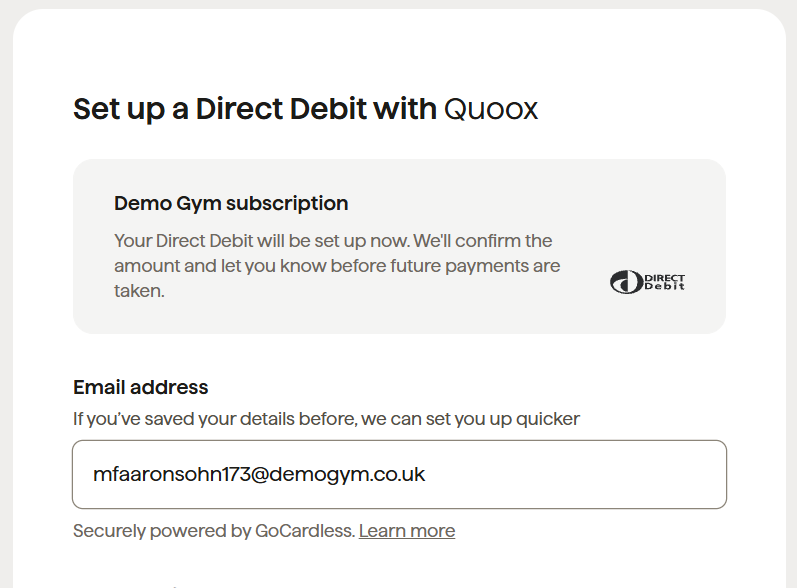
A pop-up window will display with a form provided by GoCardless. You should complete the form as per the member, using the correct information provided by them. Be aware that if the account requires multiple signatories, it will introduce additional validation steps and delay the process.
Cancelling a mandate
A Direct Debit mandate is linked to a specific bank account. If the member changes their bank account, the previous mandate must be cancelled and a new mandate issued.
To cancel an existing mandate, select the Cancel mandate option from the Mandate Actions drop-down. Once the mandate has been cancelled, you will be able to create a new one, as per the above processes.