Adding a new family or funding group
To add a new family or funding groups, click the Add button at the top of the Families page, found within the Manage section of the main navigational menu.

Configure the base group by providing a name for the family unit and optionally providing any notes (E.g. “Group for member couple”). Then click Next. The family configuration page will be displayed.
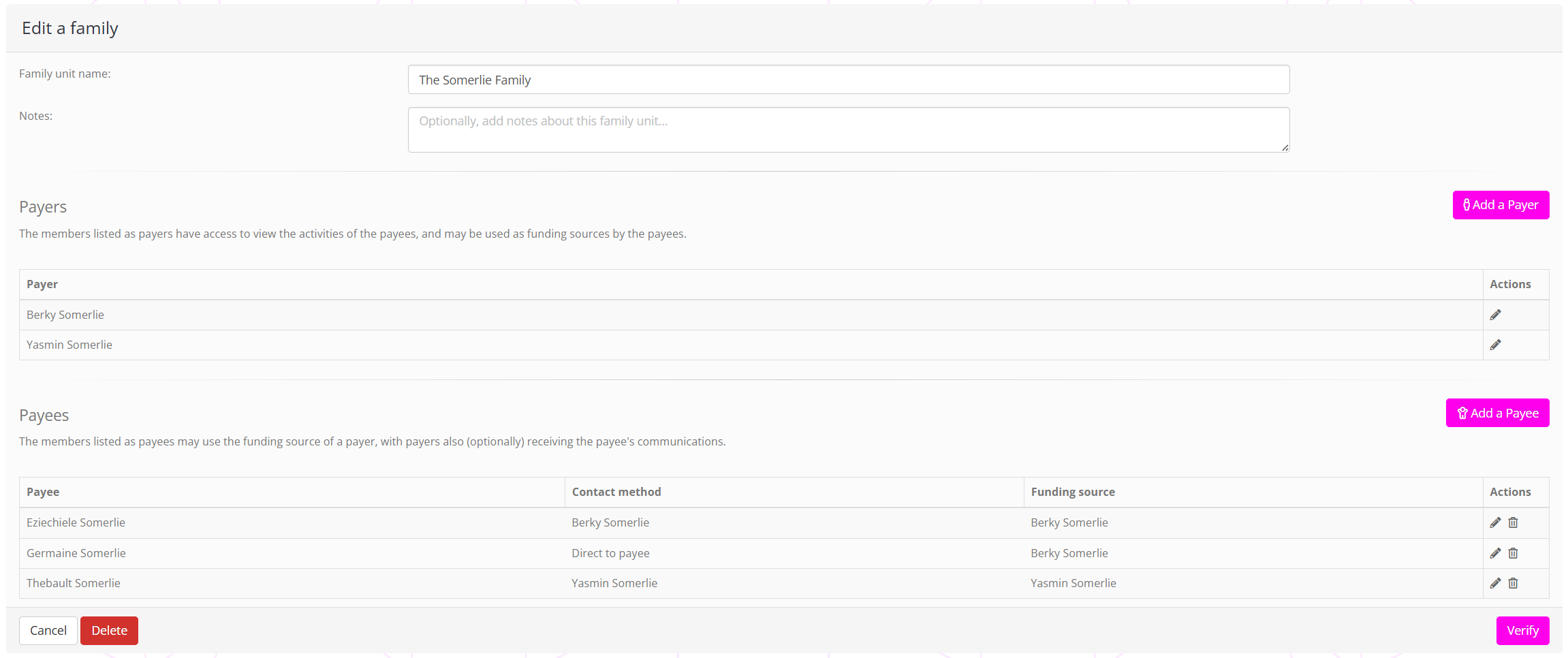
To configure a family, you must set up at least one payer and at least one payee. These should be set up a member records first, prior to configuring the family.
Adding a payer
To add a payer to the family, click the Add a Payer button.

Start typing into the Select the payer drop-down box until the payer is visible, then click on them. You may optionally add any notes (E.g. “James is the father of Kirsten”). Then click the button.
Adding a payee
Having added the payers, it is now time to add the payees. To do this, click the Add a Payee button.

Similar to the payer, start typing into the Select the payee drop-down box until the payee is visible, then click on them. You may optionally add notes.
Select the contact method for the payee, which is either “Direct to payee” (I.e. the payee receives communications) or one of the Payers (who receives communications intended for the payee).
Select the funding source for the payee, which is either “Self funding” (I.e. the payee pays directly) or one of the Payers (whose payment details on their member record will be used).
Once you have added the payers and payees, click the Verify button.
Verifying the family configuration
It is important that no mistakes are made when it comes to charging one member for another’s membership, so a mandatory confirmation screen is displayed.
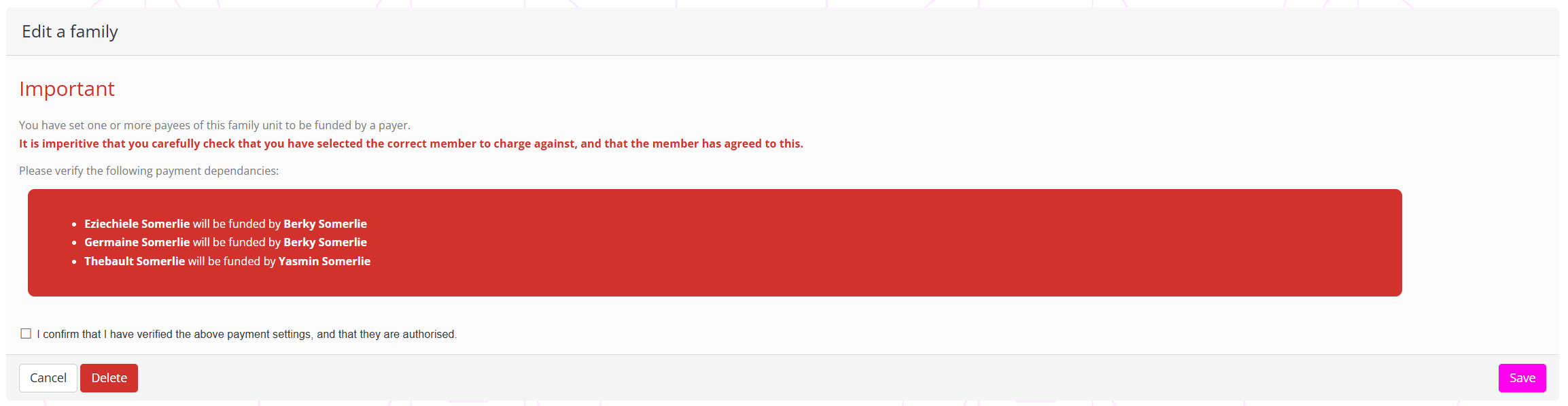
Confirm that the configuration is as you intended, and then click the Save button.