
Lead listing
The Lead Listing can be accessed by selecting Leads from within the Connect and Promote section of the main navigation menu.
The lead listing is your most commonly used route for accessing lead data.
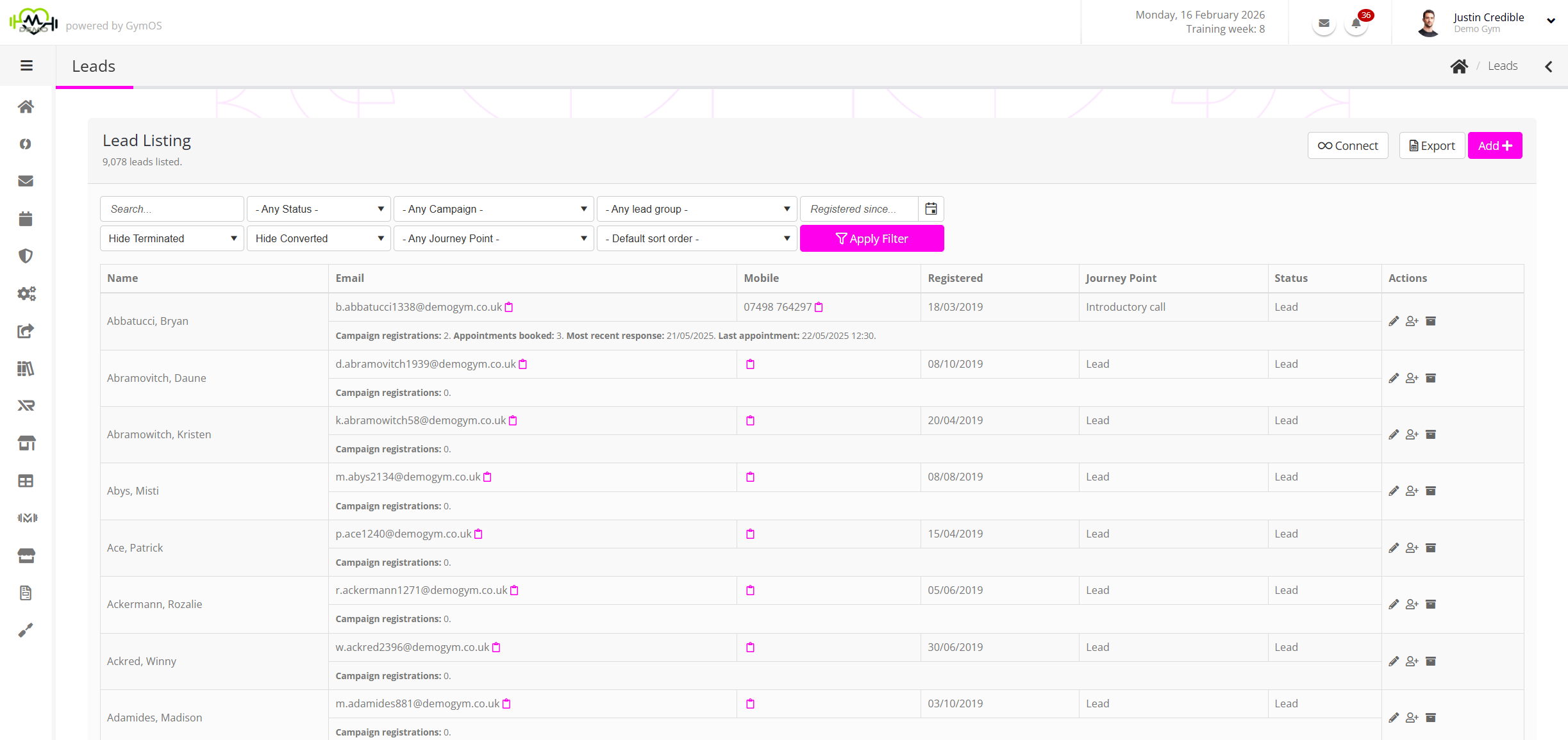
The page comprises three main sections:
- An actions bar.
- A filter bar.
- The listing of records matching the criteria selected in the filter bar.
The listing displays on a paged basis, defaulting to showing all non-archived leads.
The actions bar
The actions bar is where three key, lead-related actions may be initiated.
Clicking the Connect button will initiate connecting your GymOS system to Meta for lead ingestion. Details on this process may be found in the Ingesting leads from Meta article.
Clicking the Export button initiates the consolidation of your core lead data into an Excel XLSX spreadsheet, which is then presented for download.
New ad hoc leads are added to the GymOS system by clicking the Add button. Learn about adding/creating a new lead record.
The filter bar
It is possible to refine the list of leads displayed by applying one or more filters and clicking the Apply Filter button.
- The text box provides the ability to refine the list by a lead’s name (or partial name).
- Any Status provides the ability to filter subject to whether the lead has booked an appointment, has attended an appointment, or has never scheduled an appointment.
- Any Campaign provides the ability to filter to leads that have a given campaign associated with their lead record.
- Any lead group provides a filter for leads within a given custom or dynamic lead group.
- Registered since… gives the ability to provide a date and filter only to leads registered after that date.
- Hide Terminated provides a filter for including or excluding terminated leads (excluded by default).
- Hide Converted provides a filter for including or excluding converted leads (excluded by default).
- Any Journey Point provides the ability to filter by a journey point.
- Default sort order determines the order in which the lead listing is displayed.
The listing
On a paged basis, the search result listing shows one matching leads per row.
The information displayed for each lead comprises:
- Lead name.
- Email address.
- Mobile number.
- The date on which the lead was first registered in GymOS.
- Current journey point (if assigned).
- Status.
- Summary information about the campaigns to which the lead has registered, and any campaign appointments made from those.
Listing actions
For each lead in the results list, several actions are available depending on their status. The complete list comprises:
- Double-click on the row to open the lead record.
- Edit the record (the same as double-clicking).
- Archive/Delete the record.
- Convert the lead to a member record, as described here.