
Immersive email editor
The GymOS WYSISYG immersive email editor is used across multiple areas of the system, including campaign reach-outs, nurture programs, and system templates. It is similar to the WYSIWYG landing page editor, but is tailored to building HTML emails, rather than HTML web pages. The two disciplines share commonalities, but have important differences.
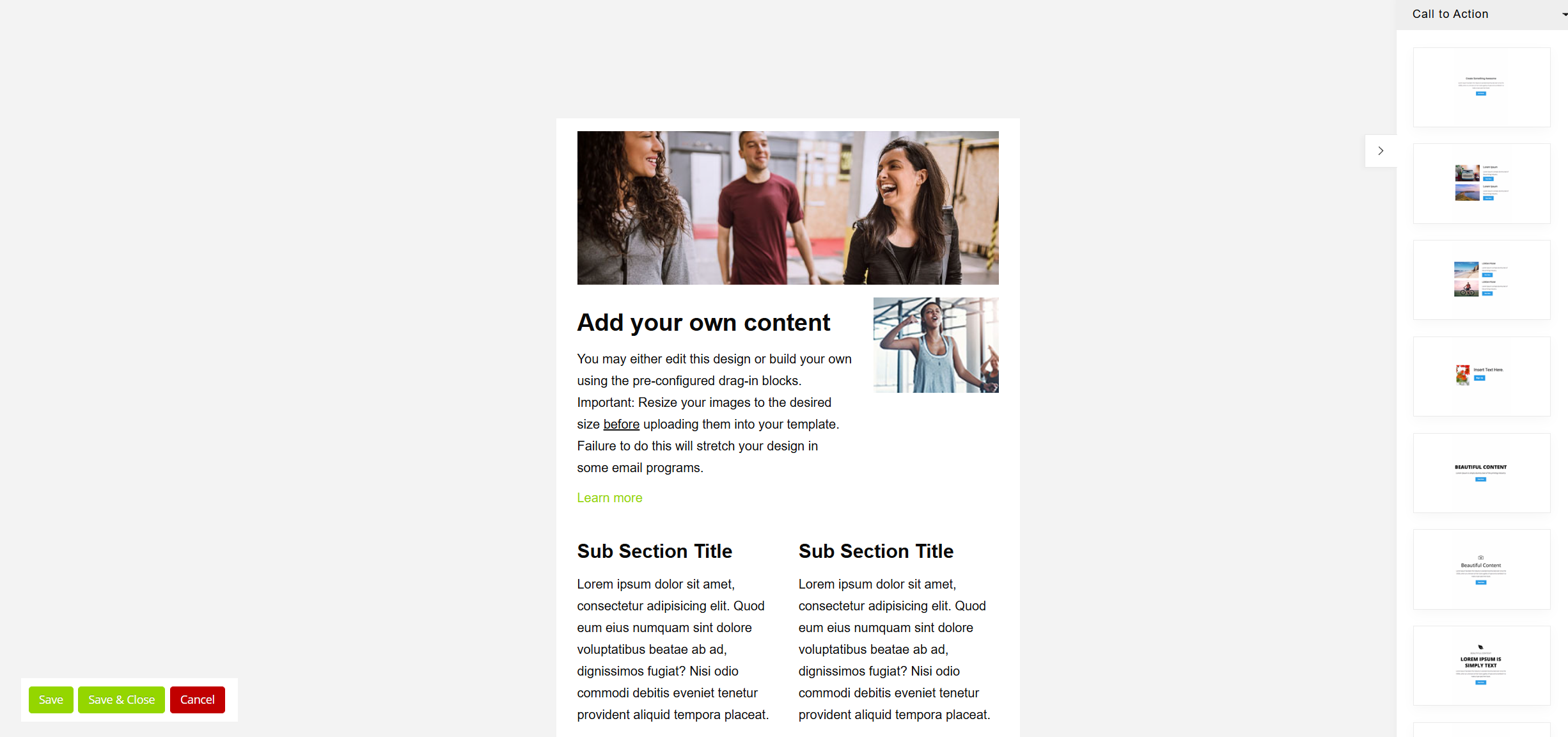
The editor comprises a main visual editing area. This has a fixed width of 580px and is centred horizontally. This is a generally accepted width that displays relatively consistently across different email apps. You may edit the background colour of the base email in the settings section prior to editing the email content.
Changes are saved by clicking Save or Save & Close. Clicking Cancel will abort any changes made since your last save.
Important: Make sure you save regularly to avoid the risk of losing any of your work.
Adding a new pre-configured layout element
The GymOS immersive email editor includes several hundred preconfigured layout elements. These are pre-designed to display acceptably across different email client types. You may also add your own layouts manually, but you will need to consider how they adapt across different devices.
The pre-built elements are categorised, and a new category may be selected from the drop-down list at the top-right of the screen. The default category is “Call to Action”. Others include images, quotes, footers, and more.
They layout selector may be hidden by clicking the icon.
To add a new element to your page, left-click your mouse on your chosen element and drag it onto the page. The newly added element will be rendered, and is then available for you to edit.
Editing content
Editing content within the page is largely self-explanatory. To edit text, simply click on the text and change the content.
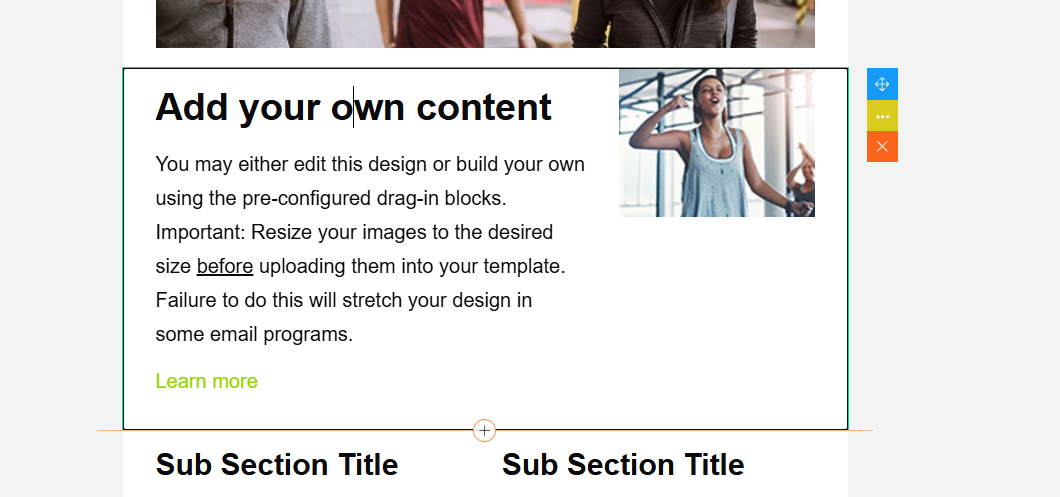
When you select a content block in the editor, it wil be highlighted by a box and a number of options will become available.
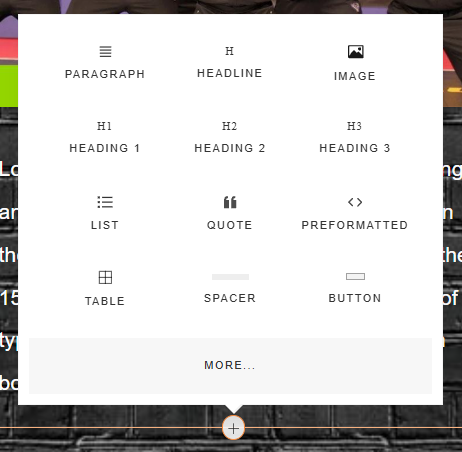
Clicking the icon will open the pop up window to select a new element type to add above/below the current element.
You may move a block by clicking on the icon and dragging the element elsewhere on the page (typically up or down).
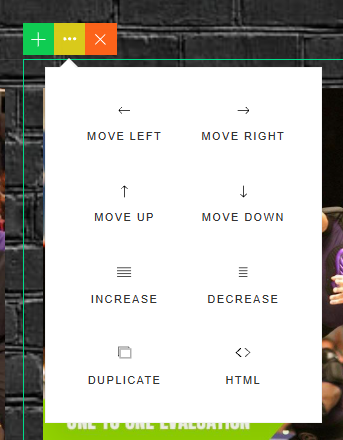
Clicking the icon will reveal a pop up menu of additional options.
Clicking the icon will delete the block.
Subject to the context of the item being edited, an additional “top options” bar may be presented:
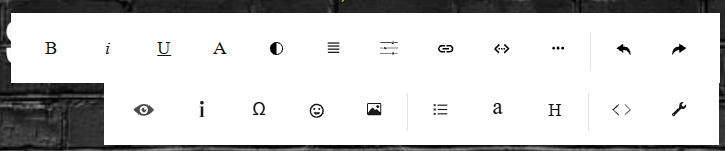
This top bar gives access to a lot of additional formatting options. A full HTML view is also available.
Changing and formatting pictures
To change an image, click on the image and then click the Change Image icon. Upload a web-applicable photo, ideally of the correct size. If you upload an oversized photo, GymOS will attempt to resize it upon first save. Note: If you reduce a photo in size, save it, and then expand it in size, quality will be lost. Instead, re-upload the image and re-size it.
If you wish to make the image a hyperlink, click the image and then click the Link icon. Provide a valid URL in the Link box, and optionally provide a title for the link (displayed as a hover-over in some browsers) in the Title box. If you wish the link to open in a new browser window, click the Open New Window checkbox.
Adding video to your email
Emails do not natively support videos, and you cannot play a video within an email. This is for any emails, and not a restriction of GymOS.
You can, however, add a thumbnail image of your video to the email and make it a link that opens the video in the recipient’s default browser. Details of how to do this can be found in the adding a video to an immersive email article.
Advanced editing
If you are familiar with HTML and CSS, you may access advanced editing features by selecting the HTML and Settings options. As a general rule, we recommend avoiding these advanced settings and sticking to the pre-created templates available in GymOS.
These should be used with care and be aware that if you enter invalid content, this may “break” your email and content may be lost. Save regularly!
Important: Typically, older email apps do not support any of the CSS options available in settings. These tend to only be honoured (to a limited extent) by the newer, web-based email apps.
There are many articles on the Internet about the features supported by different email apps and the limitations of HTML email. We recommend Googling and reading these if you require further information.