Creating a scheduled broadcast
To create a new scheduled broadcast, follow the steps below:
- Select Scheduled Broadcasts from the Connect and Promote section of the main navigation menu.
- From the New Broadcast drop-down list, select the dispatch method that you wish to use:
- Schedule Standard Email
Bulk send a communication, by email, using the default template configured for your GymOS system. - Schedule Immersive Email
Bulk send a visually engaging email. - Schedule SMS
Bulk send a short SMS text message. - Schedule Push alert
Bulk send a push alert to members with the GymOS FitnessHub mobile app installed.
- Schedule Standard Email
- The configuration page will load, with the content appropriate for the context of the send method that you selected.
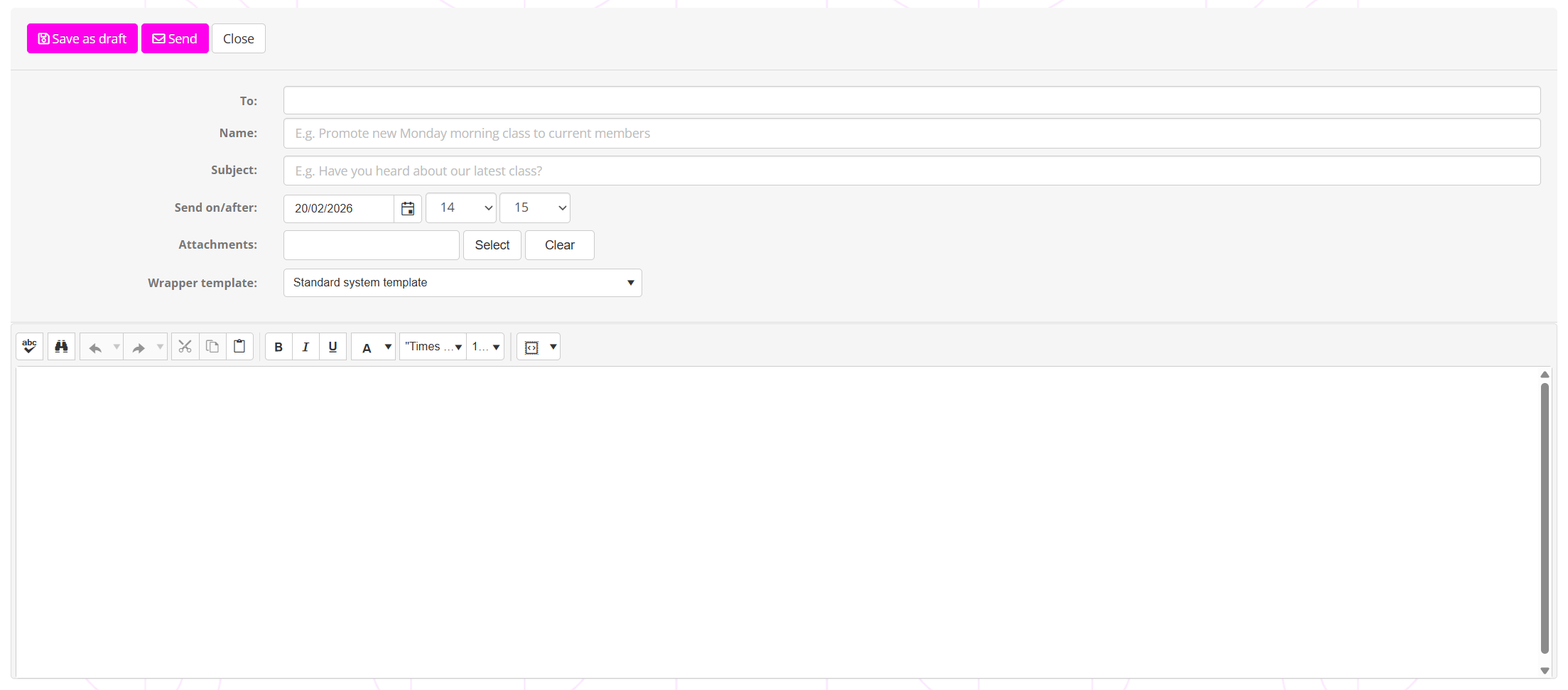
- In the To field, select the recipient(s) and/or recipient group(s) that you wish to send to.
If you have the GymOS vanity URL configured, you will have access to the Group: Active Leads group. If you do not, then this option is not available to you. Contact GymOS Support to set up your vanity URL.
Note: For a given scheduled broadcast, GymOS will deduplicate recipients within those selected to ensure each recipient receives this broadcast message only once. - Provide a meaningful name for your broadcastso you can readily identify it later (e.g. April newsletter)
- Complete the fields relevant to the type of message that you selected.
Tip: Within the standard email editing window, you can highlight text and pressCtrl-Kto create a hyperlink. - Click the Send button to schedule the broadcast to be sent on/after the time you selected. Alternatively, click Save as draft to save your changes for later editing and scheduling.
Note: In both instances, the Send on/after date/time must be in the future.