Viewing the touch point log
Within the Trial analysis, Member analysis, Pause analysis, and Leaver analysis functions, you may view the touch point log for a lead or member by clicking the button.
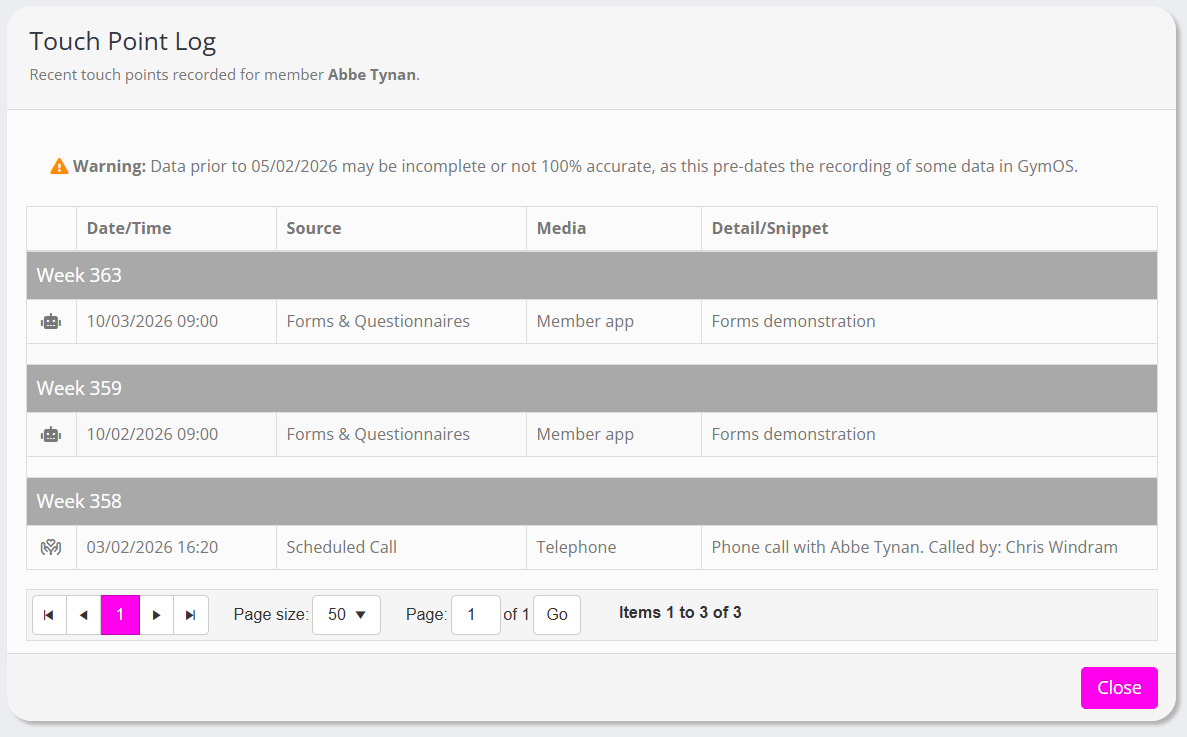
The touch point log will open in a new popup window, ordered by the most recent activities first. The activities are grouped by week since registration.
For each touch point, the following information is provided:
- An icon to indicate whether the touch point as manual () or automated ().
- The date/time of the touch point.
- The function from which the touch point originated.
- The media via which the touch point took place.
- A small snippet of information to give context to the touch point.