
Business Analysis: Trial analysis
The Trial Analysis function is found within the Business Analysis section of Reporting from the main navigational menu.
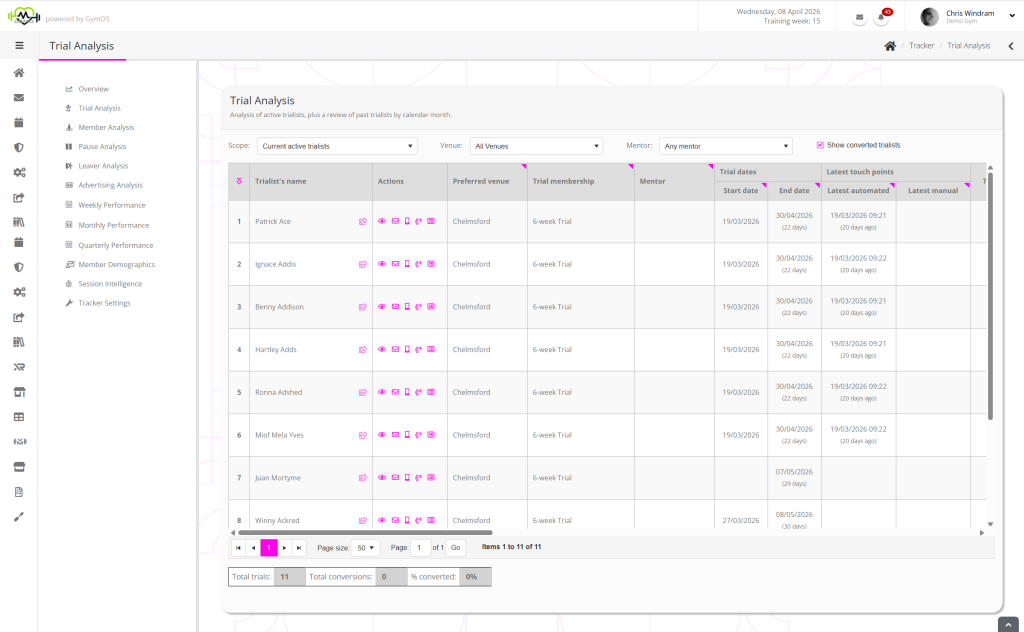
By default, the Trial Analysis function shows all of your current active trialists. You may also amend the Scope to show trialists active during previous calendar months.

Data filters
Filters are provided for:
Actions
Clicking a trialist’s name opens their member record. Clicking on the icon alongside their name opens the member record in a new browser tab.
Actions are provided for:
- View the trialist’s member record
- Send the trialist an email. Hovering over the icon shows the trialist’s email address.
- Sends the trialist an SMS message. Hovering over the icon shows the trialist’s mobile number.
- Log or schedule a call with the trialist.
- View the touch point history for the trialist.
Data columns
The data columns are automatically calculated and are always up to date when the table is displayed.
Many columns feature a symbol in the top-right corner of the column heading. Hovering over this triangle will provide more details as to how the value in a given column is calculated and where the data comes from. Very often, this will answer questions you may have about how a cell value is calculated.
The data columns comprise:
- Preferred venue
The current, preferred venue assigned to the trialist. - Trial membership
The trial membership type being undertaken by the trialist. - Mentor
The current mentor assigned to the trialist. - Trial Dates
- Start date
The date upon which the trial commences. - End date
The date upon which the trial ends.
- Start date
- Latest touch points
- Latest automated
The date/time of the latest automated touch point. - Latest manual
The date/time of the latest manual touch point.
- Latest automated
- Trial consultation
Details of the trial consultation, derived from the latest call logged/DropSlot consultation of the lead-to-trialist category type recorded prior to the trial sales point. - Aim of the trial
The trialist’s goals for the trial, as recorded against the trial membership at the time of creation. - Introductory session
The first session that the trialist is marked as attended following the commencement of their trial. - PAR-Q form
Whether the trialist has a PAR-Q on file. Hover your mouse over the icon for further information. - Session attendance
- Last session
The most recent session marked as attended for this trialist, during the period of this trial. - Next session
The next scheduled session for this trialist, during the period of this trial.
- Last session
- Referral
Whether the trialist was a referred lead. Hover your mouse for more details, and click to view the referrer. - Sales call
Details of the sales call, derived from the latest call logged/DropSlot consultation of the trialist-to-recurring-member category type recorded prior to the recurring membership sales point. - Converted
Whether the trialist has been successfully converted to a recurring member, with their recurring membership added and the conversion logged. - Recurring membership
The recurring membership type that the trialist has converted to. - T & Cs form
Whether the trialist has completed the terms & conditions form. Hover your mouse over the icon for further information. - Payment methods
The payment methods that the trialist/member presently has active within GymOS. - Weekly Touch Points
- Sessions
Sessions confirmed as attended during this week. - Automated touch points
Automated touch points recorded during this week. - Manual touch points
Manual touch points recorded during this week.
- Sessions
Statistics
At the bottom of the page, for the filters selected, statistics are provided for:
- Total trials
- Total conversions
- % converted