
Creating a new membership plan
Before creating a membership plan, take a few moments to read the GymOS Membership Principles. A correct understanding of these fundamentals will make it much easier for you to plan and implement your GymOS configuration.

To create a new membership plan/type, select the Membership Plans option from the Settings section of the main navigation menu. Click the Add button. The membership plan add/edit screen will be shown as below.
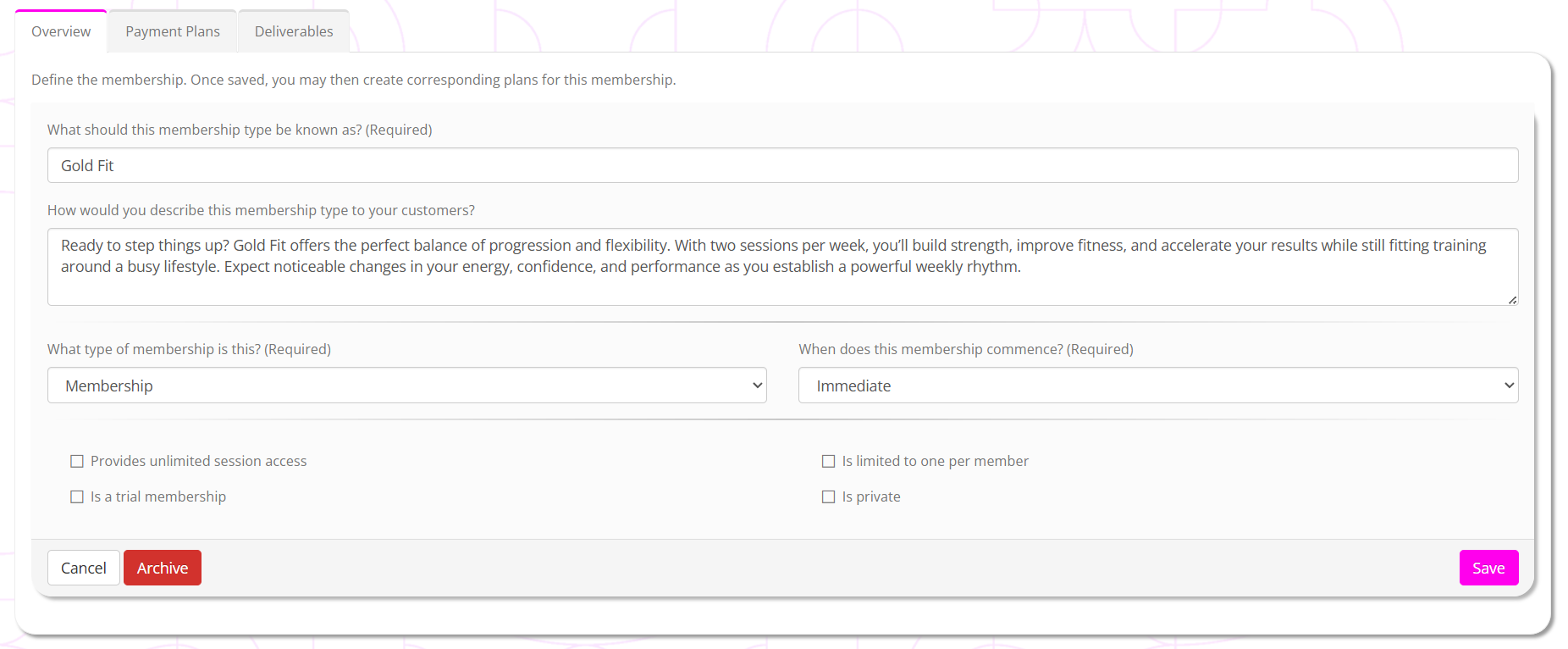
Review and complete the fields for the membership:
What should this membership type be known as?
Give your membership a meaningful, member-friendly name. You do not need to add the word “membership” to your name, as it is typically understood from the context. I.e., call it “Gold”, rather than “Gold membership”.
How would you describe this membership type to your customers?
Spend a moment or two writing a meaningful paragraph of content to summarise and promote your membership. This is shown to both leads and members in multiple places within the GymOS system. Leaving it blank or simply typing two or three words does not do your product justice.
What type of membership is this?
This field exists for future purposes. This would typically be left as “Membership”.
When does this membership commence?
This field can typically be left as “Immediate”, as it may be overridden in most instances in which it is used in GymOS.
Provides unlimited session access
If you tick this box, you are indicating that the membership provides unlimited access to any type of session, in any location. It literally means “unlimited”. Unlimited memberships do not use credits, as there is no need for them. Credits added to an unlimited membership will be issued, but won’t be used.
Is limited to one per member
If you need to limit this membership such that, once issued to a member they may never be issued another of the same type, tick this box.
Is a trial membership
Tick to indicate that the membership is a trial membership. This distinction is important for your business analysis, and also trial memberships may only be purchased by a member who has never previously had a membership.
Is private
Marking the membership as private hides it from sale in the store and also excludes it from being shown in membership promotion campaigns.
Once you have entered the basic membership details, click Save or Update, as appropriate.
Two new tabs will be displayed: Payment Plans and Deliverables.
For next steps, check out the articles: