Setting up WhatsApp in GymOS
WhatsApp is switched on by a manager, once, for the whole gym. Setting up takes a few minutes of your time, followed by a short wait while WhatsApp prepares your number. The steps differ a little between the UK and the Republic of Ireland, so follow the ones for your gym:
Which number WhatsApp uses
In the UK, WhatsApp uses your gym’s GymOS number, the same number your texts come from. Meta checks the number by texting a code to it.
In the Republic of Ireland, WhatsApp uses your gym’s Irish phone number from Konduo, the number your calls come from, so your members and leads see a familiar Irish number. Meta checks the number by phoning it and reading out a code, and GymOS answers that call for you. Your texts keep coming from your current texting number.
Before you begin
- You must be a manager. Only a manager can switch WhatsApp on.
- Your gym is in the UK or the Republic of Ireland. In the UK your gym already has its GymOS number, assigned at sign-up. In Ireland your gym needs its Irish phone number from Konduo first: see Setting up WhatsApp for the Republic of Ireland.
- The number is not already on WhatsApp. If it has ever been registered with WhatsApp or the WhatsApp Business app, or with another company for WhatsApp, it must be released first. This is very important, otherwise you will hit errors during set up. The setup page asks you about this and explains how.
- You can sign in to your business’s Facebook account. Meta, which owns WhatsApp, uses it to confirm your business. If your business has no business account at Meta yet, you can create one while setting up. Meta then emails you a link to confirm your business’s email address, which you need to do before carrying on.
- You have read WhatsApp pricing. WhatsApp messages are an additional usage charge, and there is a monthly fee in any month you use it.
Setting up WhatsApp for the UK
Step 1: open the WhatsApp setup page
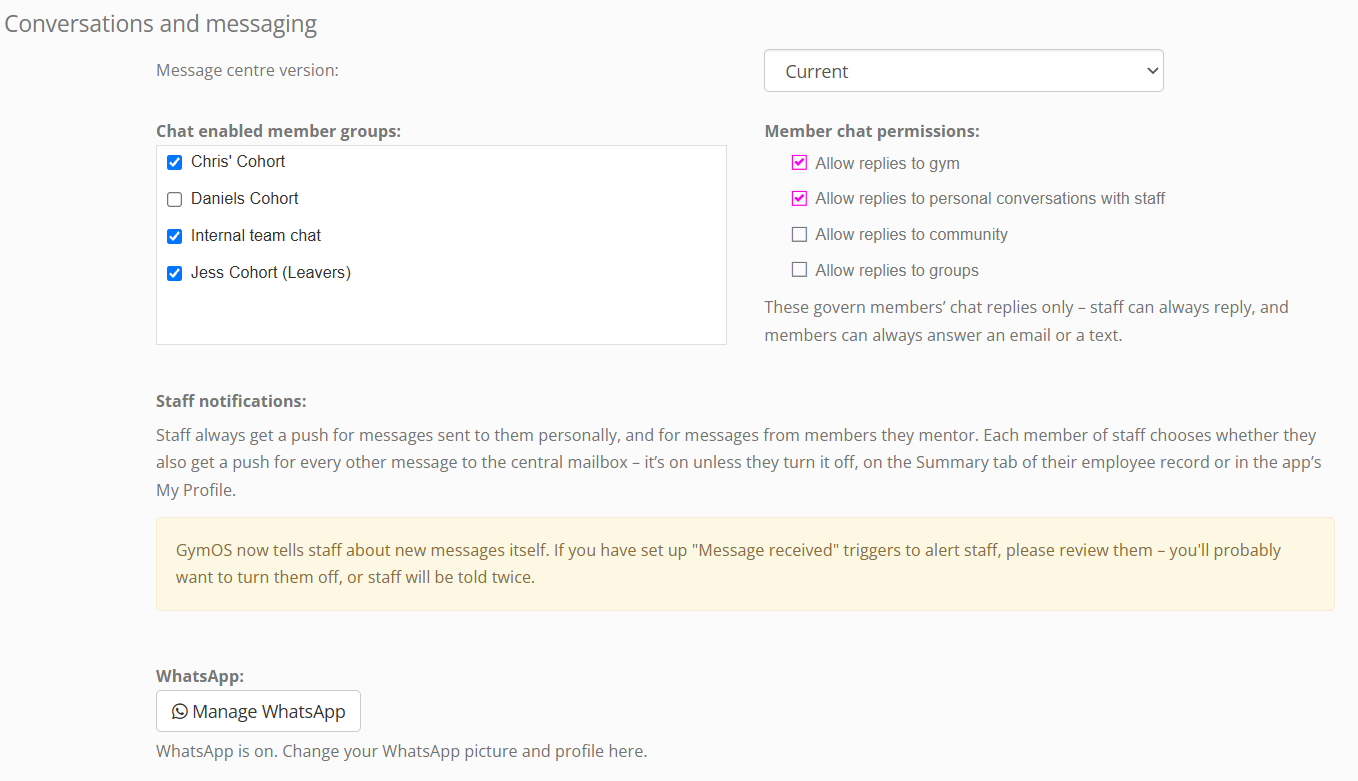
- In the administration portal, open Settings.
- Find the section headed Conversations and messaging.
- Beside WhatsApp:, press Set up WhatsApp.
If you cannot see the WhatsApp: row, WhatsApp is not available to your gym.
Step 2: read and accept the terms
The page is headed Switch on WhatsApp for your gym, and sets out what you are agreeing to. In summary:
- WhatsApp messages come from your gym’s GymOS number, the same number your texts come from, and replies arrive in your GymOS conversations.
- Setting up opens Meta’s own window, where you connect your business’s Facebook account. When asked, you must choose Create a new WhatsApp Business Account. An existing account cannot be used.
- Until Meta has verified your business, WhatsApp limits you to 250 new conversations a day. Everything else works in the meantime. Meta may take several days to verify a business, and may ask you for documents.
- A conversation can only be started with a message template that WhatsApp has approved. Once someone has messaged you, you can reply freely for 24 hours.
- If someone is not on WhatsApp, a new message is sent to them as a text instead.
- Once switched on, WhatsApp is available to all of your staff, and its messages are visible to all team members.
- WhatsApp cannot be switched off from GymOS. To stop using it, contact our support team.
- You are responsible for following WhatsApp’s business and commerce policies and the rules for marketing messages, including having your members’ permission to message them on WhatsApp.
Beneath the terms, the page shows your prices: what each delivered message costs, and the monthly fee. Tick both boxes to confirm that you understand the charges and accept the terms on behalf of your gym, then press Accept and switch on WhatsApp.
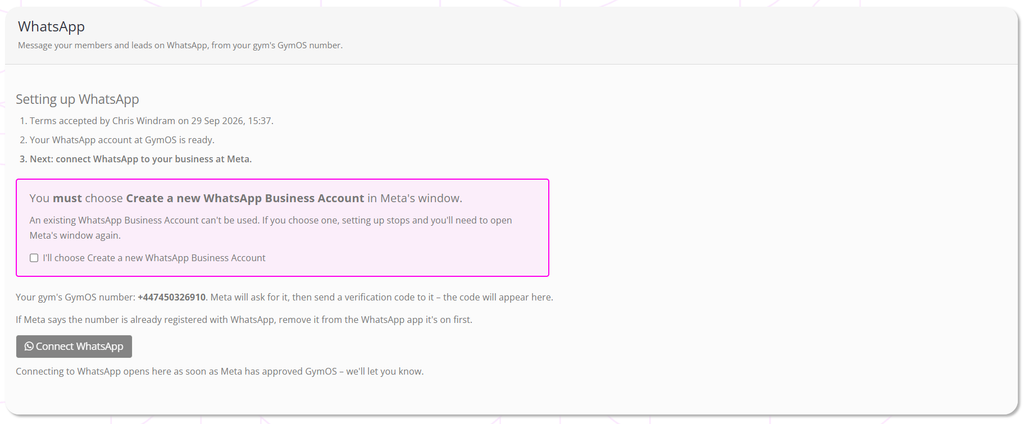
GymOS records who accepted, and when.
Step 3: answer three quick questions
The page now shows a list headed Setting up WhatsApp, with your acceptance and your WhatsApp account at GymOS ticked off. Before Meta’s window opens, it asks three questions, one at a time. They take a minute, and they prevent the most common problems:
- Have you ever used your GymOS number with WhatsApp? Choose No, never, Yes or I’m not sure. If you choose Yes, the page explains how to release the number first. If you are not sure, it gives you a 30-second check you can do from your own phone.
- Which WhatsApp Business account will you choose in Meta’s window? Choose Create a new one. An account you already have can carry another provider or a payment method of its own, either of which stops setting up.
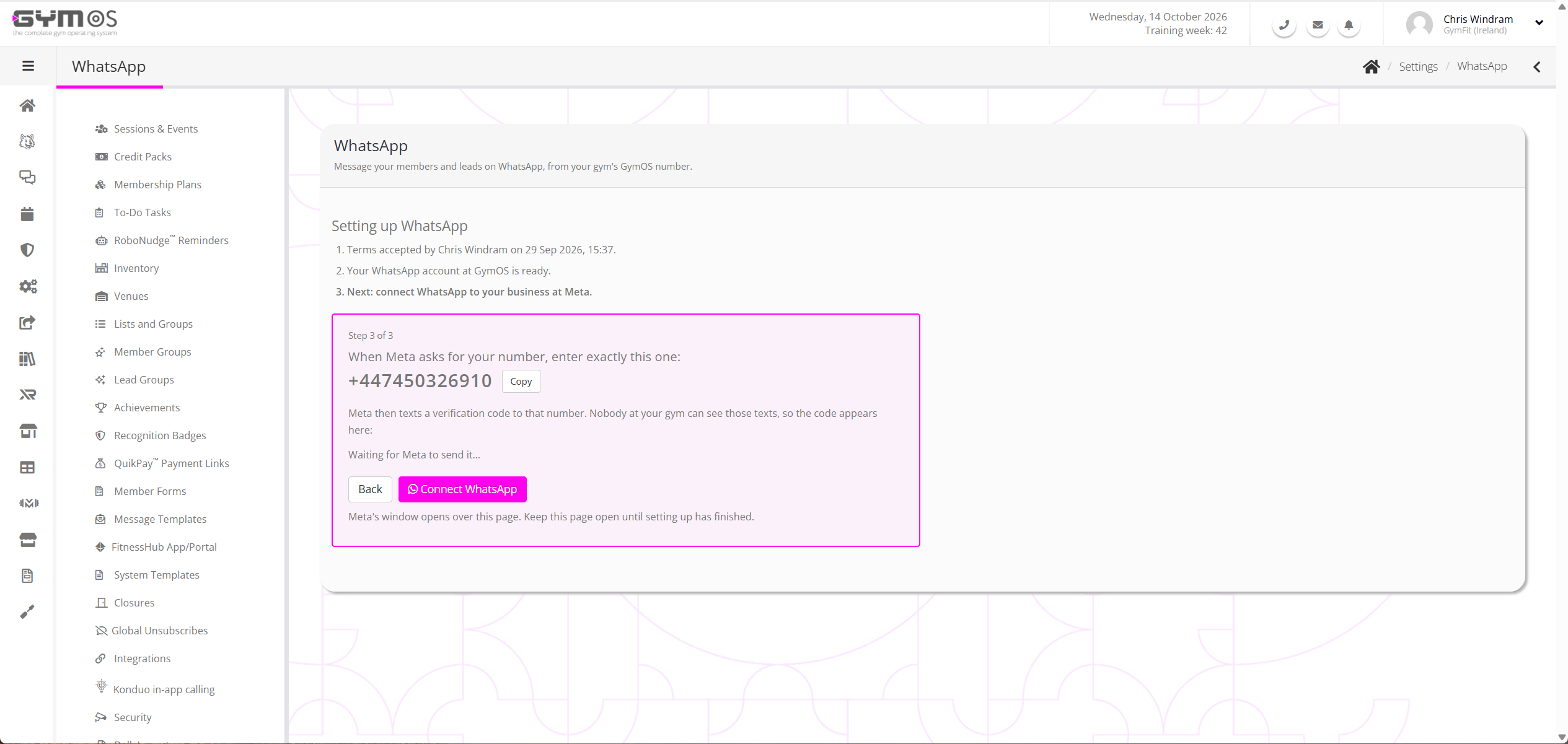
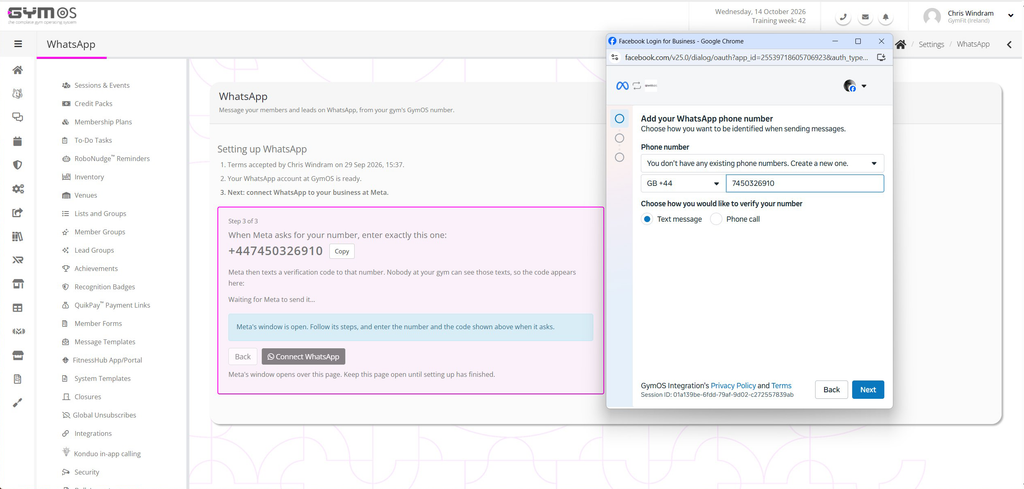
- Your number. The page shows the country to choose, GB +44, and your number to enter, with a Copy button.
Step 4: connect at Meta
- Press Connect WhatsApp. Meta’s own window opens, offering to connect your account to Quoox Ltd. and Twilio, Inc. Quoox is the company behind GymOS, and Twilio is the messaging partner that sends your WhatsApp messages. Meta also asks you to agree to its WhatsApp terms. Press Continue.
- Sign in with your business’s Facebook account and choose your business, or create one. If you create one, Meta emails you a link to confirm your business’s email address. Confirm it, then carry on in Meta’s window.
- When asked, choose Create a new WhatsApp Business account.
- Meta suggests your trading name as the name people will see. Meta does not accept some characters in this name, brackets for example, so GymOS leaves them out of its suggestion.
- When Meta asks for your phone number, choose GB +44 and enter the number shown on the GymOS page. Under Choose how you would like to verify your number, keep Text message.
- Meta texts a verification code to your GymOS number. Nobody at your gym can see those texts, so the code appears on the GymOS page, beside the number, within a few seconds. Copy it into Meta’s window and finish Meta’s steps.
Step 5: a short wait
When Meta’s window closes, GymOS checks your new account with Meta and registers your number. The page reads Your number is connected. WhatsApp is finishing setting it up, which can take up to a minute or so. This page updates by itself when it’s ready. Keep the page open, and it moves on to your WhatsApp profile. If you leave it, GymOS keeps checking every hour, and you can come back at any time from Continue setting up WhatsApp in Settings.
Now see When WhatsApp is activated.
Setting up WhatsApp for the Republic of Ireland
Irish gyms use their Irish phone number from Konduo, the number their calls come from, so members and leads see a familiar Irish number rather than a UK one.
First: set up Konduo
Setting up Konduo registers an Irish phone number in your business’s name, which is the number WhatsApp then uses. You do not have to make calls with Konduo. Whether calling is switched on or off, the number stays yours and WhatsApp keeps working. Registration usually takes a few hours on a working day. See Configuring and enabling Konduo.
Until your gym has its Irish number, the WhatsApp setup page says so and links you to Konduo.
Step 1: open the WhatsApp setup page
- In the administration portal, open Settings.
- Find the section headed Conversations and messaging.
- Beside WhatsApp:, press Set up WhatsApp.
If you cannot see the WhatsApp: row, WhatsApp is not available to your gym.
Step 2: read and accept the terms
The terms are the same as for the UK, with one difference: WhatsApp messages come from your gym’s GymOS phone number, the number your Konduo calls come from, and replies arrive in your GymOS conversations. The page names the number.
Beneath the terms, the page shows your prices: what each delivered message costs, and the monthly fee. Tick both boxes to confirm that you understand the charges and accept the terms on behalf of your gym, then press Accept and switch on WhatsApp. GymOS records who accepted, and when.
Step 3: answer three quick questions
Before Meta’s window opens, the page asks three questions, one at a time:
- Have you ever used your Irish phone number with WhatsApp? Choose No, never, Yes or I’m not sure. If you choose Yes, the page explains how to release the number first. If you are not sure, it gives you a 30-second check you can do from your own phone.
- Which WhatsApp Business account will you choose in Meta’s window? Choose Create a new one.
- Your number. The page shows the country to choose, IE +353, and your number to enter, with a Copy button.
Step 4: connect at Meta
- Press Connect WhatsApp. Meta’s own window opens, offering to connect your account to Quoox Ltd. and Twilio, Inc. Quoox is the company behind GymOS, and Twilio is the messaging partner that sends your WhatsApp messages. Meta also asks you to agree to its WhatsApp terms. Press Continue.
- Sign in with your business’s Facebook account and choose your business, or create one. If you create one, Meta emails you a link to confirm your business’s email address. Confirm it, then carry on in Meta’s window.
- When asked, choose Create a new WhatsApp Business account.
- Meta suggests your trading name as the name people will see. Meta does not accept some characters in this name, brackets for example, so GymOS leaves them out of its suggestion.
- When Meta asks for your phone number, choose IE +353 and enter the number shown on the GymOS page. Under Choose how you would like to verify your number, choose Phone call.
- Meta phones your Irish number and reads out a code, twice. GymOS answers that call for you, so your phones do not ring, and the code appears on the GymOS page within a few seconds. Copy it into Meta’s window and finish Meta’s steps. If the code has not appeared a minute after Meta calls, ask Meta to call again.
While Meta’s window is open, GymOS listens briefly to calls to your Irish number, to catch Meta’s code. Anyone else who calls in those few minutes hears a short pause before the call rings through to you as normal.
Step 5: a short wait
When Meta’s window closes, GymOS checks your new account with Meta and registers your number. The page reads Your number is connected. WhatsApp is finishing setting it up, which can take up to a minute or so. This page updates by itself when it’s ready. Keep the page open, and it moves on to your WhatsApp profile. If you leave it, GymOS keeps checking every hour, and you can come back at any time from Continue setting up WhatsApp in Settings.
Your texts do not change. Texts to your members and leads, including the text sent when somebody is not on WhatsApp, keep coming from your current texting number.
When WhatsApp is activated
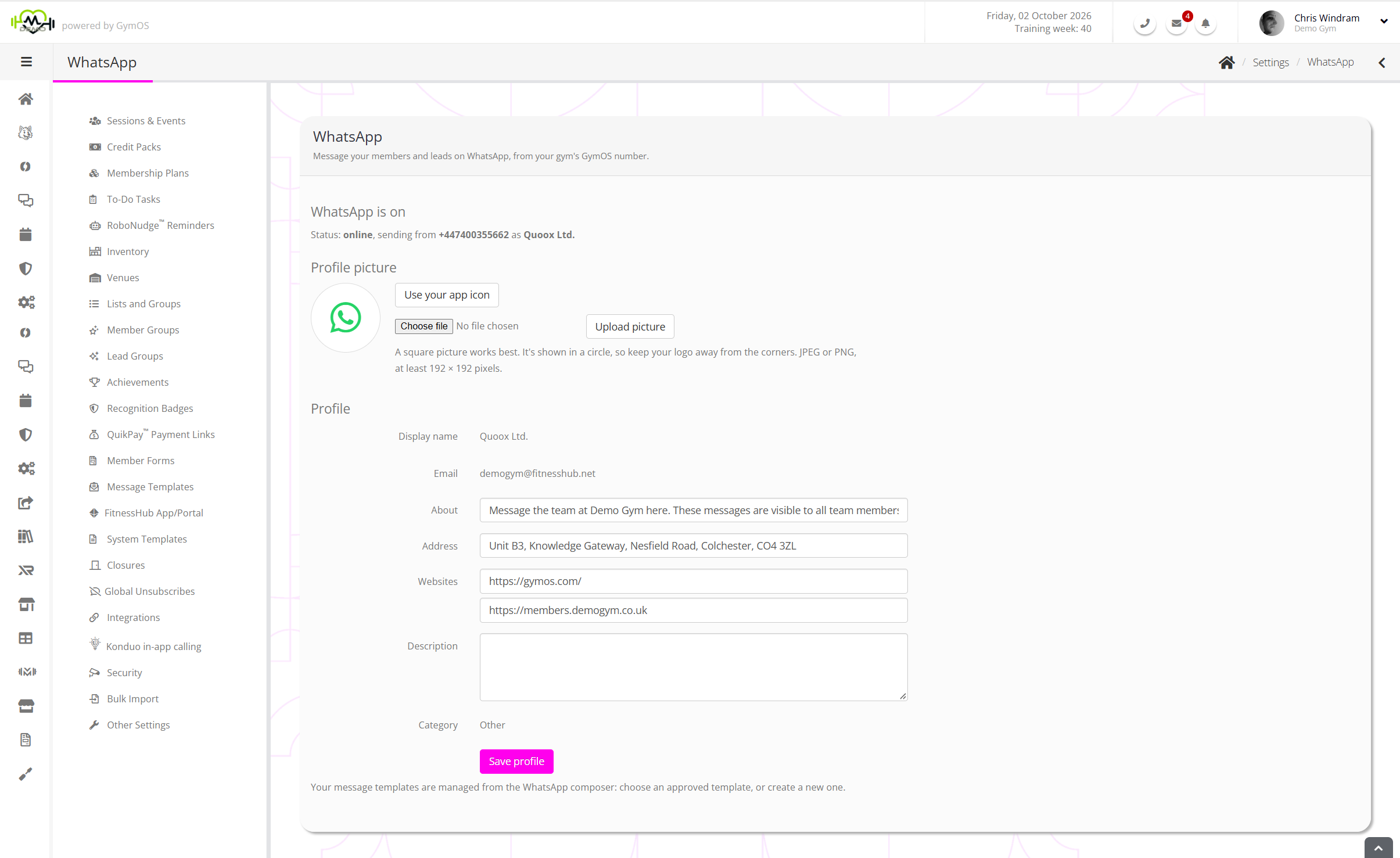
The page is now headed WhatsApp is on, and shows the number you are sending from and the name your members will see. Three things have been done for you:
- WhatsApp is available to your whole team, wherever a member or lead has a mobile number.
- Your starter templates have been sent to WhatsApp for approval. They appear, ready to use, as each one is approved.
- Your profile has been filled in with your GymOS email address, a line under your name, your website and, if you have one, your FitnessHub app icon as your picture.
Your WhatsApp profile
This is what people see when they look at who is messaging them. Return to it at any time from Manage WhatsApp in Settings.
| Item | What you can do |
|---|---|
| Display name | The name you gave in Meta’s window, normally your trading name. It cannot be changed here. |
| Your GymOS email address. It cannot be changed here. | |
| Profile picture | Press Use your app icon, or Upload picture to choose your own. A square JPEG or PNG works best, at least 512 × 512 pixels and under 10 MB. It is shown in a circle, so keep your logo away from the corners. |
| About | The short line under your name, up to 139 characters. Left empty, it reads Message the team at your gym here. These messages are visible to all team members. |
| Address | Up to 256 characters. |
| Websites | Up to two. |
| Description | Up to 512 characters. |
Press Save profile when you have finished. A change can take a few minutes to show on people’s phones.
Your starter templates
Six templates are created for your gym, so that your team has something to send from the first day:
| Template | Kind | Used for |
|---|---|---|
| New enquiry follow-up | Marketing | Following up a new lead and offering a chat |
| Trial or consultation invitation | Marketing | Inviting a lead to a trial, a consultation, or whatever you type in |
| General member check-in | Marketing | Asking a member how their training is going |
| Appointment reminder | Service | Reminding somebody of a booking, with its time and date |
| Re-engagement | Marketing | Getting back in touch with somebody you have not spoken to for a while |
| Missed session | Marketing | Following up a session somebody did not attend |
Your managers can create more at any time. See WhatsApp templates, the 24-hour window and the text fallback.
Business verification
Separately from GymOS, Meta verifies your business. Until it has, WhatsApp limits you to starting 250 new conversations a day. Replies, and everything else, work normally in the meantime. Verification may take several days, and Meta may contact your business by email to ask for documents. This process is operated by Meta and GymOS is not involved in it.
Keeping your number safe
Once your number is used for WhatsApp in Conversations (your GymOS number in the UK, your Irish phone number in Ireland), it must not be registered with WhatsApp anywhere else, for example in the WhatsApp Business app on a phone. Doing so would stop WhatsApp working for your gym. To protect against it in the UK, a WhatsApp verification code texted to your GymOS number is held and is not shown in your conversations, and your event log records that it was received. In both countries, GymOS will not change the number while your WhatsApp is using it.
Stopping WhatsApp
WhatsApp cannot be switched off from GymOS. If you want to stop using it, contact our support team. Please be aware of what it means:
- Your number stops being a WhatsApp number, so WhatsApp messages your members send to it no longer arrive.
- WhatsApp stops being offered everywhere in GymOS straight away. Your templates, and all of your WhatsApp history, are kept.
- Anything still set to send by WhatsApp, such as a scheduled message or an automation, is sent as a text instead, and the message says so.
- It cannot be undone. Switching WhatsApp back on means setting up again from the beginning.
Common questions
Who can set WhatsApp up?
A manager. Other members of staff do not see the WhatsApp page.
How long does it take?
A few minutes for the steps you do yourself, then usually a minute or two while WhatsApp prepares your number, occasionally up to an hour. Your starter templates are approved separately, usually within minutes and occasionally up to a day. In Ireland, allow time for Konduo to register your Irish number first, usually a few hours on a working day.
Why does Meta’s window mention Quoox Ltd. and Twilio?
Quoox is the company behind GymOS, and Twilio is the messaging partner that sends your WhatsApp messages. Connecting your account to both is what lets your WhatsApp work in GymOS.
Meta says our number is already registered with WhatsApp.
It is registered somewhere else: in WhatsApp or the WhatsApp Business app on a phone, or with another company. Release it there first (in the app, delete the WhatsApp account on that number; with a company, ask them to release it), then connect again. If you have only just released it, Meta can take a little while to notice, so wait a few minutes and try again.
Why do Irish gyms use their Konduo number?
GymOS can no longer provide Irish mobile numbers, so many Irish gyms text from a UK number. Your WhatsApp uses your Irish phone number from Konduo instead, so your members and leads see a familiar Irish number, and it is the same number your calls come from.
We are in Ireland. Do we have to use Konduo for calls?
No. You need to set Konduo up, because that is what registers your Irish number, but you do not have to make calls with it. WhatsApp keeps working whether calling is switched on or off.
Can we change the name people see?
No. It is the name given in Meta’s window when you connected, normally your trading name. You can change your picture, the line under your name, your address, your websites and your description at any time.
Why are we limited to 250 new conversations a day?
That is WhatsApp’s limit for a business Meta has not yet verified. It is lifted once verification is complete.
Where do I manage our templates?
From the WhatsApp message itself, not from Settings. Choose New WhatsApp message, or reply by WhatsApp, and open the template list. See WhatsApp templates, the 24-hour window and the text fallback.
My last attempt to set up did not finish. What now?
The page says so, and lets you start again from the terms. If Meta’s part finished but your number could not be registered, the page shows a Try again button instead, and you do not need Meta’s window again. If GymOS could not confirm the account Meta created, connect again and, as the page explains, choose that account rather than a new one, because Meta will not add your number to a second account.
Can we switch it off for a while and back on again?
No. Stopping WhatsApp is permanent for that number unless you set up again, so please contact our support team to talk it through first.