WhatsApp templates, the 24-hour window and the text/SMS fallback
WhatsApp lets a business reply freely for 24 hours after somebody messages it, and asks for an approved template the rest of the time. GymOS follows those rules for you: it shows which applies, offers the right thing, and sends a text instead when the person is not on WhatsApp. This article explains all three.
The 24-hour window
When a member or a lead sends your gym a WhatsApp message, a 24-hour window opens for that person. Every new message from them starts the 24 hours again.
- While the window is open, you can reply in your own words. The reply box works as it does for any other channel, with a link beside it, or send an approved template, should you prefer one.
- When no window is open, the reply box is replaced by a button, Choose an approved template. That covers somebody who has never messaged you on WhatsApp, and somebody whose last message was more than 24 hours ago.
A line under the channels tells you where you stand, for example:
- WhatsApp: Sam hasn’t messaged the gym on WhatsApp, so only an approved template can be sent.
- WhatsApp: Sam last messaged 3 days ago – no 24-hour reply window is open, so only an approved template can be sent.
- Sam last messaged on WhatsApp 22 hours ago – after an hour a WhatsApp reply needs a template. This warning appears in the last three hours of the window.

The window belongs to the person’s mobile number. Where a child’s messages go to a parent’s mobile, the window is the parent’s.
GymOS’s view of the window is a guide. WhatsApp makes the final decision, and very occasionally a reply sent right at the end of the window is refused. If that happens, the message shows Not delivered – no 24-hour reply window was open. Send an approved template instead.
Templates
A template is a message whose wording WhatsApp has approved in advance. Because it is approved, it can be sent at any time: to start a conversation, to a group, at a scheduled time, or from an automation.
Choosing a template
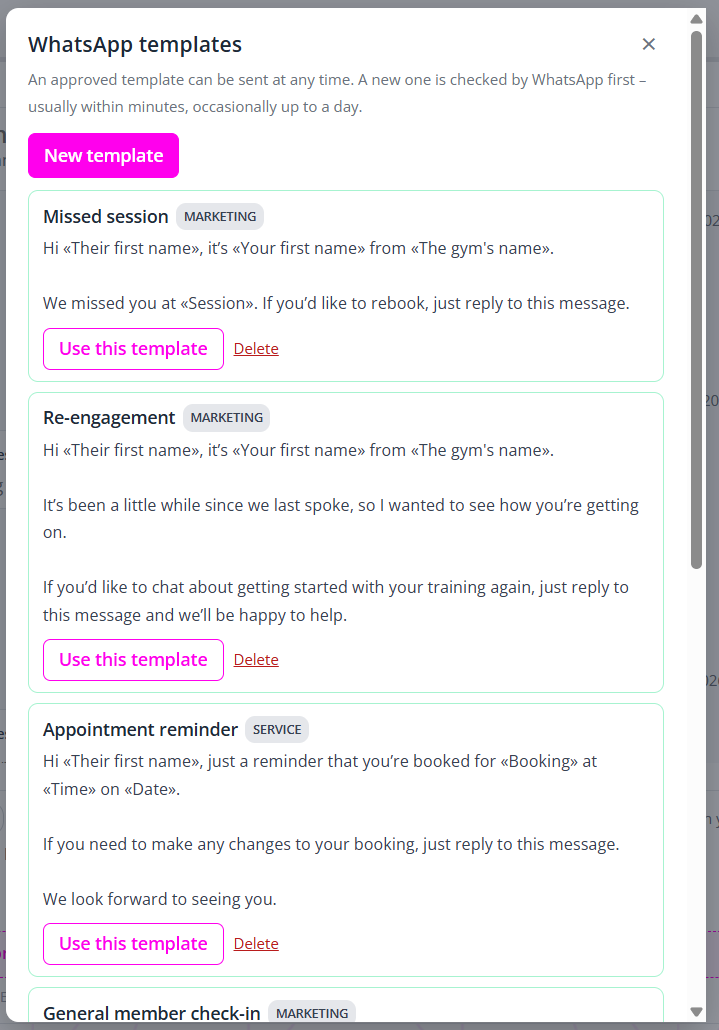
Press Choose an approved template to open the list, titled WhatsApp templates. Each template shows its name, whether it is a Service or a Marketing template, and its wording, with the parts that change shown like this: «Their first name». Press Use this template on the one you want.
If the template has any fill-ins, a box appears for each. Type what should go there, for example a date or a time. Every box must be completed before the message can be sent.
Every member of your team can send an approved template, in the administration portal and in the FitnessHub app.
Creating a template
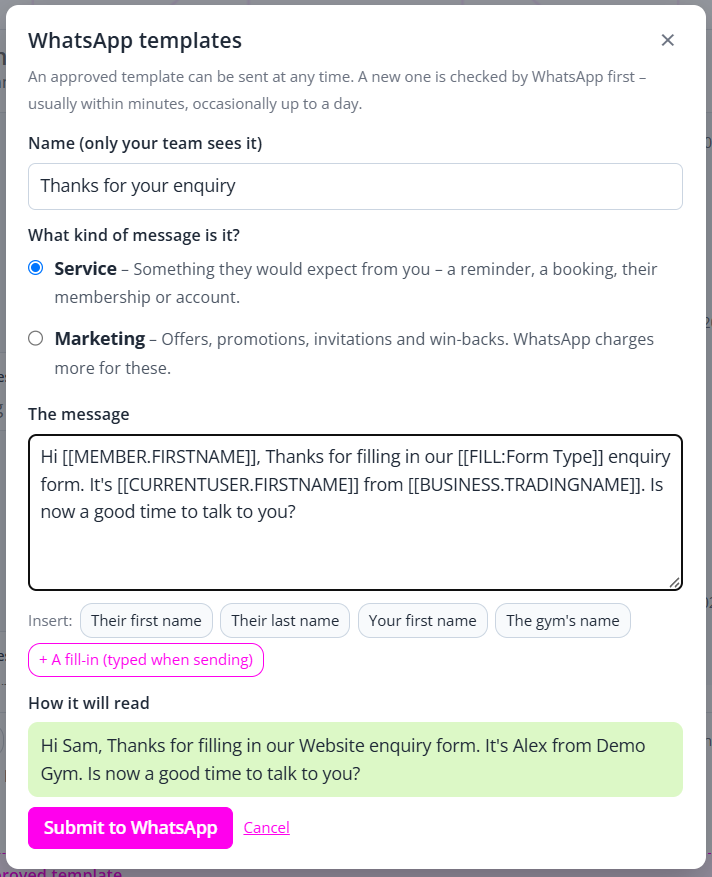
Managers create templates, in the administration portal. Open the template list and press New template.
| Field | What to enter |
|---|---|
| Name (only your team sees it) | A name for your own use, up to 60 characters. For example, Missed class check-in. |
| What kind of message is it? | Service: something they would expect from you, such as a reminder, a booking, their membership or their account. Marketing: offers, promotions, invitations and win-backs. WhatsApp charges more for these. |
| The message | The wording, up to 1,024 characters. |
| Insert: | Adds a detail GymOS fills in for you: Their first name, Their last name, Your first name (the person sending it) and The gym’s name. |
| + A fill-in (typed when sending) | Adds a blank that whoever sends the message completes each time, such as a date, a time or a session. Give it a name and an example. A template may have up to five. |
| How it will read | A preview of the finished message, with examples in place. |
Press Submit to WhatsApp. The template is sent for approval, and can be used as soon as it is approved, usually within minutes and occasionally up to a day.
WhatsApp has some rules for the wording, and GymOS checks them before submitting:
- Start and end the message with words, not with an inserted detail.
- Put some words between two inserted details.
- Give an example for every fill-in. WhatsApp’s reviewers read them.
- Only the four details offered can be inserted. Other merge fields cannot be used in a template.
Approval, and what the statuses mean
| Status | What it means |
|---|---|
| Awaiting WhatsApp approval | Submitted, and being checked. It cannot be sent yet. |
| Approved | Ready to use. |
| Rejected | WhatsApp did not approve it. The reason is shown beneath. Create a new template with different wording. |
| Paused by WhatsApp or Disabled by WhatsApp | WhatsApp has stopped it being sent, usually because of how the people receiving it have responded. |
| Not submitted | It could not be sent to WhatsApp. The reason is shown beneath. |
WhatsApp decides for itself what kind of message a template is, and may class a template you created as Service as Marketing. When it does, the template says so: WhatsApp classed this as marketing, which sets its price. Meta will also email your business about your templates, for example when it approves or re-classes one.
Changing or deleting a template
An approved template cannot be edited, because its wording is what was approved. To change one, create a new template and delete the old one.
A manager deletes a template with Delete, pressed twice to confirm. It is removed from the list and from WhatsApp. If an event trigger, a nurture programme or a session reminder was using it, that step will be skipped until you choose another. See WhatsApp in triggers, nurture programmes and session reminders.
Ticks, and messages that are not delivered
Each WhatsApp message you send shows how far it has got:
- Sending: on its way to WhatsApp.
- ✓ Sent: accepted by WhatsApp.
- ✓✓ Delivered: it has reached their phone.
- ✓✓ Read: they have opened it.
If WhatsApp does not deliver a message, the reason is shown in red on the message itself:
- Not delivered – no 24-hour reply window was open. Send an approved template instead.
- Not delivered – this number isn’t on WhatsApp.
- Not delivered – WhatsApp didn’t accept it, with an error number our support team can look up.
A message that is not delivered is not charged.
The text fallback
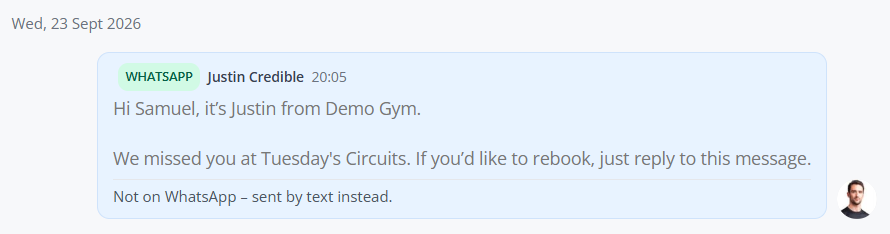
Not everybody uses WhatsApp. When you send a template to somebody who is not on WhatsApp, GymOS sends them the same message as a text instead, so that nobody is missed.
- The wording is the same, with every detail and fill-in written in.
- It is charged as a text, not as a WhatsApp message.
- It appears once in the conversation, with the note Not on WhatsApp – sent by text instead.
- GymOS remembers. For the next 90 days, templates to that number go straight to text. After that, WhatsApp is tried again, in case they have joined. It is against Meta policies to repeatedly try to send a WhatsApp to a number that has been declared as not having WhatsApp linked.
Three things to know about the fallback:
- It applies to templates only. A reply typed in your own words never falls back to a text, because you can only be replying to somebody who has just messaged you on WhatsApp.
- The text must be able to reach them. If the number is blocked for texts, or the person has opted out of them, no text is sent and the message stays Not delivered – this number isn’t on WhatsApp.
- There is no test send. An approved template reads exactly as its preview shows.
Common questions
Why can I not type a WhatsApp message?
No 24-hour window is open for that person. Press Choose an approved template, or use another channel.
Who can create templates?
Managers, in the administration portal. Everybody on your team can send an approved template, including from the FitnessHub app.
How long does approval take?
Usually a few minutes, occasionally up to a day. You do not need to wait on the page: the template simply becomes available once it is approved.
Can I edit a template?
No. Create a new one with the wording you want, and delete the old one.
Why did my Service template become Marketing?
WhatsApp classes each template itself, and its decision sets the price. Wording that promotes or invites is likely to be classed as marketing. Don’t be surprised if a lot of your templates are deemed “marketing” by Meta. They have strict rules, and lean towards marketing as their determination.
Why does a message say “Not on WhatsApp – sent by text instead”?
The person is not on WhatsApp, so they received the same words as a text, charged as a text.
Why was a text not sent instead?
Either the message was a reply typed in your own words, which never falls back, or the number cannot receive your gym’s texts.
Can I use other merge fields in a template?
Only the four offered. For anything else, add a fill-in and type the detail when you send. In an event trigger, a nurture programme or a session reminder, a fill-in can hold a merge field. See WhatsApp in triggers, nurture programmes and session reminders.
Can I send a template to a group, or schedule it?
Yes. See Sending a new message.