Sending a new message
The new message screen is where you write to somebody for the first time, to several people at once, or to a whole group or membership. One screen sends every type of message, now or at a time you choose. It does the work that the legacy Message Centre and Scheduled Broadcasts used to share.
Creating a new message
Press New message above the conversation list and choose what you want to send:
- New Email message
- New SMS message
- New Chat message
- New WhatsApp message, where your gym has WhatsApp
- New Push alert
- New Immersive email
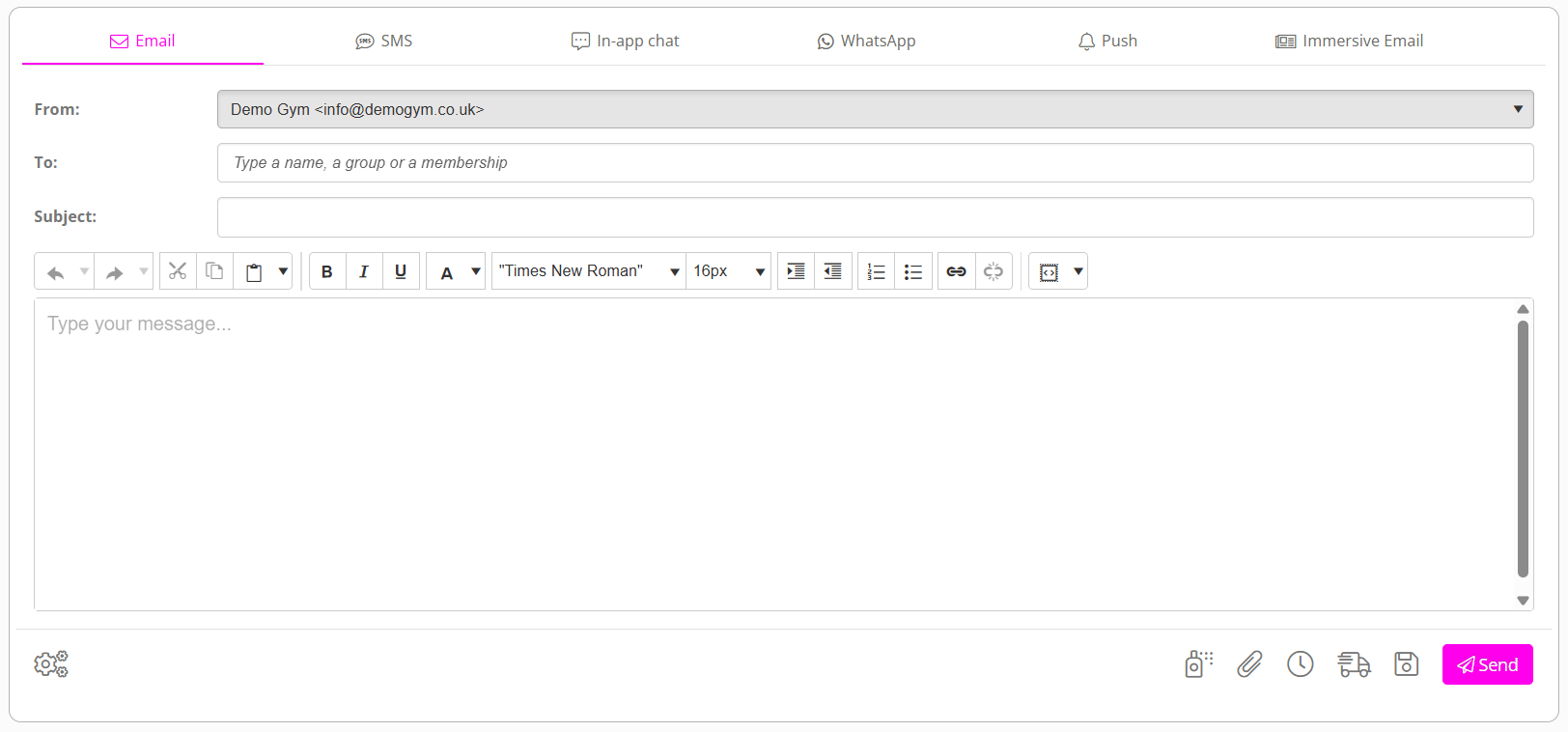
The screen opens on the right, with tabs across the top: Email, SMS, In-app chat, WhatsApp, Push and Immersive Email. You can change your mind and switch tab at any time. What you have typed is kept.
The same menu is on the Messages tab of a member’s or lead’s record. Opened from there, the message is already addressed to that person.
Setting the recipient(s)
Click in To and type at least three letters of a name, a group or a membership. Choose from the list that appears. You can add as many as you like, and mix them.
| You can choose | Which sends to |
|---|---|
| A member, or a lead | That person. A lead is shown with (Lead) after their name. Each person’s email address and mobile number are shown, with No email address or No mobile number in red where one is missing. |
| A member group, or a lead group | Everybody in the group. This includes the groups GymOS keeps for you, as well as your own. |
| A membership | Every member on that membership. |
| A typed email address or mobile number | That address or number. A mobile must be in international form, starting with +. |
- A group or membership is worked out when the message is sent, not when you write it. Somebody who joins the group before a scheduled message goes will receive it. For that reason no number of recipients is shown.
- Deduped, so that nobody receives it twice. A person who is in two of the groups you chose gets one message.
- Each person receives their own copy. Nobody sees who else it went to.
Who can receive what
The list in To only offers people and groups that the channel you are on can reach.
| Channel | Can be sent to | Good to know |
|---|---|---|
| Email and Immersive Email | Members, leads, member groups, memberships, and lead groups | Lead groups are offered only where your gym sends from its own vanity email domain configured against GymOS. |
| SMS | The same | Charged as texts. Lead groups also need your own vanity email domain. |
| The same | An approved template only. Anybody not on WhatsApp gets it as a text. See WhatsApp templates, the 24-hour window and the text fallback. | |
| Push | Members, member groups and memberships | The member needs the FitnessHub app. Leads cannot receive a push. |
| In-app chat | Members, memberships, and groups with chat switched on | The member needs the app. To a group, it is posted once, in the group’s chat. |
Some people in a group will not be reachable on the channel you chose. They are simply left out, and the message goes to everybody else:
- somebody with no email address, or no mobile number, for that channel;
- an email address or mobile number that is blocked, because messages to it have failed before or the person has asked not to be contacted that way;
- for a push or chat, a member who has not signed in to the FitnessHub app.
Where a child’s messages go to a parent, as elsewhere in GymOS, their email and texts follow the same rule.
If you send a push or a chat message to one named member who does not have the app, it is refused, because it would reach nobody: Sam doesn’t have the app, so a push has nowhere to go.
Who it appears as sent from
- Email and Immersive Email have a From list: your gym, or you. From the gym, each person’s copy joins their conversation with the gym, and replies are shared by your team. From you, it comes from your own name and address, and replies come back to you. Your choice is remembered for next time. See Your own email address.
- SMS and WhatsApp always come from your gym’s number.
- Push comes from your gym.
- In-app chat comes from you, by name.
You can send as your gym or as yourself, but not as a colleague.
Writing the message
| Channel | What you write | Limits |
|---|---|---|
| A subject and a message, with the usual formatting tools | Subject up to 255 characters | |
| SMS | A message. A counter shows how many texts it will be sent as. | 1,600 characters |
| Push | A title, which is optional, and a message | Title 60 characters, message 160. A push cannot contain a link. |
| In-app chat | A message | 4,000 characters |
| An approved template and its fill-ins | Set by the template | |
| Immersive Email | A subject, then a design. See Designed emails and newsletters. | Subject up to 255 characters |
Merge fields
Merge fields put each person’s own details into their copy, such as their first name. For a text or a push, choose one from the list above the box, which begins — Insert a merge field —. For an email, they are in the editor’s toolbar. Chat has no merge fields.
The icons beneath the message
| Icon | What it does |
|---|---|
| Message Settings | Chooses the email template your message is wrapped in, and fills the message from one of your content snippets. Applying a snippet replaces what you have written. |
| Apply Polish | Asks GymOS to tidy your wording. It keeps your merge fields and adds nothing you did not say. Undo Polish puts it back as it was. |
| Attachments | Adds files to an email. |
| The clock | Sets a time to send. See Scheduling, drafts and pending messages. |
| Send a trial dispatch to yourself | Sends you a test copy to the email address associated with your GymOS login. |
| Save as draft | Keeps it to finish later. |
Not every icon appears on every tab. Attachments are for email, and Polish is not offered for WhatsApp or an immersive email.
Attachments
Files can be attached to an Email or an Immersive Email. Press the paperclip, then drop files onto the box, paste them, or click to choose.
| Limit | |
|---|---|
| Each individual file | 10 MB |
| All files together | 15 MB |
| Number of files | 10 |
| All files together, when sending to a group or a membership | 5 MB, because every member receives every file |
- You can attach PDF, Word, Excel, PowerPoint, images, text and calendar files.
- You cannot attach ZIP files, video or programs.
- Every file is checked for viruses by Microsoft Azure Defender as it uploads. A file that fails is removed, and you are advised.
- A file must be what its name says. A file renamed to look like a PDF is refused.

Sending yourself a test
Press Send a trial dispatch to yourself to receive a copy at your own email address, mobile number or app, with the merge fields filled in as if you were the recipient. An email test has [Test] at the start of its subject. A test is not saved, does not appear in any conversation, and a test text is not charged. There is no test for chat or WhatsApp.
Sending
Press Send. If you have set a time, the button reads Schedule.
- To one person, it goes at once. You see Sent. and their conversation opens with your message in it.
- To several people, a group or a membership, you see Sending now. and GymOS sends it in the background, so that you can carry on working. Follow its progress under Drafts/Pending Messages.
Either way, each person’s copy appears in their own conversation and on their record.
Additional verification before a potentially costly send
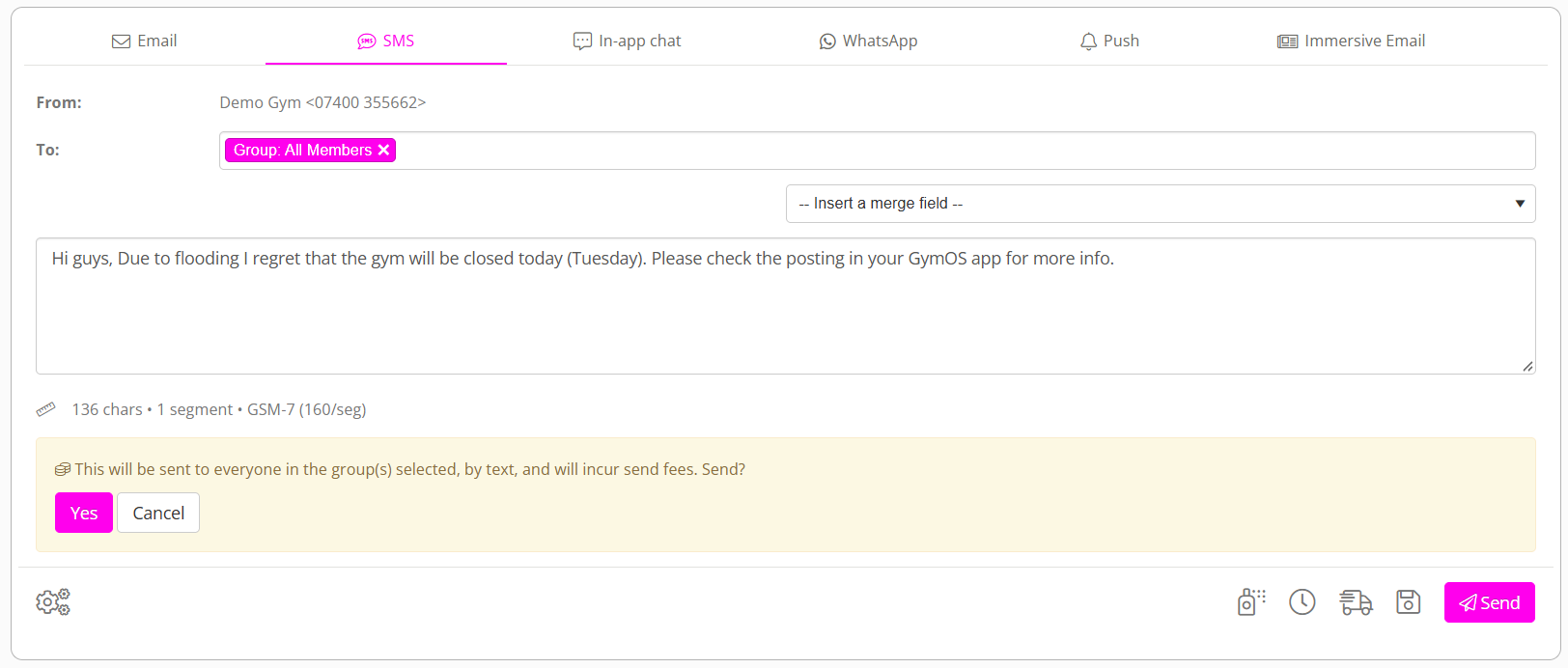
A text or a WhatsApp message to a group or a membership costs money for each person, so GymOS asks first: This will be sent to everyone in the group(s) selected, by text, and will incur send fees. Send? Choose Yes or Cancel. You are not asked for email, push or chat, which carry no charge.
Common questions
How many people will this go to?
GymOS does not show a number, because a group or membership is worked out at the moment the message is sent.
Somebody in the group did not receive it. Why?
They have no email address or mobile number for that channel, their address or number is blocked, or, for a push or chat, they do not have the app.
Why can I not find a lead for a push or a chat message?
Both need the FitnessHub app, which leads do not have.
Why can I not find my lead group?
Lead groups are offered only once your gym sends from its own vanity email domain. If you do not have this configured in GymOS, please raise a support ticket for more information.
Why is my group not offered on the In-app chat tab?
Only groups with chat switched on are offered. See Chat, groups and the community.
Why was my push to one member refused, when a push to a group was accepted?
One named member without the app would receive nothing, so you are told. In a wider message, anybody without the app is simply left out.
Why are attachments limited to 5 MB for a group?
Every member of the group receives every file.
Is a test text charged? Does a test appear in the conversation?
Yes it is charged, no it does not appear in the conversation.
Can I send as a colleague?
No. You can send as your gym, or as yourself.
Where did my message go after “Sending now.”?
Open Drafts/Pending Messages. It is under In progress while it sends, then Sent.