
Assigning an ad hoc DropSlot invitation to a lead
There are several ways to assign a DropSlot invitation to a lead. These are fully described in the Creating and managing DropSlot consultations article. This article focuses specifically on manually adding an ad hoc invitation via the Calls & Consultations tab on a lead record.
To assign an ad hoc DropSlot invitation to a lead, follow these steps:
- Navigate to the Calls & Consultations tab on the lead record.
- Click the Issue invitation button at the top of the tab. This will open the pop-up Issue Invitation window.
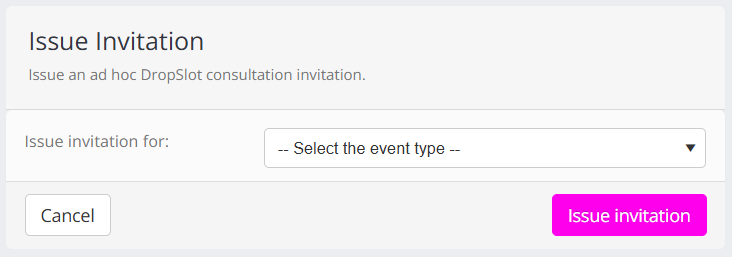
- Select the event that you wish to issue the invitation for from the Issue invitation for drop-down list.
- Click the Issue invitation button in the pop-up window.
The invitation will be issued immediately and will appear in the Pending Invitations section of the Calls & Consultations tab.
If the invitation does not show, click the Refresh button at the top of the form (as opposed to the browser refresh button).