Bulk updating membership pricing
If you are not already familiar with them, it is recommended that you first read the GymOS membership principles.
Memberships are akin to contracts assigned to members. Updating the pricing on a membership plan does not update the price for memberships that have already been allocated.
To amend existing memberships, you may either update an individual membership, schedule a price adjustment, or apply a bulk update across all memberships and plans. It is the bulk update method that is described in this article.
Before you start
Prior to using this function, there are a few points worth noting:
- The bulk update function is available only to users at the manager level.
- The price changes you make will be applied immediately to the memberships and plans you select. Any payments from that moment onwards will use the new price.
- The bulk updates deliberately exclude paused and cancelled memberships. As recommended, you should always review the pricing for a membership when it comes off pause. The system notification advises you when this happens.
- By default, trial memberships are also excluded, but you may include these by checking the Include trial memberships box.
- Any price changes you have scheduled against an individual member’s membership will still occur as scheduled at the price set.
- Remember, due to the timing and processes associated with Direct Debits, these are processed 3 days prior to the target membership payment date. Therefore, consider the date you apply the update and the point at which it will impact the amount your members pay.
Applying a bulk pricing update
The bulk update functionality is accessed by selecting the Bulk pricing update option from the Actions button found on the Membership Plans listing in Settings.
GymOS will review your members’ current, non-paused memberships and your active payment plans, and provide a summary of all of the pricing variants that you have in current operation.
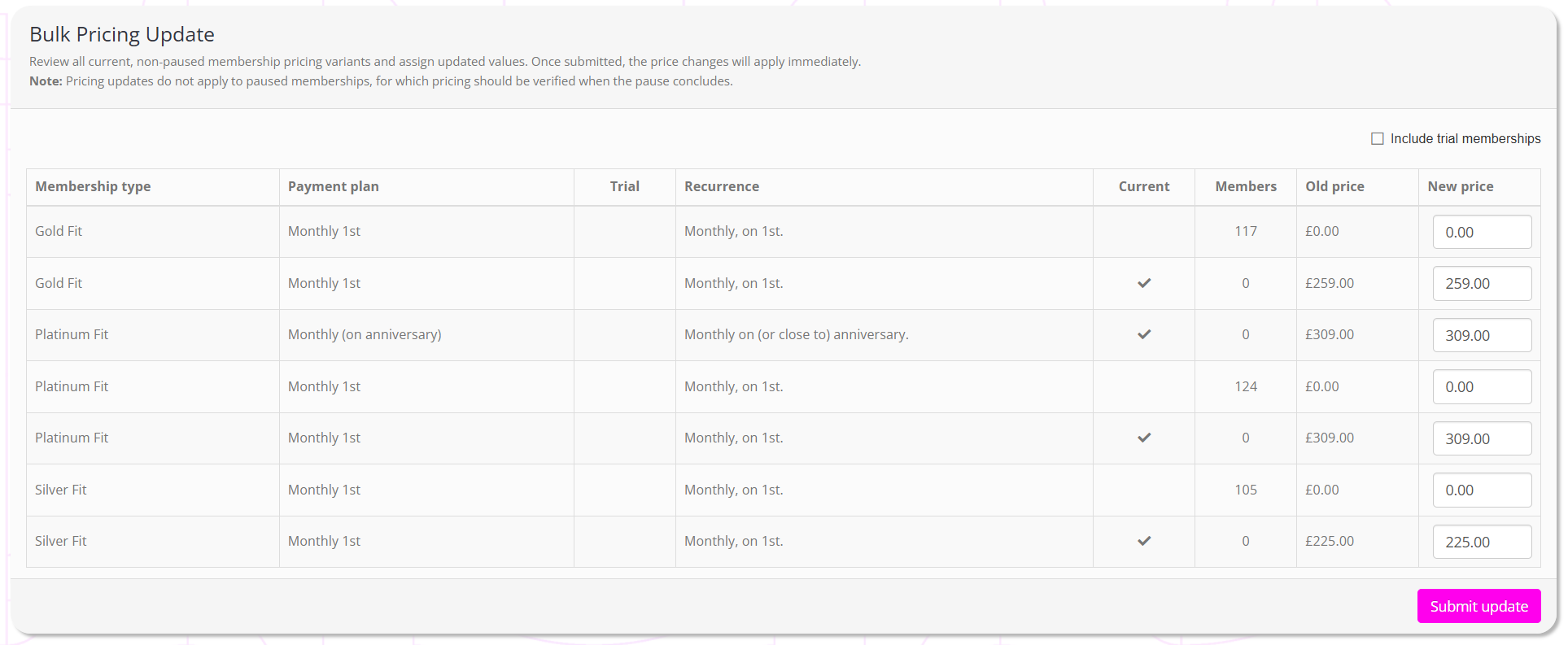
For each variant, the information displayed will comprise:
- Membership type – the membership plan name.
- Payment plan – the payment plan assigned.
- Trial – if the membership is a trial membership, a will be shown.
- Recurrence – the frequency at which the recurring payment is charged.
- Current – if the price is in line with the current price set on the payment plan, a will be shown.
- Members – the number of memberships that are currently assigned to that membership type, plan, and price point.
- Old price – the price currently assigned.
- New price – the new price that you wish to assign to memberships of this type, plan, and price point.
To update a membership and its plan price, enter the new price in the new price field. To keep the price unchanged, keep the new price equal to the old price.
Once you are happy with your amendments, click the Submit update button. Review and approve the confirmation message.
Pricing updates are processed as a background task. This typically commences almost immediately and, depending on the number of memberships there are to be updated, may take a minute or two.
GymOS will record entries in the event log for every membership updated.