
Editing an assigned membership
Once you have assigned a membership to a member, there are a few things you can adjust while the membership is active. This includes amending the regular payment date, the credit issue date, and the recurring costs.
For more significant changes, you should cancel the member’s current membership and assign a revised version.
Revising membership dates and recurring cost
To revise the next payment date, next credit issue date, and/or the recurring cost, select the Edit membership costs/dates option from the Actions drop-down on the member’s membership that you wish to edit. This will display the date/cost edit popup window:

There are key points that relate to the impact of any changes that you make:
- If you amend the cost per period, the change will take effect at the next payment point and will remain in effect for all subsequent recurring payments associated with this membership. This is the typical method for adjusting a member’s recurring fees during their membership.
Changing the cost per period does not implement any pro rata adjustment. The amount charged at the next payment date is the new amount you have specified. - Regardless of the selected payment method, the presence of an active Direct Debit mandate on the member’s record will always take precedence. This is by design.
- Clicking the +1w +2w and +1m buttons will add 1 week, 2 weeks, or 1 month to the corresponding date.
- Important: Amending either the credits next issued on or next payment due on date will change the next date for that action. The subsequent payment or credit issue date will then be calculated in accordance with the associated payment plan.
If you have assigned an absolute payment date (E.g., 1st of each month) rather than a relative payment date (E.g., monthly), you need to consider any pricing adjustments necessary to ensure that the member pays the correct amount.
Having made your amendments, click the Save button to commit or Cancel to abort.
Scheduling a membership price adjustment
It is possible to schedule a price adjustment by selecting the Scheduled cost adjustments option from the Actions drop-down on the member’s membership that you wish to edit. This will open the Scheduled Membership Cost Changes window:
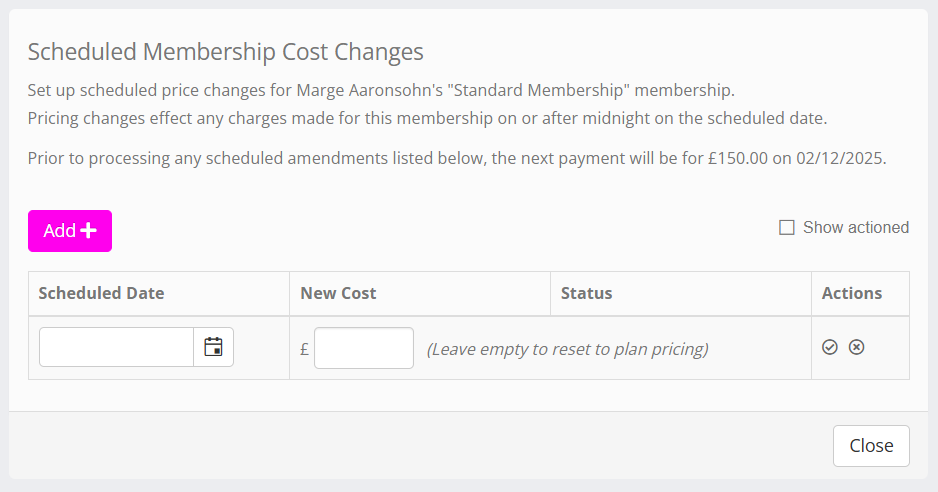
A list of any forthcoming scheduled price adjustments will be shown. You can check the Show actioned checkbox to view past scheduled adjustments that have been completed.
To add a new scheduled price adjustment:
- Click the Add button.
- Select the date on which you want the adjustment to be implemented.
Note: We do not recommend setting the date to be a date upon which the member is due to be charged, as there is no guarantee over the timing or the order in which the events will occur. Schedule the adjustment to be at least 1 day before or after the payment date. - Enter the new cost you wish to apply. If you wish the membership to revert to the price set on the originating membership plan, leave the box empty.
- Click to schedule the change, or to abort.
You can delete any, as yet unactioned, price adjustments by clicking the icon.
If you use the membership pause function, it may create scheduled pricing adjustments to ensure that the member is charged correctly. You may amend or delete these adjustments as you wish.