
Landing pages
A GymOS campaign may have multiple landing pages configured against it. A landing page is a content-rich marketing page to which a lead is directed before signing up. It is typically for promotional purposes, and encourages them to either register their interest or purchase a membership with your facility. It is good practice to embed your form into the landing page. You may also embed DropSlot consultation booking forms into your landing pages, if you wish to use the powerful DropSlot functionality.
If you host your landing pages on your own website or elsewhere, you may jump straight to the campaign registration form. Details of how to do this are found in the Campaign URLs article.
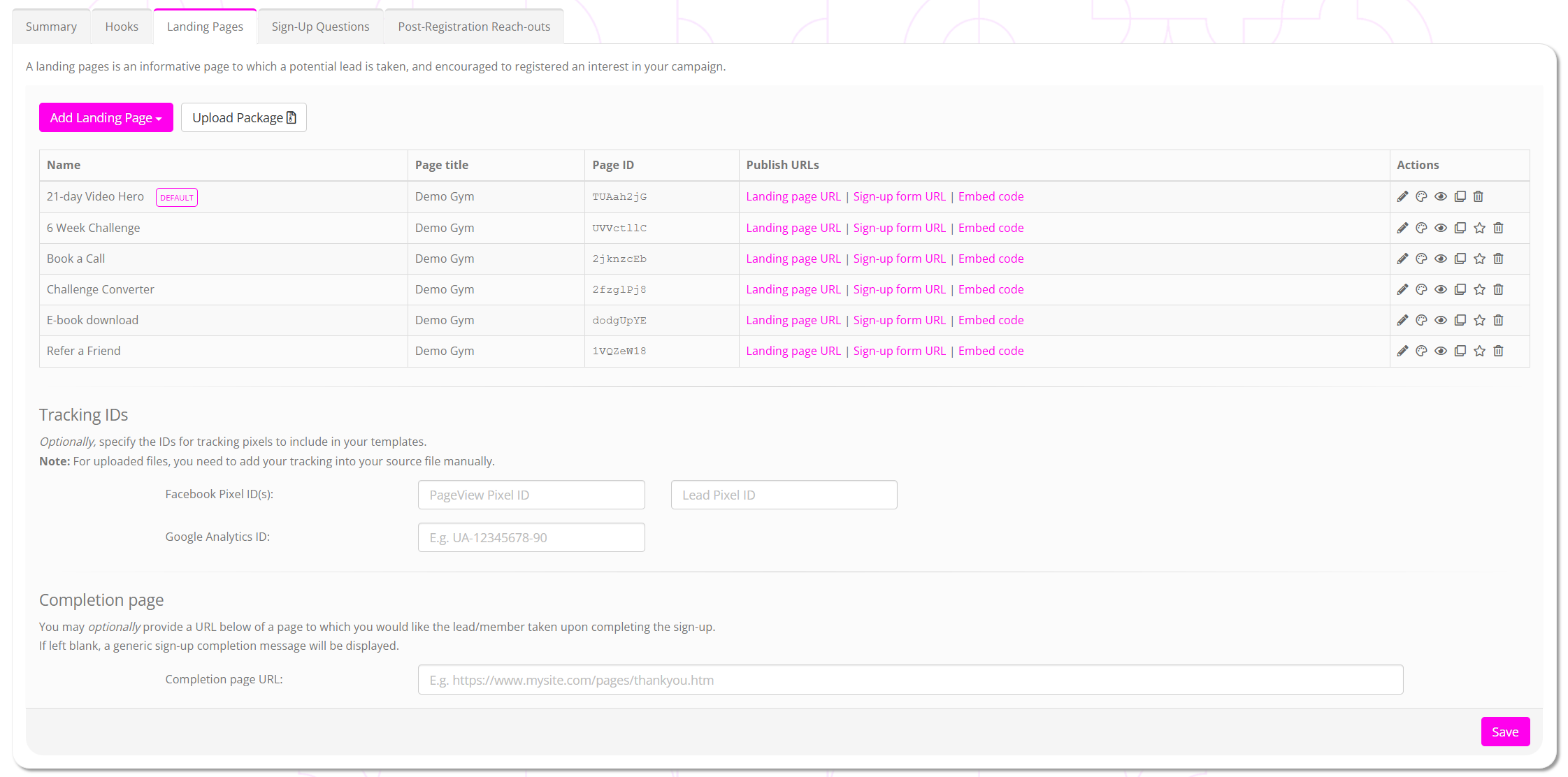
The tab comprises three distinct sections:
Landing pages

Existing landing pages for a campaign are listed on the Landing pages tab.
The information provided for each landing page comprises:
- The name of the landing page.
- The title given to the landing page.
- The unique ID of the landing page.
- Publish URLs comprising:
- Landing page URL. Clicking this link copies the landing page URL to your clipboard.
- Sign-up form URL. Clicking this link copies the sign-up form URL to your clipboard.
- Embed code. Clicking this link opens a popup window where you can customise your form colours and copy the code to embed the form into your website.
- Actions, comprising:
- – Edit the landing page configuration.
- – Edit the landing page content.
- – Clone the landing page.
- – Set the landing page as the default.
- – Delete the landing page.
Creating a landing page
- To create a new landing page, click the Add Landing Page button.
- Select from:
- Empty landing page. This will immediately take you to a new, empty landing page.
- Select a pre-built template. This will present a list of pre-built templates, from which you may select one as your landing page start point. You can tailor any landing page in almost any way you want.
If you wish, you may alternatively upload a pre-built landing page package by clicking the Upload Package button. Further details of this process may be found in the Creating packaged HTML landing pages article.
Landing page configuration

For your landing page, provide the following information:
- Name – A meaningful name for your landing page, that helps you identify it amongst a group of pages.
- Page title – The page title to display in the browser bar. This title is given high weighting, so choose something appropriate.
- SEO description – Optionally, provide content for the page meta description tag. Whilst this is less used by search engines these days, it may still display as the summary in some search results.
Click the button to commit your changes, or to abort.
Editing landing page content
You may edit the content of a landing page using GymOS’ WYSIWYG editor by clicking the button.
Guidance on using the page editor may be found in the Landing page editor article.
Linking a landing page to its registration form
You may link a landing page to its corresponding registration form by using the [[REGISTERINTEREST]] merge field. This field contains the URL of the registration form for the campaign, and may be used as a hyperlink, a target for a button, a link for an image, and more.
Tracking IDs
You may optionally provide Facebook and/or Google Analytics IDs, which GymOS will automatically embed in your landing page(s) and registration form(s).
For Facebook, provide the numeric ID of the pixels you wish to use for the PageView and the Lead events. Typically, these are the same. GymOS will insert the pixel with the “pageview” event when the landing page is viewed. It will insert the pixel with the “lead” event when the form is completed.
For Google Analytics, provide your GA-4 ID. GymOS will insert the Google Analytics code into both the landing page and the lead registration form.
In both instances, you should provide only the IDs. GymOS will build the full embed code for the Facebook pixel and Google Analytics.
Completion page
By default, when a lead form is completed, a generic submission confirmation message is displayed. It is recommended that you instead replace this with your own, custom completion page.
The completion page can be any URL, internal or external to GymOS. We recommend that you build a custom page in your FitnessHub site.
An additional benefit of using a completion page in your FitnessHub site is that, when a membership promotion campaign is used, GymOS will automatically log the new member into their FitnessHub account. This means they can immediately start booking sessions or take any other actions you guide them to take from the completion page.
If, for a Lead Capture campaign, an external completion page URL is provided, GymOS will suffix the URL with query parameters for the information provided by the lead. The query parameters will comprise:
firstname– The first name of the lead, as provided (or derived)lastname– The last name of the lead, as provided (or derived)email– The email address of the lead, as provided.mobile– The mobile number of the lead, as provided.