Member scheduled absences
As a general rule of thumb, encourage your members to record their own planned absences, so you and your team don’t need to do this.
Knowing when a member will be absent is valuable information. It allows you to plan accordingly, potentially offer them workouts to do while away, and it instructs Risk IQ not to raise false alerts when the member hasn’t been seen during that period.
Members may record scheduled absences via the GymOS FitnessHub mobile app and/or the FitnessHub Member Portal.
Absence categories
The default absence reasons configured within GymOS are:
- Business
- Holiday
- Other
You may add as many absence types as you wish. This is done within Settings Lists and Groups Absence Reasons for members.
This list is managed in the same manner as all lists and groups.
Adding an absence on behalf of a member
If you need to record a forthcoming absence against a member’s record (rather than the member doing it), this is readily achieved from the Summary tab.
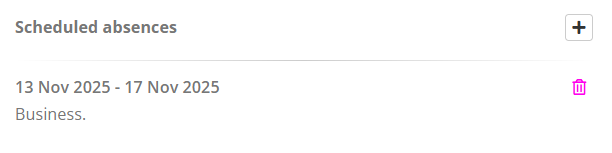
Within the Statistics & forthcoming absences section, you will find the Scheduled Absences listing. You can view the full list of future absences that the member has scheduled here.
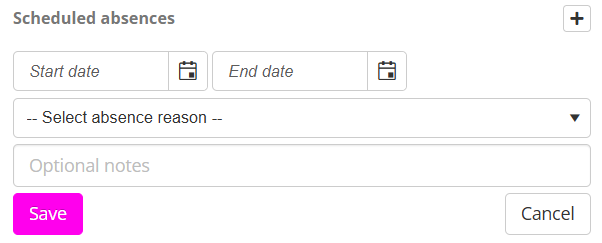
You can add a new absence by clicking the button, and then providing information about the absence. Press Save to commit the record.
If you need to delete a scheduled absence, click the icon.
Absences are amended by deleting the incorrect absence and re-adding it correctly.
Triggers
Several triggers relating to scheduled absences are available:
- Members Absences Scheduled absence commenced
Occurs when a scheduled absence commences. This is typically overnight at the start of a calendar day. - Members Absences Scheduled absence concluded
Occurs when a scheduled absence comes to an end. This is typically overnight following the end of a calendar day. - Members Absences Scheduled absence created
Occurs at the moment that a scheduled absence is recorded.