
Creating a nurture program
Nurture programs can be created to target leads or members, with the options available to each subject to their context.
To create a new nurture program:
- Select Nurture from the Connect and Promote section of the main navigation menu.
- From the Add a nurture program drop down, select either:
- Add a member nurture program
- or, Add a lead nurture program
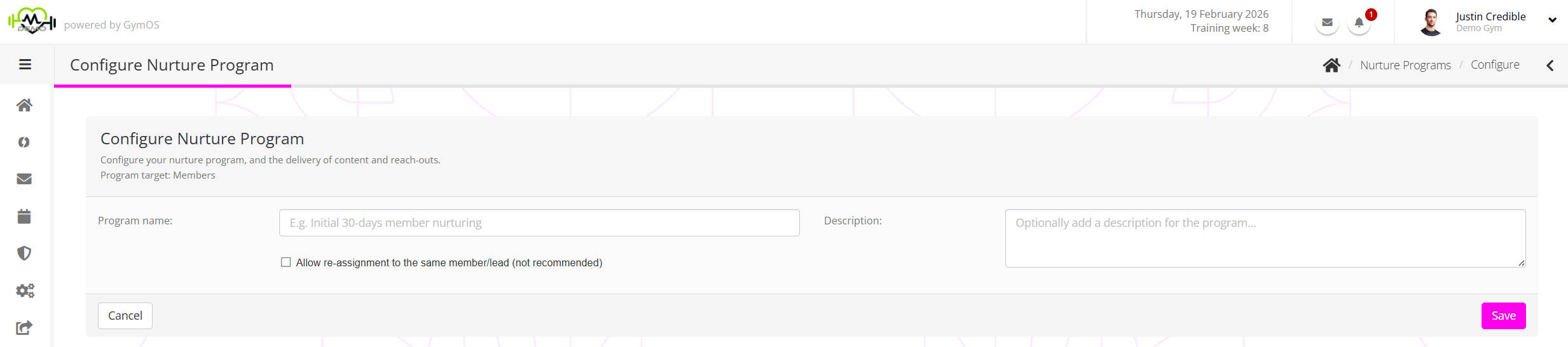
The configuration steps for both lead and member nurture programs are the same, except that more nurturing elements are available for members than for leads.
- Enter a meaningful name for the nurture program. E.g., “Lead enquiry nurture”
- Optionally, enter a description of the nurture program to help clarify its purpose.
- By default, the Allow re-assignment to the same member/lead (not recommended) box is unticked. This prevents the same nurture program from being assigned twice to the same individual, as that would reveal that the reach-outs were fully automated and could lead to embarrassment.
If you wish to allow the nurture program to be assigned to an individual who already has it, or who has had it previously, click the checkbox. - Click the Save button. The page will reload, and you may now add nurturing elements to your program.
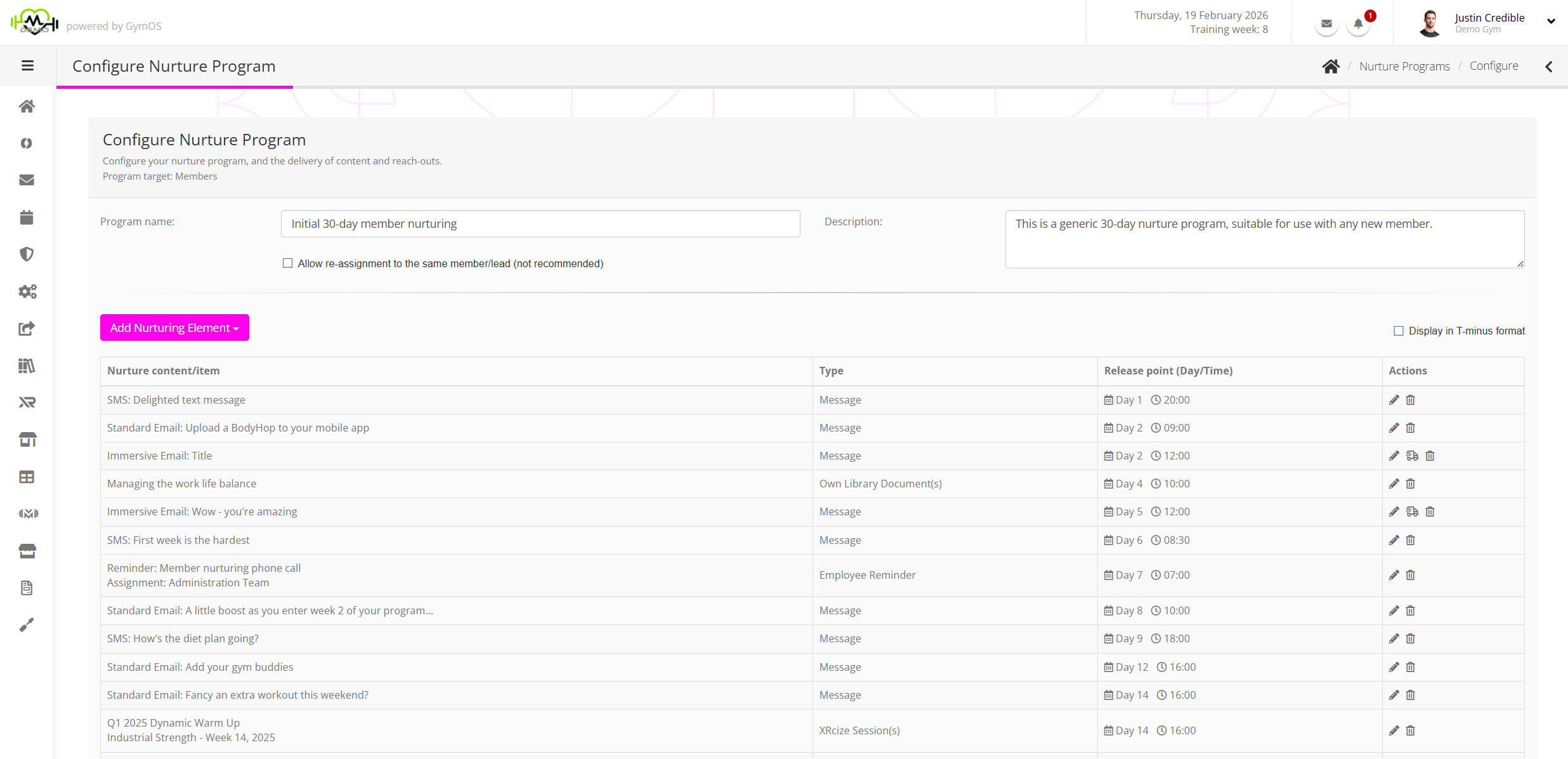
Adding nurture elements
A nurture element may be added to your nurture program by selecting the desired element from the Add Nurturing Element drop-down list. For each element, specify the release point day and target time.

The configuration for each element block varies, and its availability is subject to the target of the nurture program (lead or member).
The different configuration elements, their usage and configuration are listed below.
Add a call reminder
Available to both leads and members, the call reminder element creates a call reminder assignment to the selected team group at the target day/time. This then appears in the list of to-do tasks for members of that employee group.
Note: the assignment is not created in advance; it is created only at the target time. This is because the nurture program may be subsequently cancelled.

To configure the call reminder:
- Select the employee group to whom the call should be allocated.
- Enter a name for the reminder. You may use merge fields. E.g. “Call
[[MEMBER.FIRSTNAME]][[MEMBER.LASTNAME]]for their 3 day check-in” - Select the type of call that is to be made. This may be left as unassigned, but we recommend allocating a meaningful category. These may be administered via the Lists and Groups settings function.
- Optionally, add notes relating to the call and its purpose.
- Click the icon to add the nurture element to the nurture program.
Add a credit pack
Available only to member nurture programs, the credit pack nurture element assigns a given credit pack(s) to a member at a given target day/time. This may be used in several ways. For example, if the nurture program were for someone who has joined a large group program, you could “gift” them a complimentary credit to a small group session – so that they may see the difference, and possibly upgrade their membership.

- From the drop-down checkbox list, select the credit pack(s) that you wish to allocate.
- Click the icon to add the nurture element to the nurture program.
Add a Fitflix video(s)
Available only to member nurture programs, the Fitflix video nurture element adds a given video(s) to the Fitflix area of the member’s GymOS FitnessHub mobile app and member portal.

- From the drop-down checklist, select the Fitflix videos that you wish to make available to the member.
- Click the icon to add the nurture element to the nurture program.
Add a form or questionnaire(s)
Available to both leads and members, the form/questionnaire element enables a form(s) to be assigned to an individual for completion. Note: the allocation does not alert the recipient to the forms’ existence, so you should add a corresponding communication that advises of this.

- From the drop-down checklist, select the form(s) that you wish to make available to the lead/member.
- Click the icon to add the nurture element to the nurture program.
Add a library document(s)
Available only to members, the library document element enables a document to be added to the document library in the member’s GymOS FitnessHub app and member portal.

- From the drop-down checklist, select the library document that you wish to make available to the member.
- Click the icon to add the nurture element to the nurture program.
Add a push alert
Available only to members with the GymOS FitnessHub mobile app installed, the push alert element sends a push notification to the device of the member.
Having selected the Add a push alert option, the push alert configuration page will be displayed:
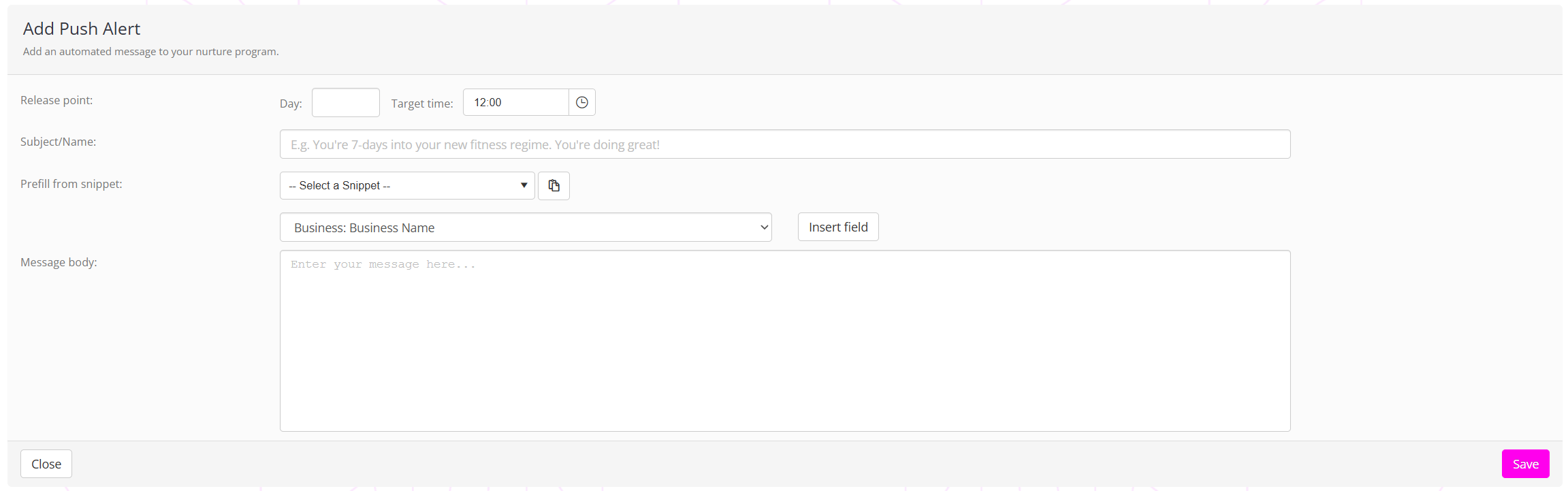
- Provide the target release day/time for the push notification. This should ideally be within sociable hours.
- Enter a subject/title for the message. This is shown as the message header on the member’s device.
- Complete the message body. You may use preconfigured snippets that you have already prepared. The push message should be no longer than 160 characters, and cannot contain any hyperlinks (as these are not supported in push notifications).
- Click the Save button to commit your changes, and you will be returned to the nurture program element listing.
Add a standard email message
Available to both leads and members, the standard email message element sends an email to the recipient formatted in the default system template.
Having selected the Add a standard email message option, the email configuration page is displayed:
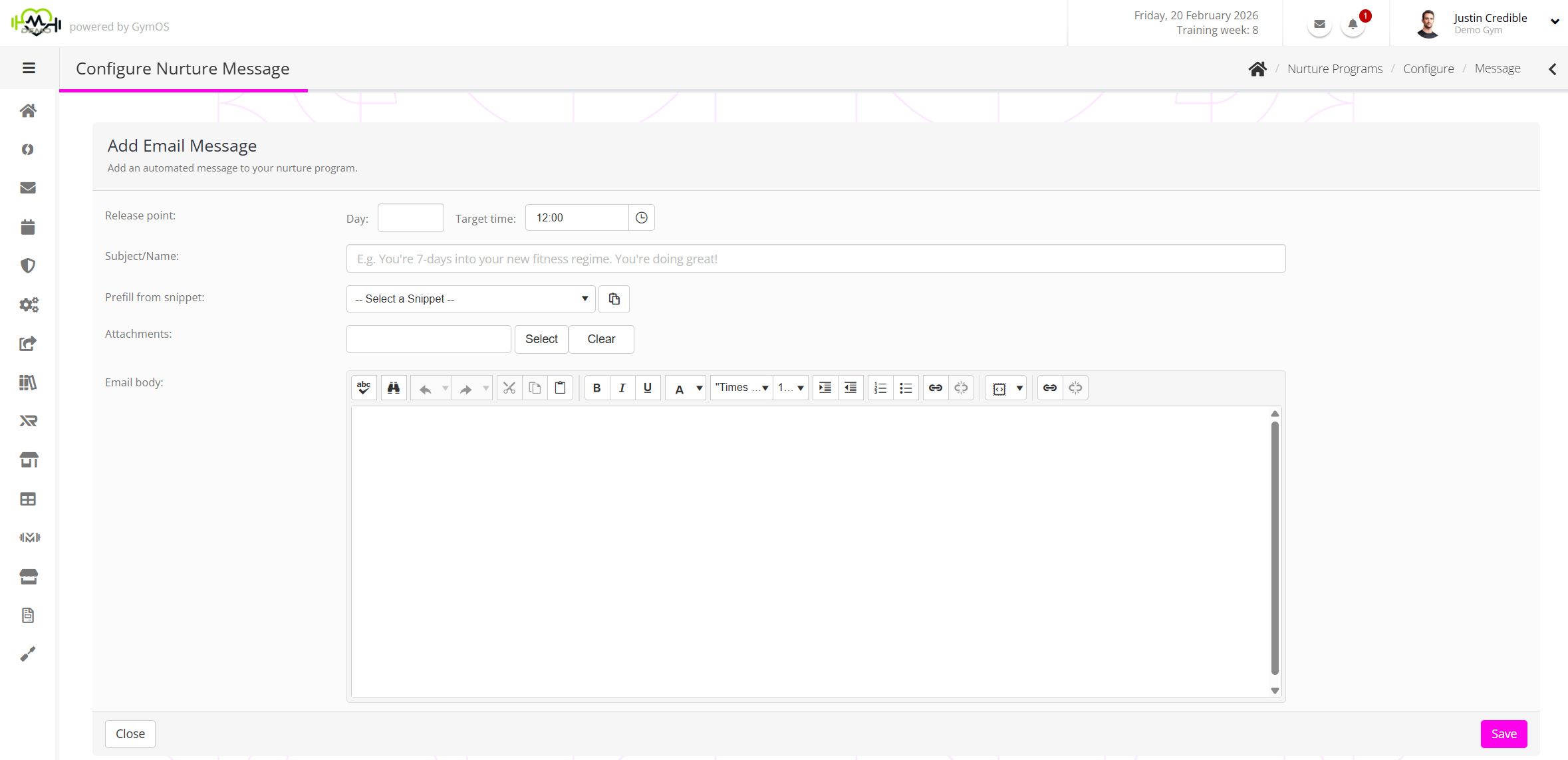
- Provide the target release day/time for the email.
- Enter a subject/title for the email message.
- Complete the email body. You may use preconfigured snippets that you have already prepared.
- Optionally, add any attachments you wish to send with the message. The maximum total attachment(s) size is 10Mb.
- Click the Save button to commit your changes, and you will be returned to the nurture program element listing.
Add an employee reminder
Available to both leads and members, the employee reminder element creates a reminder assignment to the selected team group at the target day/time. This then appears in the list of to-do tasks for members of that employee group.
Note: the assignment is not created in advance; it is created only at the target time. This is because the nurture program may be subsequently cancelled.

To configure the reminder:
- Select the employee group to whom the alert should be allocated.
- Enter a title for the reminder. You may use merge fields. E.g. “Check in with
[[MEMBER.FIRSTNAME]][[MEMBER.LASTNAME]]” - Optionally, add notes relating to the reminder, and its purpose.
- Click the icon to add the nurture element to the nurture program.
Add an invitation schedule
Available only to members, the invitation schedule element assigns a recurring DropSlot consultation schedule to the member.

- From the drop-down checklist, select the DropSlot schedule that you wish to assign to the member.
- Click the icon to add the nurture element to the nurture program.
Add an SMS/text message
Available to both leads and members, the sms/text message element sends an SMS to the recipient.
Having selected the Add an SMS/text message option, the message configuration page is displayed:
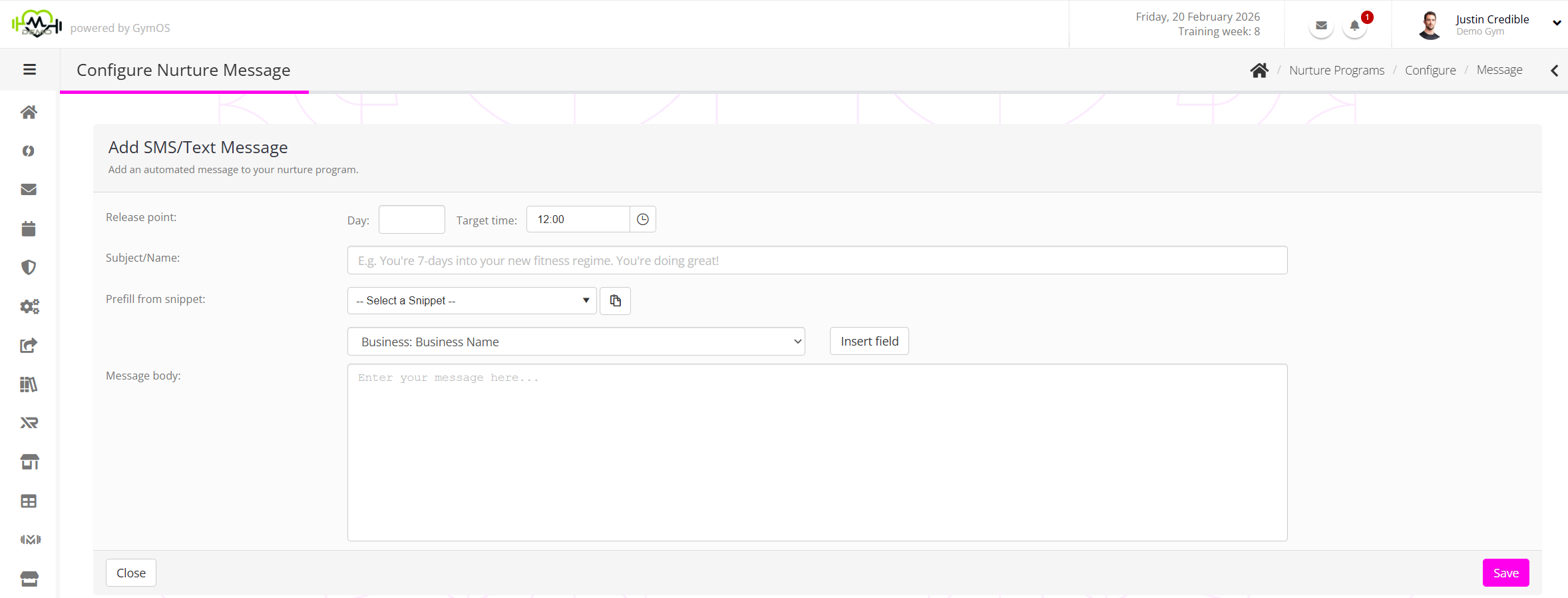
- Provide the target release day/time for the message.
- Enter an identifying name for the text message.
- Complete the SMS message body. You may use preconfigured snippets that you have already prepared.
- Click the Save button to commit your changes, and you will be returned to the nurture program element listing.
Add an XRcize session(s)
Available only to members, the XRcize sessions element assigns an XRcize session to the member.

- From the drop-down checklist, select the XRcize program that you wish to assign to the member.
- Click the icon to add the nurture element to the nurture program.
Assign a nurture program
Available to both leads and members, the nurture program element allocates a nurture program to the recipient.
Notes:
- If you wish to loop a nurture program, you can set the last step as being the re-assignment of the same nurture program.
- A nurture program may only be reassigned if the “allow re-assignment” option has been checked.
- To prevent out-of-control looping, the target date for a nurture program must be ≥ day 2.

- From the drop-down checklist, select the Nurture program that you wish to assign to the member.
- Click the icon to add the nurture element to the nurture program.
Issue a consultation invitation
Available only to members, the consultation invitation element assigns a DropSlot consultation invitation to the member.
- From the drop-down checklist, select the consultation event type that you wish to assign to the member.
- Click the icon to add the nurture element to the nurture program.