
Allocating a nurture program
There are multiple ways with GymOS in which a nurture program may be allocated to a member or a lead, as appropriate. These methods include:
- Individual ad hoc allocation
- Bulk ad hoc allocation
- Assigned from a membership
- Assigned by a trigger
- Assigned from a campaign
- Assigned from a nurture program
Individual ad hoc allocation
You may allocate a nurture program to a member on an ad hoc basis from the Programs tab of the member record. You may allocate a nurture program to a lead on an ad hoc basis from the Reach-outs and Nurturing tab of the lead record.
- Click the Add Nurture Program button. A new row will be added to the top of the nurture program listing.

- Select the desired nurture program from the drop-down list.
- Optionally, adjust the start date for the nurture program.
- Click to assign the program.
Bulk ad hoc allocation
You may assign a nurture program to a group or multiple individuals by following these steps:
- Select Nurture from the Connect and Promote section of the main navigation menu.
- From alongside the nurture program that you wish to bulk assign, click the bulk assign icon.
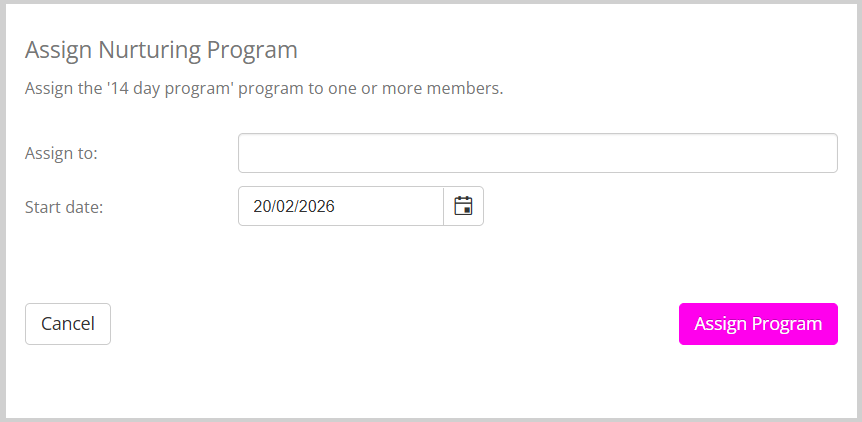
- In the assign to box, add the group(s) and/or member(s)/leads(s) that you wish to assign to program to.
- Optionally, amend the date on which the nurture program will commence.
- Click the Assign Program button.
Remember: If the nurture program has the “Allow re-assignment to the same member/lead” checkbox unchecked, the program will only be assigned to individuals in the selection who have not previously had the nurture program.
Assigned from a membership
When you configure a membership, you may assign a nurture program to be one of the deliverables associated with it.

Remember: If the nurture program has the “Allow re-assignment to the same member/lead” checkbox unchecked, the program will only be assigned if the member has not previously received it.
Assigned by a trigger
A nurture program may be assigned to a lead or a member using the Nurture program trigger action step.
You may add this step to a trigger by selecting Nurture Program from the — Select an event action to add — drop-down, and cthen clicking Add action.
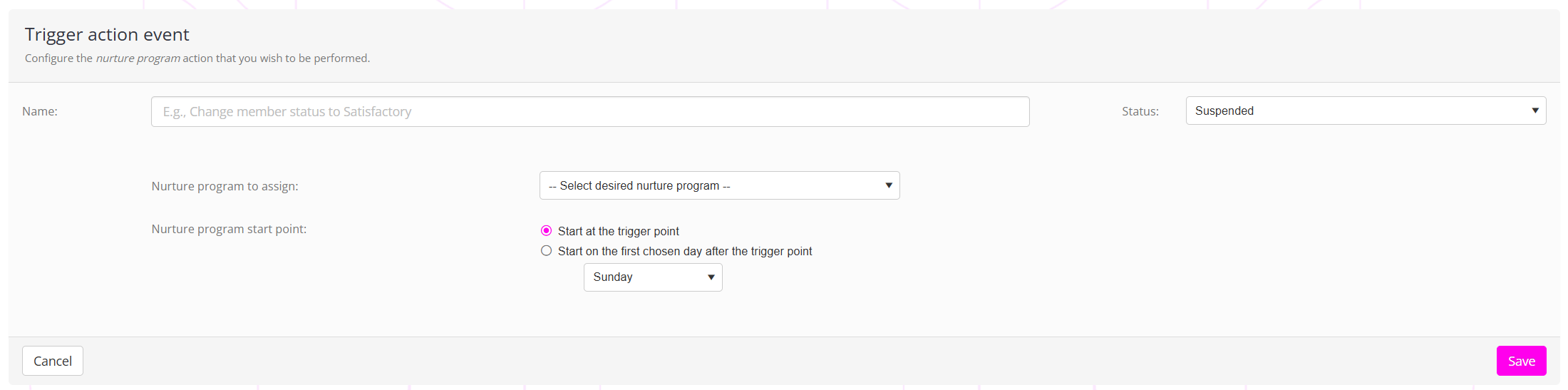
- Provide your trigger step a meaningful name. E.g. “Assign the new member nurture program”.
- Select the step staus to be Active.
- Select the nurture program that you wish to assign.
- By default, the nurture program will commence on the day that the trigger is fired.
You may optionally select to start it on a given day of the week following the trigger firing. This may be useful if your nurture program is reliant on certain elements being sent on a known day of the week. - Click the Save button to commit the new step against your trigger.
Assigned from a campaign
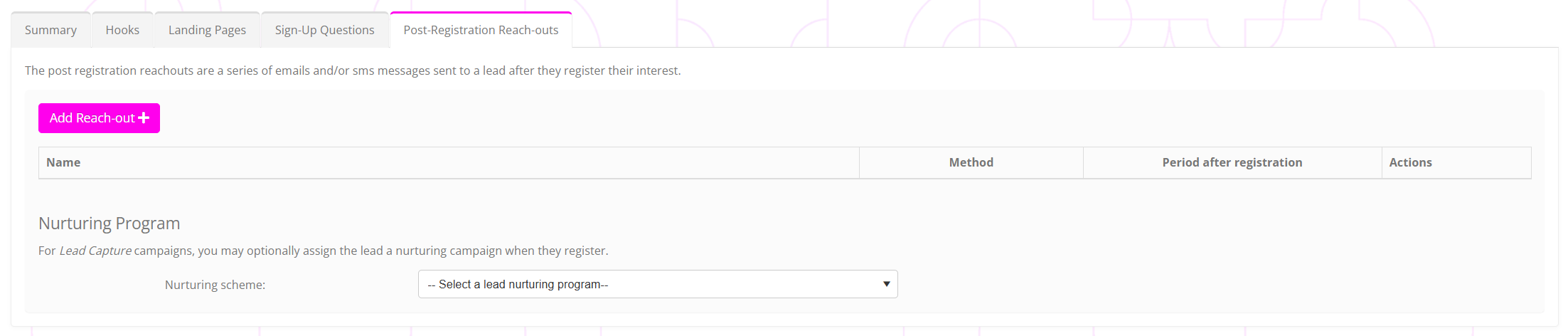
You may assign a campaign to a lead as part of the post-registration reach-out steps on a lead capture campaign.
Assigned from a nurture program
A nurture program may be assigned from within a nurture program. This may either assign itself (to produce a looping nurture program), or assign a different campaign, resulting in a cascading effect.
Details of this nurture program step may be found in the Creating a nurture program article.