
Business Analysis: Leaver analysis
The Leaver Analysis function is found within the Business Analysis section of Reporting from the main navigational menu.
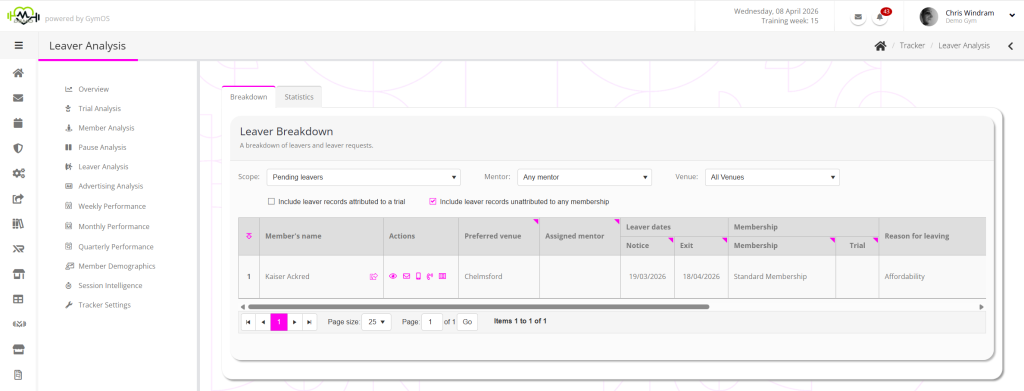
By default, the Leaver Analysis function shows pending leavers.
You may change the Scope to view leavers, by month, for the past 12 months.

Data filters
Filters are provided for:
- Mentor
- Venue
- Whether to include leaver records attributed to a trial
- Whether to include leaver records unattributed to a membership
Actions
Clicking a leaver’s name opens their member record. Clicking on the icon alongside their name opens the member record in a new browser tab.
Actions are provided for:
- View the member record
- Send the leaver an email. Hovering over the icon shows the leaver’s email address.
- Sends the leaver an SMS message. Hovering over the icon shows the leaver’s mobile number.
- Log or schedule a call with the leaver.
- View the touch point history for the leaver.
Data columns
The data columns are automatically calculated and are always up to date when the table is displayed.
Many columns feature a symbol in the top-right corner of the column heading. Hovering over this triangle will provide more details as to how the value in a given column is calculated and where the data comes from. Very often, this will answer questions you may have about how a cell value is calculated.
The data columns comprise:
- Preferred venue
The current, preferred venue assigned to the member. - Assigned mentor
The mentor assigned to the member at the time of the leave request being recorded. - Leaver Dates
- Notice
The date upon which the member was recorded as having given notice to leave. - Exit
The date upon which the member is recorded as leaving/left.
- Notice
- Membership
- Membership
The membership assigned to member at the time of cancellation. - Trial
Whether the membership assigned to member at the time of cancellation was a trial.
- Membership
- Reason for leaving
- Latest Touch Points
- Latest automated
The latest automated touch point recorded against the member record. - Latest manual
The latest manual touch point recorded against the member record.
- Latest automated
- Longevity & Loyalty
- Member record created
- Last membership started
Statistics
The statistics tab within the Leaver Analysis function shows key metrics for the leavers over the last 12 months.
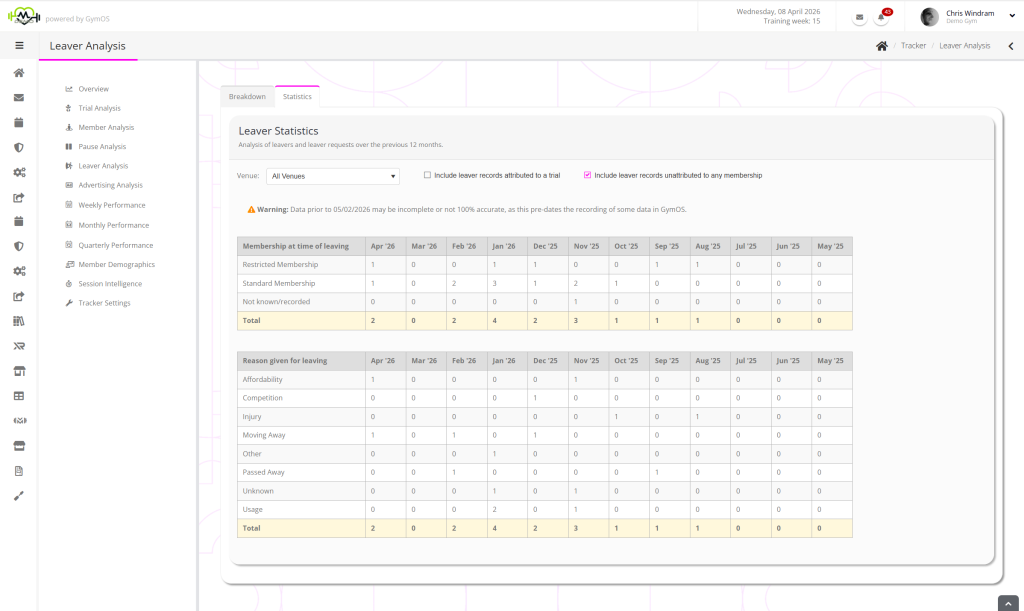
Analysis is shown by:
- Membership being exited
- Reason for leaving