Other/System Settings
When you first access the Settings functionality from the main menu, you are taken directly to System Settings. This is also accessible from the Other Settings option on the settings menu.
The System Settings page comprises a number of configuration options spanning a wide range of functions in the GymOS system.

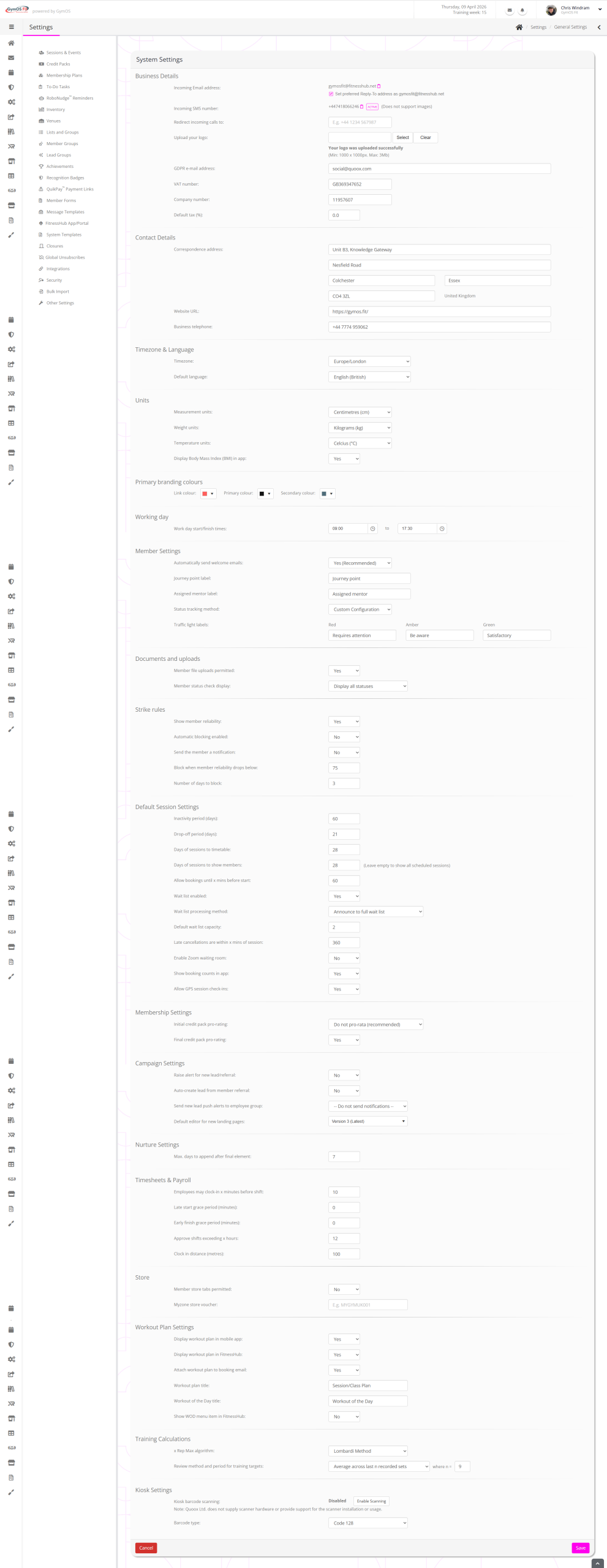
The configuration page is split into sections. The purpose of each configuration function is defailed below.
Business Details
Incoming Email address:
This is the email address to which leads, members, and external parties may send emails and for which the content arrives in your GymOS mail centre. Clicking the icon will copy the address to your clipboard.
Tick the “set preferred Reply-To address…” option to have GymOS set a reply-to field on all outbound emails. This is enabled by default. Where honoured by the receiving email software, clicking reply on an email sent from GymOS (even if sent with a vanity email address), will set the reply-to address to that of your GymOS fitnesshub.net email.
Incoming SMS number:
This is the unique SMS number you have been allocated for sending SMS messages from your GymOS system and for receiving text messages in the message centre.Clicking the icon will copy the number in to your clipboard.
Note: SMS messages do not support images.
Redirect incoming calls to:
If your country’s telephone operators support call redirection, this option is available to you. You may enter an alternate number that, when a person calls your GymOS SMS number, reroutes the call to.
Upload your logo:
You should upload a high-quality logo to GymOS that is at least 1000px x 1000px. The maximum file size is 3Mb.
This log will be used in multiple places within GymOS. Ensure that it is cropped sensibly, and ideally on a transparent background.
GDPR e-mail address:
Set the email address to which any person with a GDPR enquiry should send their communication. This is required by law and will be added to your system emails and some web content.
VAT number:
If you are VAT- or tax-registered, provide your tax number. This will be added to all future invoices generated for your members.
Company number:
If you are trading as a registered company, provide your company number. This will be added to all future invoices generated for your members.
Default tax (%):
If you are VAT-registered or need to pay tax, enter the default tax value here. These default settings are used elsewhere in GymOS and may be overridden later.
Contact Details
You should provide your correspondence address, website URL, and business telephone number. These are used on invoices, and are displayed in multiple places within the GymOS system.
Make sure that you always keep these details up to date.
Timezone & Language
Timezone:
Select the timezone that your business operates in. This list is filtered to the timezones of your country.
Default language:
Select the default language that should be used for your GymOS system.
Units
Select the default unit types that should be used for your GymOS system and member functions.
Measurement units:
Either centimetres (and metres) or inches (and feet).
Weight units:
Either kilograms (kg) or pounds (lbs).
Temperature units:
Either Celsius (C) or Fahrenheit (F).
Display Body Mass index (BMI) in app:
Determiene if the member is shown their Body Mass Index within the GymOS FitnessHub mobile app, and FitnessHub member portal.
Primary branding colours
Link colour:
The colour to use for links in your emails and other content. This may be overridden elsewhere in GymOS.
Primary colour:
The primary colour to use in your emails and other content. This may be overridden elsewhere in GymOS.
Secondary colour:
The secondary colour to use in your emails and other content, where relevant. This may be overridden elsewhere in GymOS.
Working day
Specify your typical workday start and finish times. These values are used in the visual presentation of the session schedule.
Member settings
Automatically send welcome emails:
Whether the system’s welcome email should be sent to members when a member record is created. We recommend leaving this setting on. You can tailor the welcome email content in system templates.
Journey point label:
The label to use for a lead or member’s journey point. Unless you have an absolute reason to change this, we recommend leaving it as “Journey point”, as this configuration option may be deprecated in the future.
Assigned mentor label:
The label to use for a lead or member’s assigned mentor. Unless you have an absolute reason to change this, we recommend leaving it as “Assigned mentor”, as this configuration option may be deprecated in the future.
Status tracking method:
Select either Traffic Light (the default configuration) or Custom Configuration, if you wish to set up your own tracking levels.
Traffic light labels:
If you wish, you may specify alternate meanings for the Red, Amber, and Green traffic light statuses. By default, these are “Requires attention”, “Be aware”, and “Satisfactory” respectively.
Documents and uploads
Member file uploads permitted:
A global setting determining whether a member may upload a file for your attention, either via the GymOS FitnessHub app or the FitnessHub member portal. This may also be overridden on a per-member basis.
Member status check display:
This setting determines how member status checks are displayed, with the options being:
- Display all statuses
- Confirmed only
- Unconfirmed only
Strike rules
Show member reliability:
Whether the member should be shown an indication fo their reliability in the GymOS FitnessHub mobile app.
Automatic blocking enabled:
Whether the system should automatically apply a booking block when the member descends below a certain reliability threshold.
Send the member a notification:
Whether the member should be sent a system notification email advising them when they have been blocked.
Block when a member reliability drops below:
The threshold at which a member should be blocked, if they drop beneath it.
Number of days to block:
The number of days that the member should be blocked for.

Default Session Settings
Inactivity period (days):
The number of days after which a member should be considered to be “inactive”>. This may be overridden in various areas of the GymOS system.
Drop-off period (days):
A legacy setting that indicates the number of days after which a member has been determined to have “dropped off” regular attendance. This is now replaced by the far superior Risk IQ functionality.
Days of sessions to timetable:
Sessions are added to your schedule on a nightly basis, up to the number of days set here. The maximum setting is 56 days.
Note: You generally don’t want to schedule more than about a month’s worth of sessions because, when you come to change your schedule, your life will be more complicated in unravelling sessions that have been booked, but that you want to move, change, or cancel.
Days of sessions to show members:
When left blank, the figure from days of sessions to timetable will be used. When a lower figure is provided, it restricts the number of calendar days a member may book, whilst the broader period remains visible and bookable in the GymOS administration portal.
Allow bookings until x minutes before start:
This setting provides a default for the values in the Sessions & Events functions, where it may then be overridden.
Wait list enabled:
Whether the wait list is enabled by default. The size of the wait list may be set individually on a per-session basis.
Wait list processing method:
The method by which a wait list is processed when a space opens up as a result of a member cancellation.
Options are:
- Announce to full wait list
An email and push notification are sent to all members on the wait list. The slot may be “claimed” by the first member to request it. - Autobook next wait list member
The next member on the wait list will be automatically booked into the slot, and notified that they now have a place.
Default wait list capacity:
The default capacity for a wait list. This may be overridden on a per-session basis.
Late cancellations are within x mins of session:
The number of minutes prior to a session, during which, if a cancellation is received within the window, it is considered a late cancellation. This may be overridden on a per-session basis.
Enable Zoom waiting room:
For online Zoom sessions, should the waiting room be enabled by default? If the waiting room is disabled, a password will be required to enter the session.
Show booking counts in app:
Whether the current session booking count should be displayed in the GymOS FitnessHub mobile app and FitnessHub member portal.
Allow GPS session check-ins:
Whether a member may check themselves into a session via the GymOS FitnessHub mobile app.
Membership Settings
Initial credit pack pro-rating:
If you wish to start your credit pack on a date aligned with your payment schedule, select the Pro-rata option. Selecting “round up” rounds in the member’s favour. Selecting “round down” rounds against the member.
We recommend leaving this setting as “Do not pro-rata”, unless you fully understand the consequences and have your credit and payment schedules correctly aligned. Be aware that any adjustment event, such as a membership pause, will cause your schedules to become misaligned.
Generally, there is no reason that you should need to pro-rata credit packs.
Final credit pack pro-rating:
When a membership concludes, whether the final credit pack should be pro-rated.
Campaign Settings
Raise alert for new lead/referral:
Whether a system alert should be raised when a new lead or referral is received.
Auto-create lead from member referral:
Whether GymOS should attempt to automatically create a lead record from a member referral.
Send new lead push alerts to employee group:
An employee group to whom a push notification will be sent when a new lead registers.
Default editor for new landing pages:
The version of the GymOS landing page editor to use for landing pages. We recommend always leaving this set to “Latest”.
Nuture Settings
Max days to append after final element:
When extending an existing nurture sequence, previous recipients of the nurture program are eligible for the new elements if their last messages was within x days. This setting prevents leads/members who received nurturing long ago from suddenly receiving an “out of context” message.
Timesheets & Payroll
Employees may clock-in x minutes before shift:
The maximum number of minutes prior to a shift that a team member may clock in.
Late start grace (minutes):
The number of minutes grace a team member is given when clocking in late for a shift. Set to 0, for no grace period.
Early finish grace (minutes):
The number of minutes grace a team member is given when clocking out early from a shift. Set to 0, for no grace period.
Approve shifts exceeding x hours:
Shifts with a length over which a manager needs to approve the shift. Typically, this would always be less than 24 hours.
Clock in distance (metres):
The maximum distance an individual may appear to be away from your venue and be able to clock-in.
Notes:
- Make sure you set your venue location accurately, in the Venues settings.
- Most phones allow people to share only broader locations, so do not set this to an excessive granularity.
- Some older or cheaper phones may only be accurate to about 100 metres.
- With regard to accuracy, you are generally trying to confirm that the individual is in the vicinity of your gym, not drop a bomb on them!
Store
Member store tabs permitted:
Whether the option to record a sale against a member’s tab is permitted.
Myzone store voucher:
If you have a Myzone store, the voucher code to apply by default when routing member to the Myzone site.
Workout Plan Settings
Display workout plan in mobile app:
Whether a In-Person FreeForm workout plan should be displayed in the GymOS FitnessHub mobile app.
Display workout plan in FitnessHub:
Whether an In-Person FreeForm workout plan should be displayed in the FitnessHub member portal.
Attach workout plan to booking email:
If an attachment has been added to an In-Person FreeForm workout plan, whether this should be attached to the booking confirmation email when it is sent.
Workout plan title:
The name that should be used to describe the workout plan.
Workout of the day title:
The name that should be used to describe the “workout of the day”.
Show WOD menu item in FitnessHub:
Whether the workout of the day menu item should be added to the FitnessHub member portal menu.
Training Calculations
X Rep Max algorithm:
The algorithm to use for GymOS’s In-Person Trackable sessions, as described here.
Review method and period for training targets:
The method GymOS should use to calculate a training target and the period of data to review. Learn more.
Kiosk Settings
Kiosk barcode scanning:
Whether barcode scanning should be enabled in the self check-in kiosk. Learn more.
Barcode type:
The type of barcode to use. We recommend leaving this as Code 128, unless you have a good reason to change it.
To commit your changes, click Save.