Chat, groups and the community
Chat is real-time messaging between your team and your members, in the FitnessHub app. It works one to one, in groups, and in a single community for the whole gym. This article explains who can take part, how you control it, and who can delete a message.
What is real-time chat
- Text, in real time. Messages appear as they are sent, with a note when somebody is typing. A message can be up to 4,000 characters, and can use *bold*, _italic_ and ~strike~.
- Your team can chat from the administration portal and from the app. Members chat in the app.
- It needs the FitnessHub app. A member can be reached by chat once they have signed in to the app. Leads cannot use chat as they do not have access to the app.
- Members cannot message each other privately. They speak to one another only in a group they belong to, or in the community.
- It always goes to the individual. Unlike a text or an email, a child’s chat is not sent to a parent.
Where chat happens, and who can post
| Where | Your team | Members |
|---|---|---|
| A member’s conversation with the gym | Everybody can read and post | That member only |
| A member’s conversation with one of your team | Only that member of staff posts. Colleagues can read it on the member’s record. | That member only |
| A group chat | Everybody can read and post | The members of that group* |
| The community | Everybody can read and post | Every member* |
* Whether members may post in each of these is up to you. See Member chat permissions, below. Your team can always post.
Group chats
Any of your member groups can be given a chat. A manager switches it on:
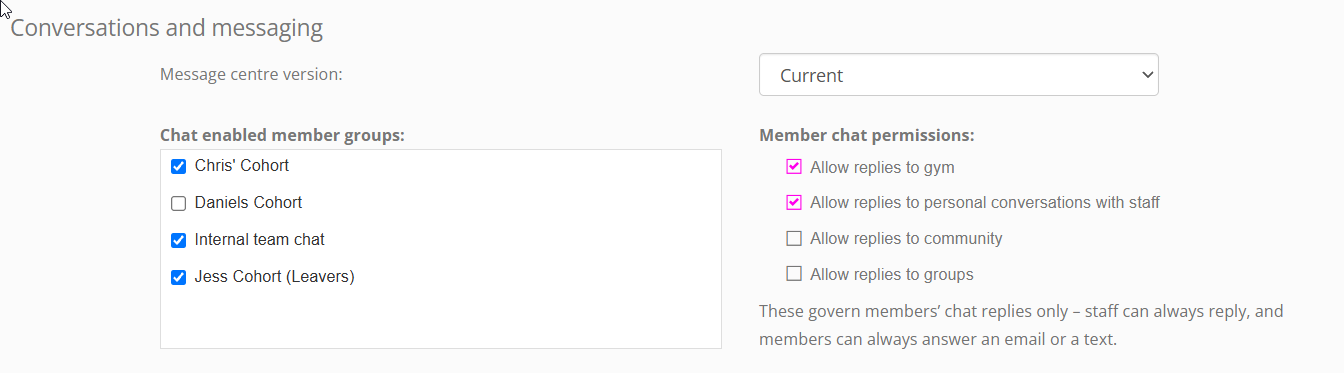
- Open Settings and find Conversations and messaging.
- Under Chat enabled member groups, tick the groups that should have a chat.
- Save the page.
Each ticked group then appears in the Conversation groups section of your conversation list, and in the app of every member in the group. Who is in the chat follows who is in the group: add somebody to the group and they join the chat.
The community
The community is one conversation for all of your members and all of your team. It is created for you, named after your gym, and always sits at the top of your list. It is the place for announcements that everybody should see.
Groups and the community are chat only. To send a text or an email to everybody in a group, use New message. See Sending a new message.
Member chat permissions
In the same section of Settings, four tick boxes decide where members may reply by chat:
| SETTING | DEFAULT | When ticked, members can |
|---|---|---|
| Allow replies to gym | Ticked | Reply by chat in their conversation with the gym |
| Allow replies to personal conversations with staff | Ticked | Reply by chat in their conversation with a member of your team |
| Allow replies to community | Not ticked | Post in the community |
| Allow replies to groups | Not ticked | Post in the group chats they belong to |
So, to begin with, the community and your groups are for your team to speak and your members to read. Tick the last two boxes if you would like members to join in.
- These only govern chat. A member can always answer an email or a text.
- They never restrict your team. Staff can always post, everywhere.
Turning replies off for one conversation
You can also stop members replying in a single conversation, for example a group used only for announcements. In the conversation list, click the three dots on its row and choose Suppress chat replies. Unsuppress chat replies reverses it.
- It is available on a person’s row and on a group’s row. The community is governed by its tick box in Settings.
- The row shows a crossed-out speech bubble, and your team sees Replies are turned off for this conversation – members cannot answer, but staff can still post.
- A member may post only where both this and the permissions above allow it.
A member who cannot reply sees, where the message box would be, This conversation is read-only and chat replies are turned off. They can still read everything.
A private chat for your team
A group chat makes a good private space for your team:
- In Settings, open Member Groups and create a group, for example “Internal staff”.
- Add each member of your team to it.
- Tick it under Chat enabled member groups and save.
Your team are then notified of each other’s messages there. Allow replies to groups does not need to be ticked, because staff can always post.
Keep the group to current staff. Anybody in the group can read the chat, so remember to remove somebody who leaves.
Note: The built-in employees groups are deliberately not used. This would force users down a fixed route, whereas the method implemented in Conversations enables gyms to keep control over what messaging groups they wish to set up and make available.
Deleting a message
Only chat messages can be deleted. Emails, texts, WhatsApp messages and push notifications have already been sent, and cannot be taken back. Those messages already exist elsewhere, outside of the GymOS system.
| Who | Can delete |
|---|---|
| Anybody | Their own chat messages |
| Any member of your team | A member’s chat message |
| A manager | Any chat message, including a colleague’s |
| A member | Never a message from your team, or from another member |
So in a group chat for your team, each person can delete their own messages, and a manager can delete anyone’s.
- In the administration portal: hover over the message and click Delete, which appears beside it. It changes to Delete for everyone? Click again within a few seconds to confirm.
- In the FitnessHub app: press and hold the message, then choose Delete.
A deleted message is replaced by the words message deleted, for everybody, straight away. It cannot be restored.

Notifications
A message from your team in a group or the community notifies everybody in it. A member’s message there notifies nobody, so a busy group does not become a nuisance. See Notifications – who is told about what.
Common questions
Members can see the community but cannot post in it. Why?
Allow replies to community is not ticked to begin with. The same is true of groups.
Can I stop members replying to an email or a text?
No. The permissions govern chat only. Emails and texts are send from outside of GymOS.
Can a lead join a group chat?
No. Chat needs the FitnessHub app, which leads do not have.
Can members send photos in chat?
No. Chat is text only.
Can I delete an email or a text I sent?
No. Only chat messages can be deleted. Emails and text messages already exist separately outside of GymOS, and thus outside of our reach.
Can I undo a delete?
No.
I switched chat on for a group. Why can members not see it?
They need the FitnessHub app, and must be in the group. If they can see it but not post, tick Allow replies to groups.
Will a busy group fill everybody’s phone with notifications?
No. Only messages from your team notify. Members chatting among themselves notifies nobody.