Designed emails and newsletters
An immersive (or designed) email is an email you design: a newsletter, an announcement, an offer. It is built in the same email designer you may know from Scheduled Broadcasts, and it is now sent from Conversations, to a single person, a group or a whole membership.
Where Scheduled Broadcasts have gone
If you have been with GymOS a while, what you used Scheduled Broadcasts for is now part of sending a new message. Any message, an immersive email included, can go to groups and memberships, straight away or at a time you choose. There is one place to write, and one place to see what is waiting to go. Much easier!
Broadcasts you created before moving to Conversations are not lost. A broadcast that is already scheduled still sends at its time. Those not yet sent are listed under Drafts/Pending Messages, labelled Broadcast, and Open takes you to each one in the broadcast editor.
Creating an immersive email
- Press New message above the conversation list and choose New Immersive email.
- Choose who it is To and who it is From, and type the Subject. See Sending a new message.
- Under Styling, check the four colours: Background, Container, Default text and Default link. They start as your gym’s own colours.
- Press Design the email. Your message is saved as a draft, and the designer opens.
- Build your email, then press Save & Close to return to the message.
- Press Send, or set a time and press Schedule.
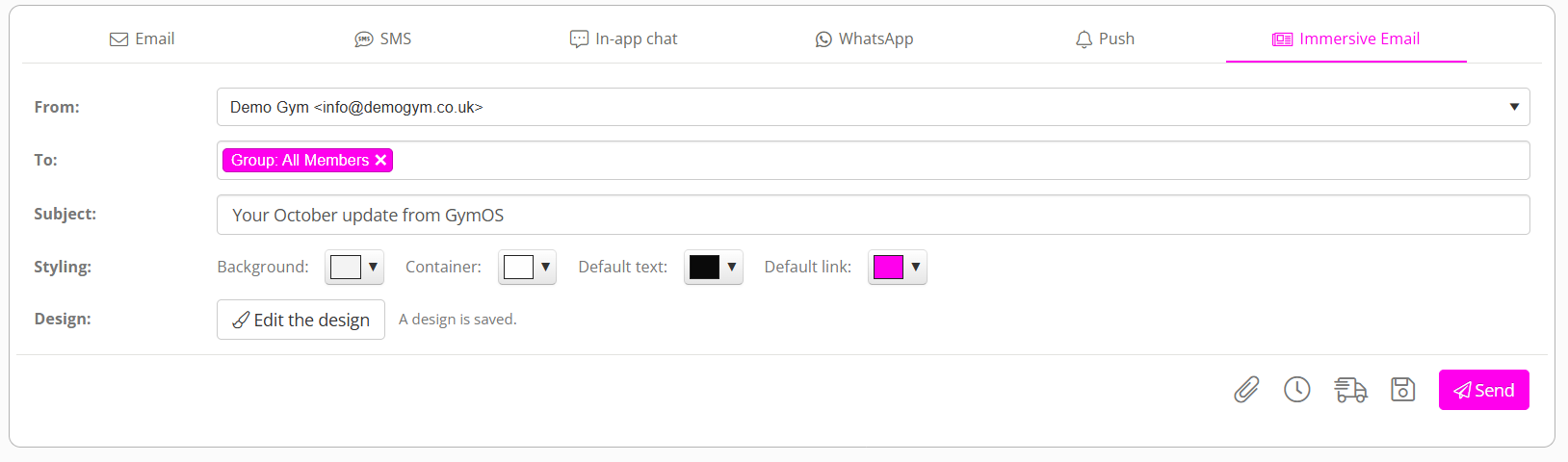
Once a design is saved, the button reads Edit the design. An immersive email cannot be sent without one: Please design the email before sending.
New Immersive email is offered on the main Conversations screen, not on a member’s or lead’s record.
The designer
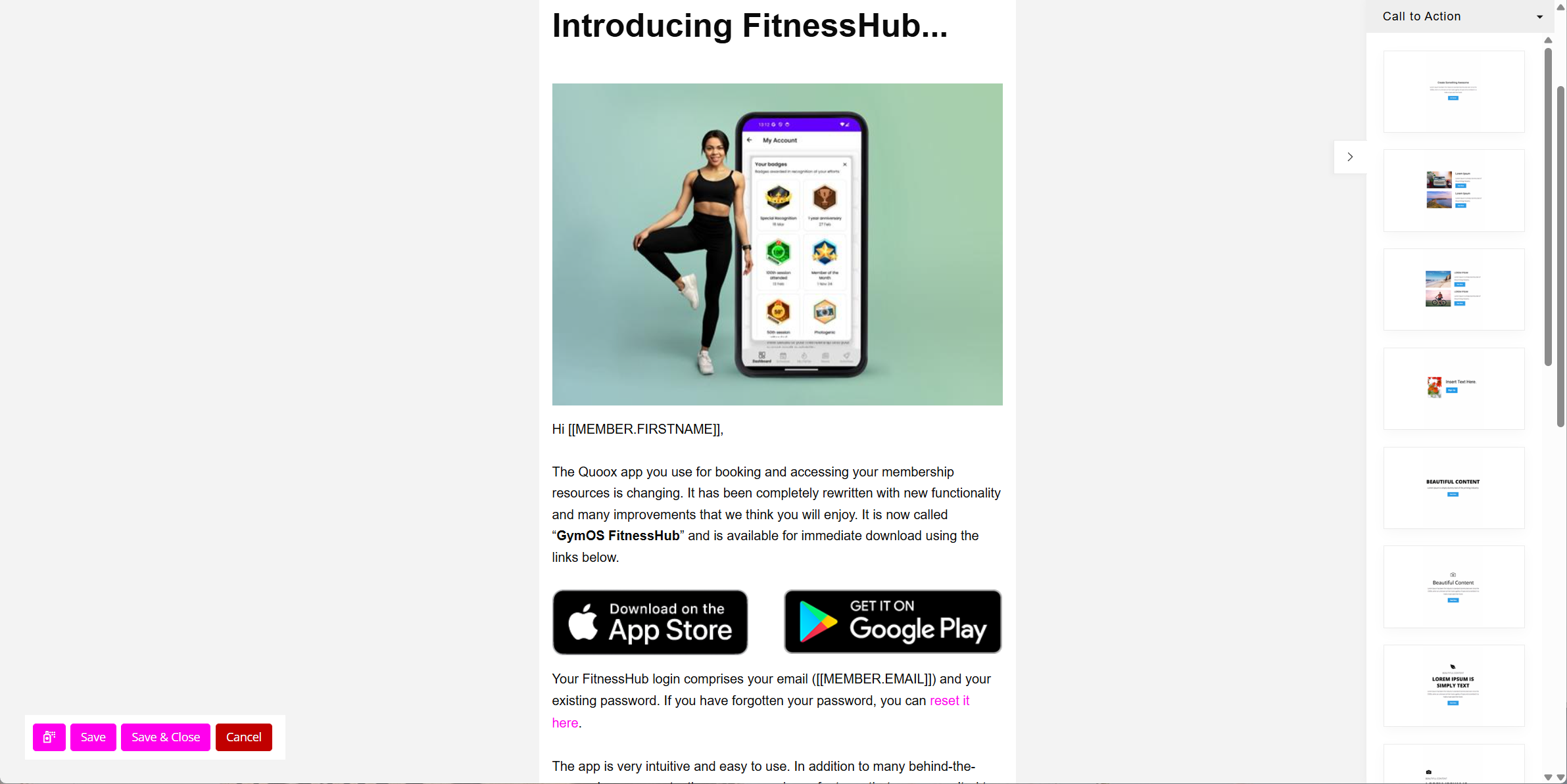
The designer opens full screen. If your gym has set a base design, it opens on that. Otherwise it opens on a sample layout for you to replace.
- Drag in blocks for a logo, headings, paragraphs, images, buttons, lists, prices, quotes, profiles, contact details and a footer.
- Insert merge fields from the editor’s menu, to greet each person by name.
- Resize your images before uploading them. A very large image can stretch your design in some email programs.
- Apply Polish, where it is available, tidies the wording of each block without altering your layout, images, links or merge fields. Undo Polish puts it back.
- Save keeps your work, Save & Close returns you to the message, and Cancel leaves without saving.
Only the person who created the message can open its design, and only until it starts sending. A scheduled email keeps its time when you change the design.
Your base design
To give every new immersive email the same starting point, set a base design. In Settings, open your message templates, choose the Email Templates tab, and use Set as design base template on the template you want.
Sending to groups and memberships
- Choose groups and memberships in To, alone or together with named people.
- Lead groups are offered where your gym sends from its own email domain.
- Attachments may total 5 MB when a group or a membership is included.
- Each person receives their own copy, with their own details merged in, and nobody sees who else received it.
- There is no charge for email.
On the member’s record
Each person’s copy is filed in their conversation, so it appears in their timeline on their record and in Conversations. It is shown as its subject and a short preview, with a button to open the whole email. Your team can see at a glance what each member has been sent.
Delivered, opened and clicked
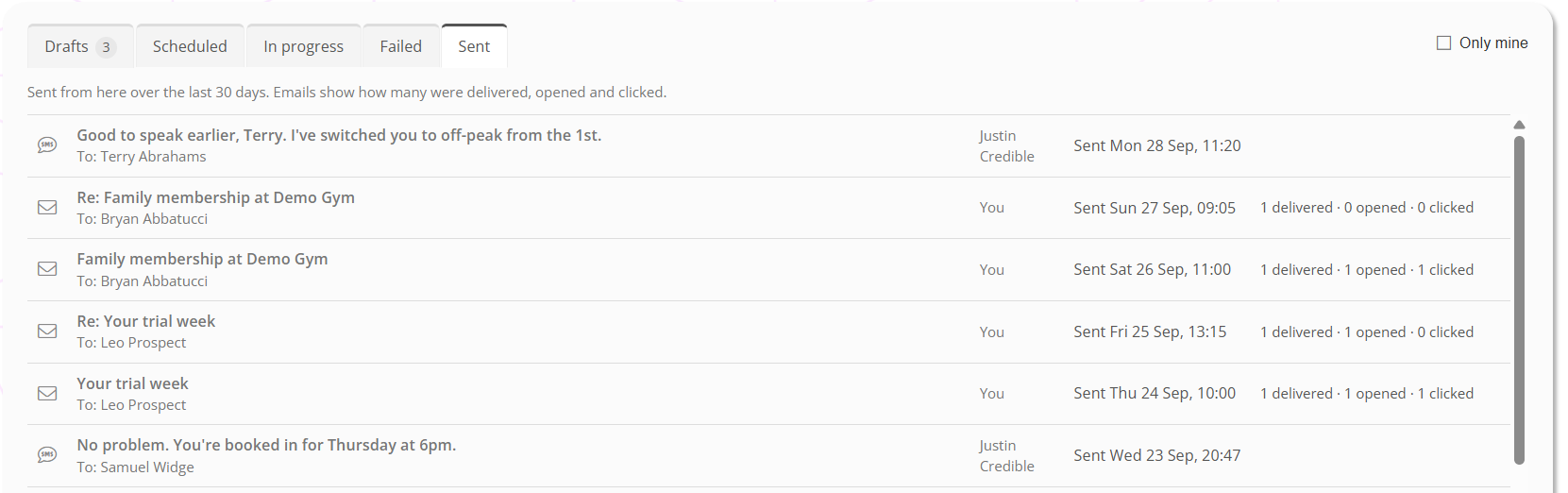
Open Conversations, then Drafts/Pending Messages, and choose the Sent tab. Each email sent in the last 30 days shows three figures: how many people it was delivered to, how many opened it and how many clicked a link in it.
- Each person counts once, however many times they open it.
- The figures are for emails. Texts, push notifications, chat and WhatsApp messages do not have them.
- Opens are a guide. Not every email program reports reliably whether an email has been opened, so treat the figure as an indication.
Ask Alphie’s newsletters
When you ask Alphie to write a newsletter, it is saved for you as a draft immersive email in Conversations. Alphie never sends it.
- You are told when it is ready, and the alert opens it in the designer.
- It is also under Drafts/Pending Messages, on the Drafts tab.
- It is a first draft, with placeholder pictures. Read it through, replace the pictures with your own, check who it is to, and send it when you are happy.
Common questions
Where have Scheduled Broadcasts gone?
Into Conversations. Use New message, then New Immersive email, and choose groups or memberships in To.
I had a broadcast scheduled before we moved. Will it still send?
Yes. It sends at its time, and until then it is listed under Drafts/Pending Messages, labelled Broadcast.
Why did a draft appear as soon as I pressed “Design the email”?
The designer needs a saved message to work on. It shows as Design not started until you have designed it.
Can a colleague finish my design?
No. Only the person who created a message can change it before it is sent.
Can I schedule an immersive email and still change the design?
Yes, until it starts sending. Its time is kept.
Can I attach files to an immersive email?
Yes, with the same limits as any email.
Can I reuse last month’s newsletter?
A new immersive email starts from your base design. Set one up so that every newsletter begins with your layout.
Does Alphie send the newsletter?
Never. Alphie saves a draft for you to check and send.