Scheduling, drafts and pending messages
A new message does not have to be sent straight away. You can save it as a draft, or schedule it for a date and time. Drafts/Pending Messages is where you find everything that has not yet gone, and what has been sent recently.
Saving a draft
On the new message screen, press the Save as draft icon. You see Saved as a draft. and can carry on writing.
- A draft can be unfinished. It does not need recipients, a subject or a message.
- Any type of message can be a draft, with its attachments.
- Your drafts are yours alone. Nobody else can see them, managers included.
Scheduling a message
- Press the clock icon beneath the message. A row labelled Send on/after appears.
- Choose the date and time. Times are offered in steps of 15 minutes.
- Press Schedule, which is what the Send button now reads.
You see, for example, Scheduled for Mon 6 Oct 2026, 09:00.
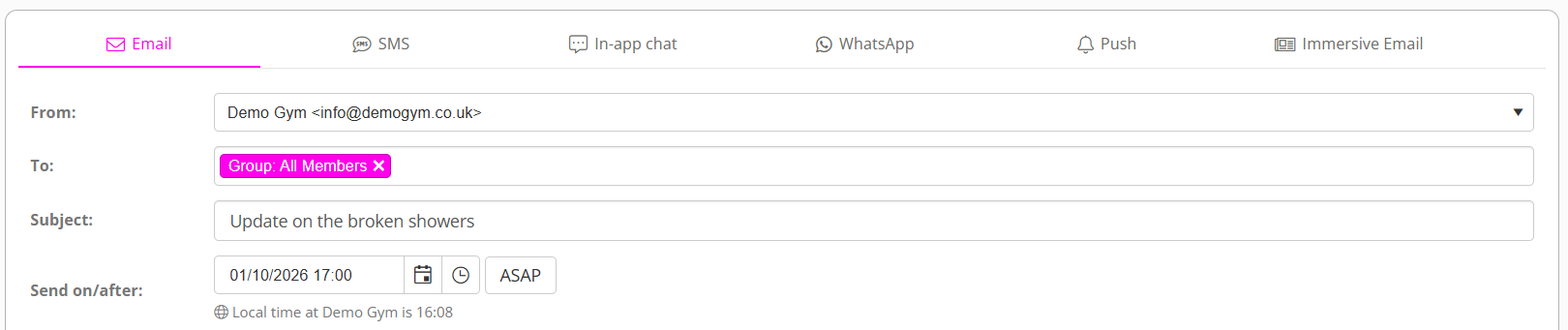
- The time is your gym’s local time, wherever you are when you set it. A line beneath the picker confirms it: Local time at your gym is followed by the time.
- A message can be scheduled up to a year ahead.
- Every type of message can be scheduled, to one person or many.
- The checks are made when you press Schedule, including the question about a chargeable message to a group.
- Groups and memberships are worked out when it sends. Somebody added to the group after you scheduled will receive it.
To go back to sending straight away, press ASAP.
Drafts/Pending Messages
In the main navigation menu, select Conversations, then Drafts/Pending Messages. There are five tabs. A number on a tab shows how many messages it holds.
| Tab | What it holds | Who sees it |
|---|---|---|
| Drafts | Your own drafts | Only you |
| Scheduled | Messages waiting for their time | Your whole team |
| In progress | Messages being sent now | Your whole team |
| Failed | Messages that could not be sent, over the last 30 days | Your whole team |
| Sent | Messages sent from the new message screen over the last 30 days | Your whole team |
Tick Only mine to see just your own. Each row shows the type of message, its subject or the start of its wording, who it is to, who created it, and when.

What you can do
| Action | On | Who can |
|---|---|---|
| Edit | A draft, or a scheduled message | The person who created it |
| Delete | A draft | The person who created it |
| Cancel | A scheduled message | The person who created it, or a manager |
- A scheduled message can be changed or cancelled until it starts sending. After that it cannot be altered.
- Edit opens the message exactly as it was saved, with its recipients, attachments and time. Press Schedule to save your changes.
- A manager can cancel a colleague’s scheduled message, but cannot edit it.
- Nothing can be done to a message in progress, failed or sent.
Understanding the labels
- Design not started: an immersive email that has not been designed yet.
- A paperclip and a number: how many files are attached.
- Due – sending shortly: its time has passed, and it will go as soon as GymOS reaches it.
- Queued or Sending, on the In progress tab.
- Not sent, on the Failed tab. Hover over it for the reason.
- Broadcast: a scheduled broadcast created before you moved to Conversations. Open takes you to it in the broadcast editor.
Delivered, opened and clicked
On the Sent tab, each email shows how many people it was delivered to, how many opened it and how many clicked a link in it. See Designed emails and newsletters.
If something goes wrong
- A message is never skipped because GymOS was busy. It goes as soon as it can, and shows Due – sending shortly in the meantime.
- An interrupted send is picked up again automatically, from where it stopped. People who have already received it are not sent it twice.
- A message fails only if nobody at all could be sent to, or something stopped it before it began. It then appears on the Failed tab.
- A failed message is not sent again automatically. Check the reason, then write and send it again.
Common questions
Can my manager see my drafts?
No. A draft is seen only by the person who created it.
Can my manager cancel my scheduled message?
Yes. A manager can cancel anybody’s scheduled message, but cannot edit it.
Which time zone is a scheduled time in?
Your gym’s, always.
How far ahead can I schedule?
Up to one year.
I added somebody to the group after scheduling. Will they receive it?
Yes. The recipients within a group is determined when the message is sent, not before.
It says “Due – sending shortly”. Is something wrong?
No. It is slightly late and probably in a queue, not lost.
Why can I not see a reply I sent on the Sent tab?
The tab lists messages sent from the new message screen. A reply typed in a conversation is in that conversation.
What happens to my drafts if I leave?
They stay as they are, unseen.