
Finding your way around conversations
Conversations has one screen for everything: a list of conversations on the left, and whatever you have opened on the right. This article explains what you are looking at, how the list decides what to show you, and where the same conversations appear on a member’s or a lead’s record.
Opening Conversations
- From the main navigation menu. Select Conversations, then My Conversations. The second item, Drafts/Pending Messages, opens the same screen on your drafts and scheduled messages. See Scheduling, drafts and pending messages.
- From the envelope icon at the top of every page. The number on it is how many people have something new for you.
With nothing selected, the right-hand side reads Select a conversation to view its details, or create a new message.
The conversation list
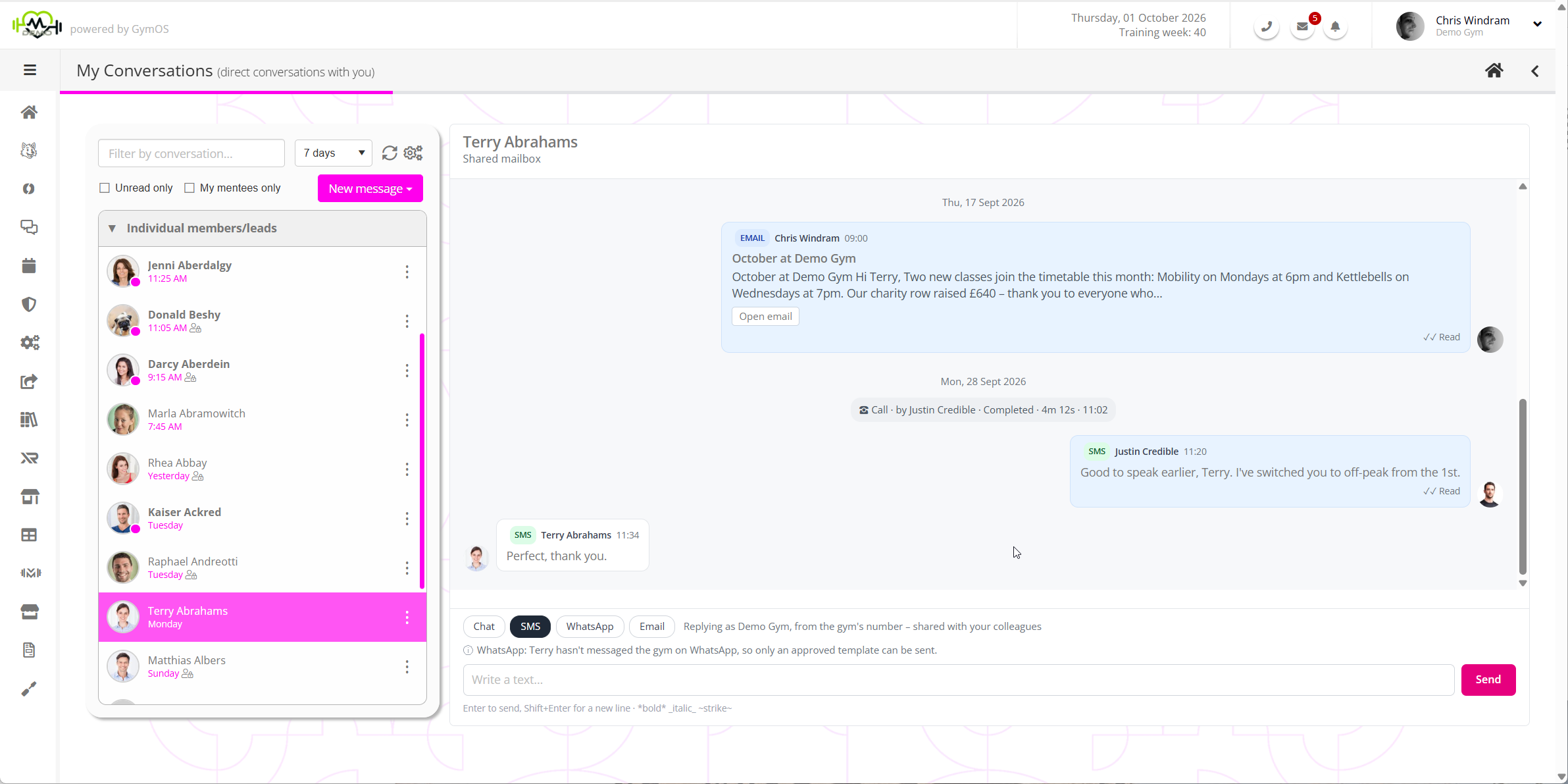
The conversation list shows the people who have messaged your gym recently, your group chats, and messages from senders GymOS does not recognise. It is divided into three sections, each of which can be closed and opened by clicking its heading:
- Conversation groups. Your community, which always displays first, then each group that has chat switched on, in alphabetical order. These are always listed. You can collapse or expand the list by clicking on the arrow in the group heading.
- Individual members/leads. One row for each person, most recent first.
- Unrecognised senders. Messages from an email address or number that GymOS could not match to a member or a lead.
Who appears in it
A member or a lead is listed when they have written to you within the period chosen at the top of the list, which defaults to 30 days. Somebody you have written to, but who has not replied in that time, is not listed. To find them, use Start a conversation… (see below) or look at the Messages tab on their record.
What each row shows
- The person’s photo and name, or the group’s name. The community group is named after your gym, followed by Community.
- When the last message arrived: a time for today, Yesterday, the day of the week, or a date.
- Bold, with a dot on the photo, when there is something unread.
- A small padlock icon when the row includes your own private messages with that person.
- An archive icon when it is archived, and a crossed-out speech bubble when replies are turned off.
- Three dots at the right-hand edge, which open the row’s menu.
Each person appears once
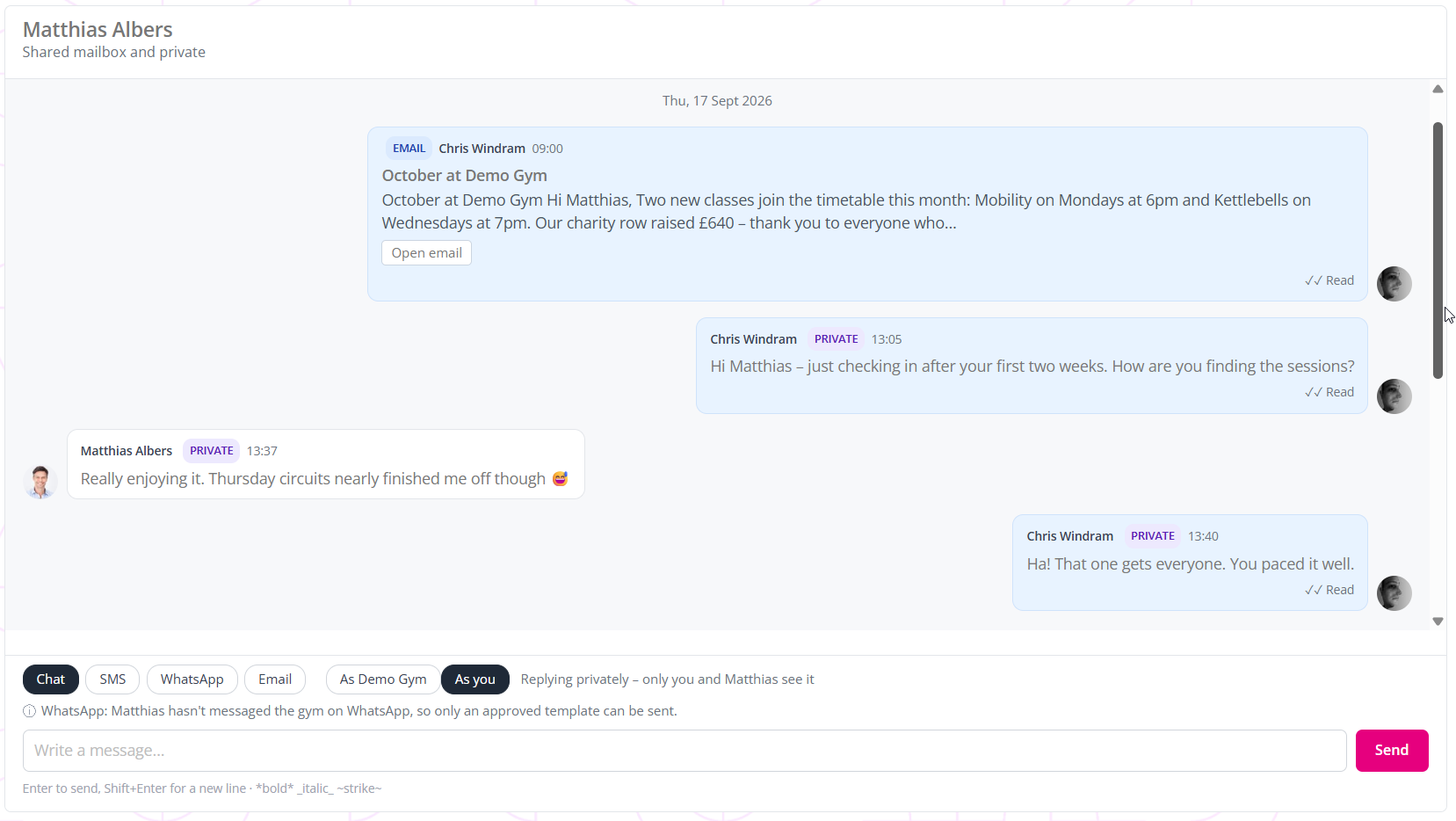
A member or a lead has one row, however you have been in touch. Opening it shows the gym’s conversation with them and your own private conversation with them together, in one timeline, in the order things happened. The line under their name tells you what you are looking at: Shared mailbox, Shared mailbox and private, or Private.
Messages from your own conversation carry a violet Private badge. Everything else is the gym’s, and is seen by your whole team. See Replying in a conversation for how to choose which one a reply goes into.
Finding and filtering
| Control | What it does |
|---|---|
| Filter by conversation… | Type part of a name and press Enter to narrow the list to matching rows. It searches the rows already in the list, not everybody in GymOS. |
| The period, defaulting to 30 days | How far back to look for people who have written in: 7, 14, 30 or 90 days, or 1 year. |
| The refresh icon | Reloads the list. |
| Unread only | Shows only rows with something unread. |
| My mentees only | Shows only members whose assigned mentor is you. Leads, groups, the community and unrecognised senders are hidden while it is ticked. |
| The cog icon | Opens Conversation settings, where you can choose a venue, switch Group conversations by type off to see one list in date order, and tick Show archived conversations. Click Apply. |
The settings behind the cog last while you stay on the screen, and go back to their starting values when you return to it.
What counts as unread
A conversation is unread when it holds a message from the other person that has not been read. Opening it marks it read, and so does replying to it. Anything that arrives while you have it open is read at once, provided the page is in front of you.
- The gym’s conversations are read for everyone at once. When any one member of your team opens a message to the gym, it stops being unread for the rest of you. This prevents multiple staff members from following the same (already actioned) message. It is the responsibility of the team member that reads a message to make sure it is actioned.
- Members you mentor are the exception. A message from one of your mentees stays unread for you until you open it yourself, even if a colleague has read it. This is because that member is deemed your responsibility and therefore, predominantly, your role to reply to them,
- Your own private conversations are yours to read. Nobody else’s reading affects them.
- There is no “mark as unread”.
The number on the envelope icon counts people, not messages, over the last 30 days. That is the period the list starts on, so whatever the envelope is counting is in your list.
The row menu
Click the three dots on a row. What is offered depends on the row:
| Item | What it does | Offered on |
|---|---|---|
| View conversation | Opens it, as clicking the row does. | Every row |
| View record | Opens the member’s or lead’s record. | Members and leads |
| Archive conversation | Takes the row out of the list. See below. | Members, leads and unrecognised senders |
| Suppress chat replies | Stops members replying by chat in that conversation. See Chat, groups and the community. | Members, leads and groups |
| Create assignment | Opens a new assignment for that member. | Members |
| Attempt rematch | Tries again to match an unrecognised sender to a member or a lead. If it succeeds, the conversation moves to that person. | Unrecognised senders |
Archiving
Archiving is housekeeping for your list. It takes a conversation you have finished with out of the way.
- The row leaves the list, and is no longer counted on the envelope icon.
- It is archived for your whole team, not only for you.
- A new message brings it back. If the member, the lead or the unrecognised sender writes to you again, by any channel, the conversation returns to the list as unread.
- Nothing is deleted, and the member sees no difference.
- The person’s record still shows it. An archived conversation is listed on the Messages tab of their record, marked with the archive icon.
- To bring one back yourself, open the cog, tick Show archived conversations and press Apply. Its menu then offers Unarchive conversation.
Starting a conversation, and new messages
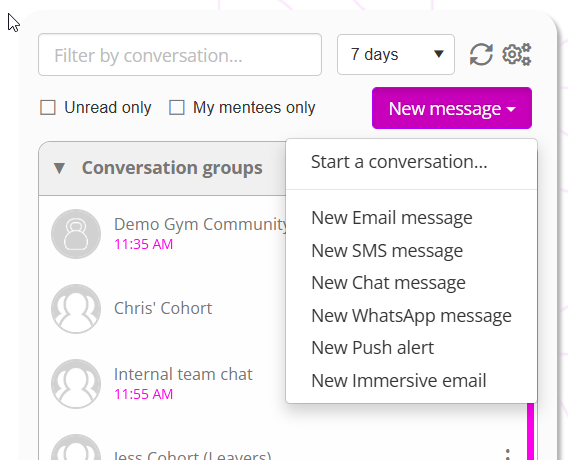
The New message button above the list opens a menu:
- Start a conversation… finds any member or lead, whether or not they are in your list. Type at least three letters of their name. Choosing somebody shows their two conversations, their gym conversation and Your conversation with them, each marked Open if it already exists or Start if it does not. Nothing is created until you send the first message.
- New Email message, New SMS message, New Chat message, New WhatsApp message, New Push alert and New Immersive email open the new message screen, where you can write to one person, several people, a group or a membership. See Sending a new message.
Groups, the community and unrecognised senders
- Groups and the community are chat only. To text or email everybody in a group, use New message. See Chat, groups and the community.
- An unrecognised sender cannot be replied to from the conversation yet. The usual cause is a member writing from an address that is not on their record. Add the address or number to the right person’s record, then use Attempt rematch.
The Messages tab on a member’s or lead’s record
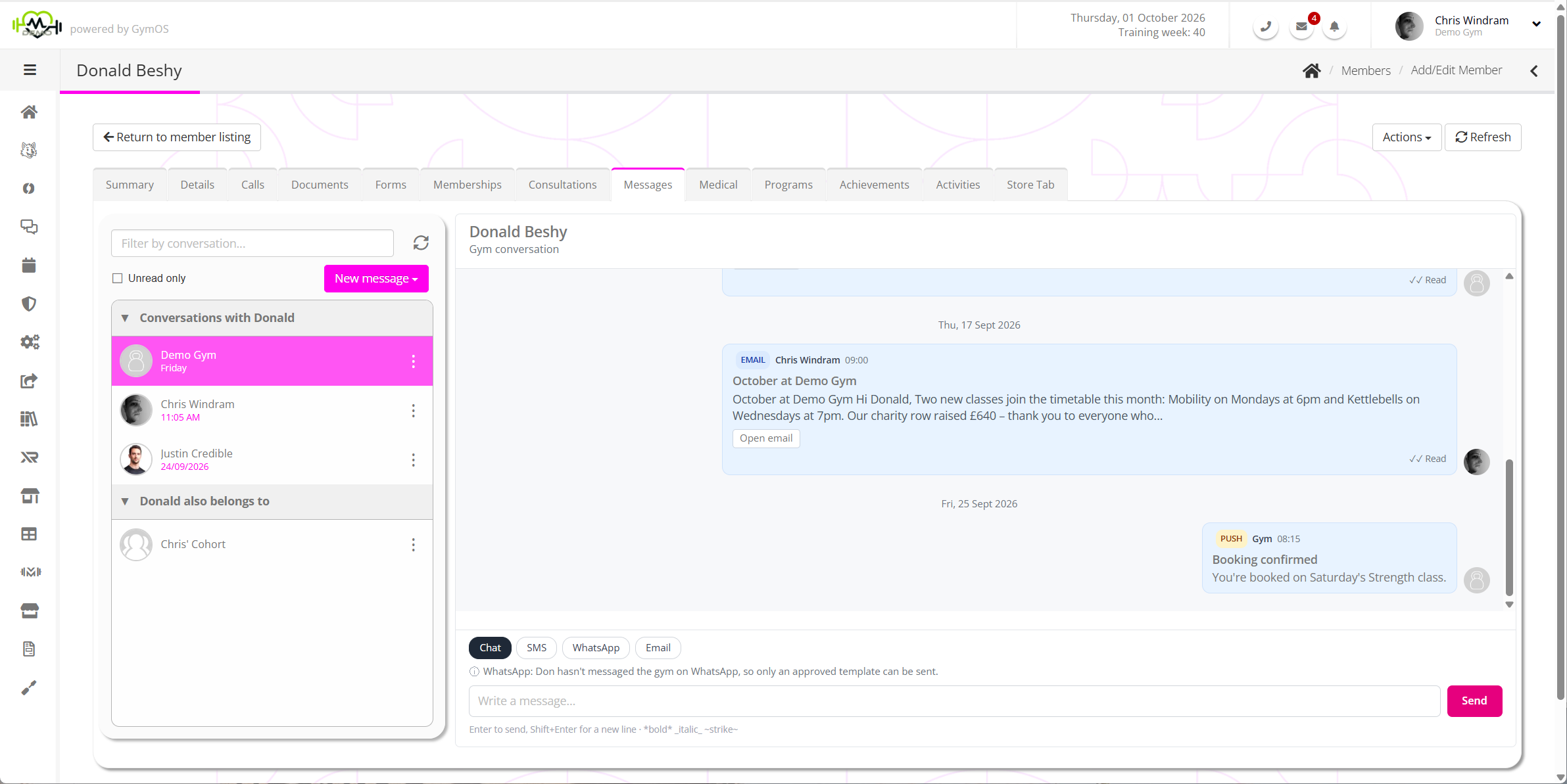
Every member and lead record has a Messages tab showing that person’s conversations. It differs from the main screen in one important way: it lists each conversation separately, including those your colleagues have had.
- Conversations with the person. The gym’s conversation, named after your gym, and a row for each member of staff who has their own conversation with them, named after that member of staff.
- The person also belongs to. On a member’s record, the group chats they are in.
You can read a colleague’s conversation here, but you cannot reply in it: This is a colleague’s personal conversation – only they can reply in it. Use the gym’s conversation instead.
The tab’s own New message menu writes to that person without your having to look them up.
Leads who have become members, and closed leads
- A lead who has become a member shows a notice in place of the list, with a link, Open their member record. Their history moved with them.
- A lead whose record is closed can still be read, but not written to: …lead record is closed, so messages can’t be sent from here.
Common questions
I sent somebody a message and they are not in my list. Why?
The list shows people who have written to you within the period chosen. Find them with New message, then Start a conversation…, or on their record’s Messages tab. They will appear in the list when they reply.
The envelope shows a number, but I cannot see what is unread. How do I find it?
Tick Unread only. If you have shortened the period, set it back to 30 days, which is what the envelope counts.
Who can see messages marked Private?
In the main list, only you and that person. Your colleagues can find the conversation on the person’s record and read it there, but cannot reply in it.
A colleague has read it. Why is it still unread for me?
You are that member’s assigned mentor, so it stays unread until you open it yourself.
Where has the conversation I archived gone?
Open the cog, tick Show archived conversations and press Apply. It also comes back by itself when that person next writes to you.
Why are my groups missing from the list?
A venue, or My mentees only, hides groups, the community and unrecognised senders. Otherwise, the group has not had chat switched on.
Why does the search box not find somebody?
It only narrows the rows already listed. To find anybody else, use Start a conversation….
Where have the Message Centre and Scheduled Broadcasts gone?
Conversations takes their place. See Switching to Conversations.