
Recording or scheduling a lead call
There are two main approaches to scheduling lead calls. A call may be scheduled using the tasks & assignments schedule call function. Alternatively, if you wish to empower the lead to schedule a call themselves, you can use the DropSlot consultation functionality. This article outlines the tasks & assignments method.
Calls that have already happened may be added to the lead call log from the Calls tab on the lead record.
Recording a call that has occurred
To recall a call that has already occurred, click the Record Call button on the Call Log tab of the lead record. This will open a pop-up window:
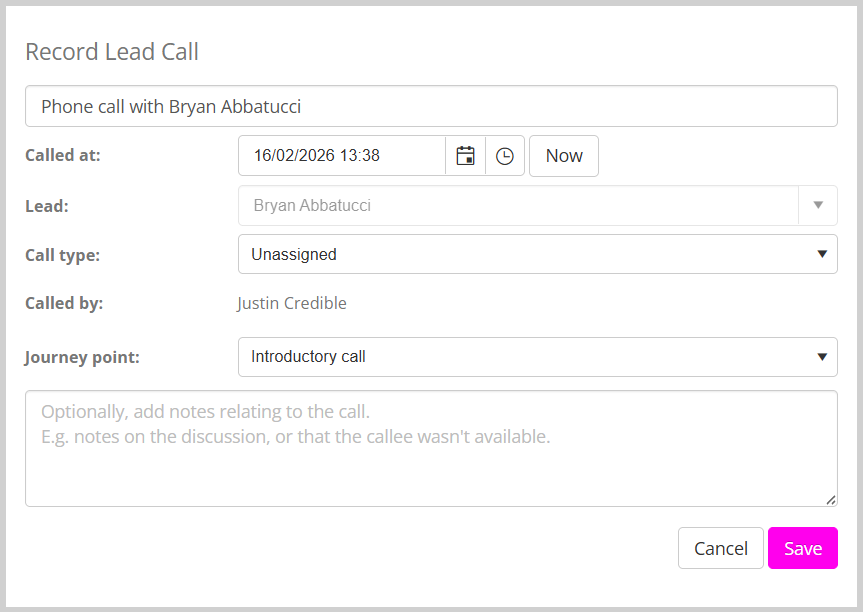
Some of the fields will be pre-populated, but you may override these as you wish:
- Title
A brief, single-line summary of the call. By default, this will be “Phone call with {lead name}”. - Called at
The date/time at which the call was made. Clicking the Now button sets the value to the current date/time. - Lead
This will be preset and fixed as being the current lead. - Call type
Select the type of call that you are making, or leave it Unassigned.
Call types may be configured in the Lists and Group settings. - Called by
This will be present and fixed as being you (the currently logged in user). - Journey point
You may optionally update the journey point for the lead, tracking their progress through the lead lifecycle. - Notes
You can add notes related to the call, which will serve as a valuable future reference for you and your team.
Click the Save button to record the call log.
If you need to edit a call log entry at any point, you may do so by clicking the icon alongside the entry. Correspondingly, you may delete the entry by clicking the icon.
Scheduling a future call
To schedule a future call (using the tasks and assignments method), click the Schedule Call button. The scheduling pop-up window will open, which is similar to the call recording pop-up.
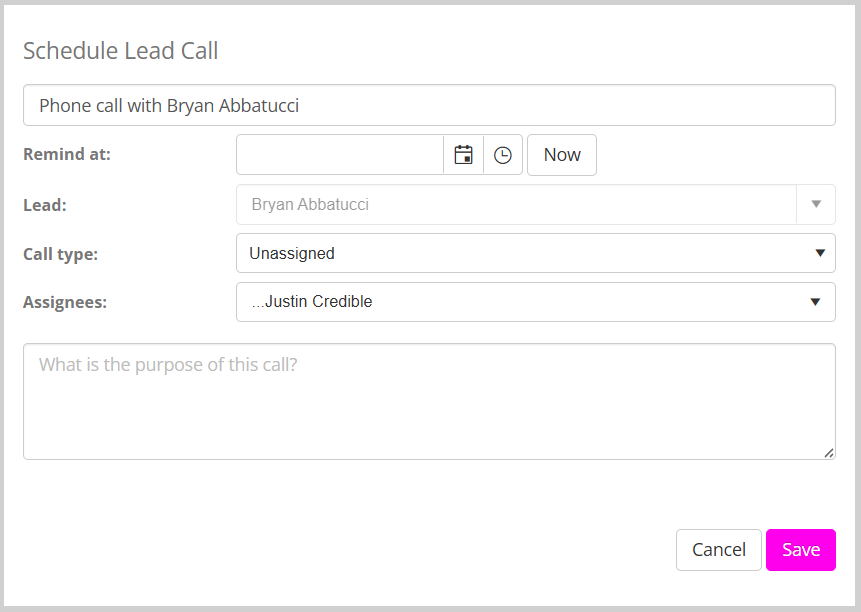
As with recording a call, some of the fields are already pre-filled and may be overridden.
Configure the details of the call that you wish to schedule, and click the Save button. The call will be shown as pending in the lead’s call log. It will pop up in the to-do list of the assignee(s) at the scheduled time of the call.