Using Konduo in the administration portal
This article explains how to make calls with Konduo from the GymOS administration portal: opening the dialler, placing a call, wrapping it up, and finding the recording and transcript afterwards.
Konduo must be switched on for your gym first. See Configuring and enabling Konduo.
The Konduo dialler
Calls are made from the Konduo™ Dialler, which opens in its own small window beside GymOS. Because it is a separate window, you can carry on using GymOS while you are on a call, moving between pages, looking up the member’s details, or making a booking, without the call being affected.
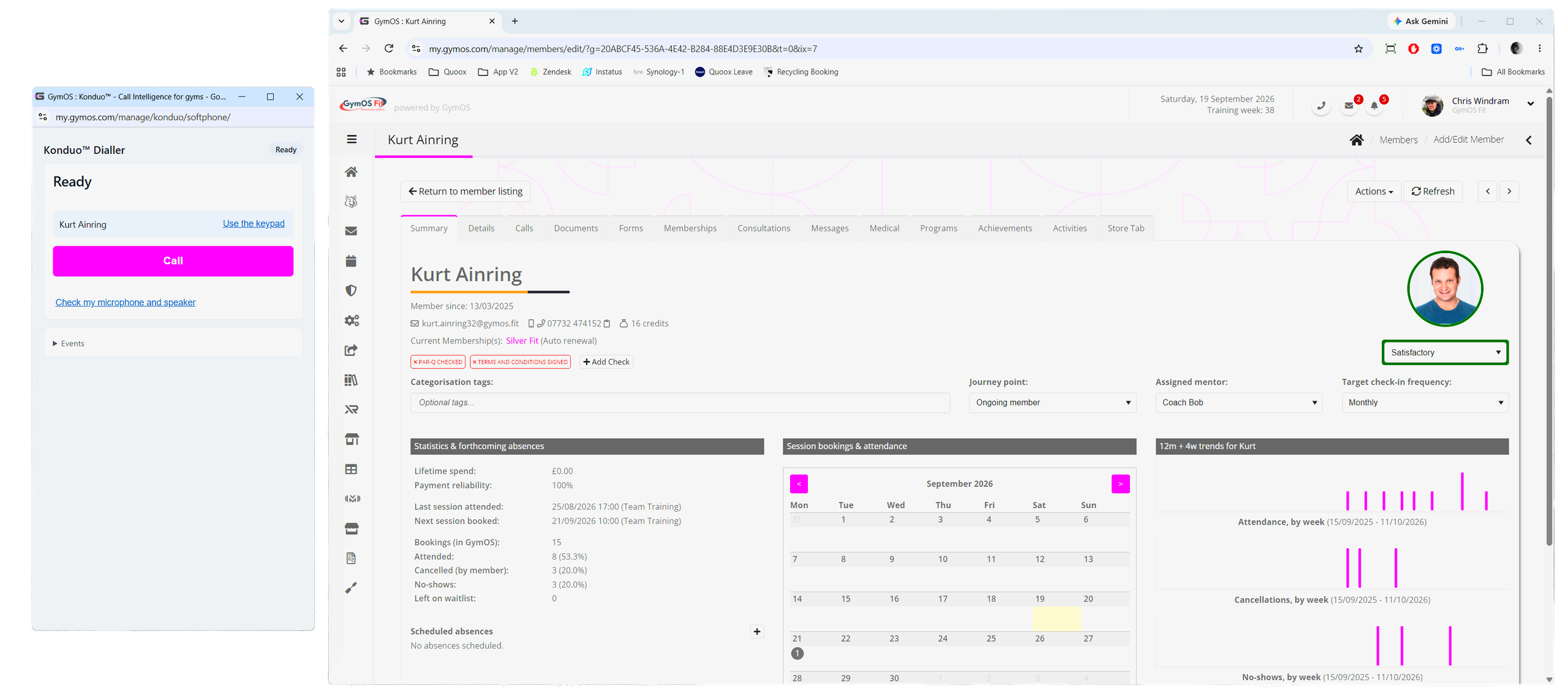
There is only ever one dialler window. If it is already open, clicking another number sends that number to it rather than opening a second one.
Important: Do not close the dialler window while you are on a call. Closing it ends the call.
Opening the dialler
From a phone number
Almost everywhere GymOS shows a member’s or lead’s phone number, the number is a link. Click it to open the dialler, ready to call that person. This includes:
- the member list, and the member record
- the lead list, and the lead record
- call tasks, on the assignments page and the dashboard’s assignments panel, where call tasks show a phone icon
- DropSlot appointments whose location is Telephone
- bookings, class roll calls, referrals and the employee list
- the member, lead, trial, pause and leaver analysis reports
From the phone icon
Click the phone icon at the top of any portal page to open the dialler with the search box and keypad ready.
Finding someone in the dialler
In the dialler, type a name into Find a member or lead and choose them from the results.
Using the keypad
To call a number that is not on a record, type it into Number. Calls from the keypad are not linked to any member or lead, even if the number belongs to one, so they do not appear in anybody’s call log and have no wrap-up. Wherever you can, call from the person’s record instead.
Before your first call
- Allow the microphone. Your browser asks for permission to use your microphone. Choose Allow.
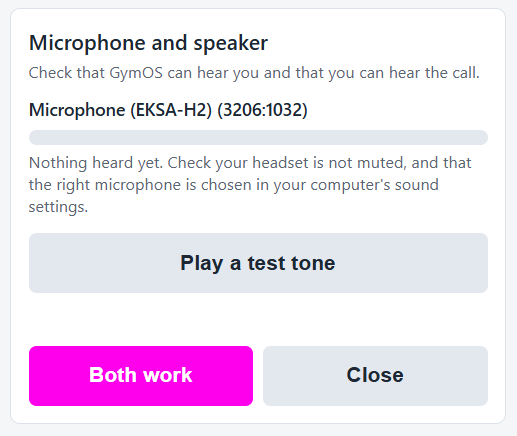
- Check your microphone and speaker. Before your first call, the dialler offers a quick check. Speak, and the bar should move; play the test tone, and you should hear it. Click Both work. You can run the check again at any time from Check my microphone and speaker.
Tip: Use a headset. On a computer’s built-in speakers and microphone, the person you are calling may hear an echo of their own voice.
Making a call
- Open the dialler for the person you want to call. It shows who you are about to call.
- If your gym records calls, Record this call is ticked. Untick it if you do not want this call recorded.
- Click Call.
The first time you place a recorded call, Konduo tells you how recordings are handled and asks you to agree. You can agree, or choose Call without recording.
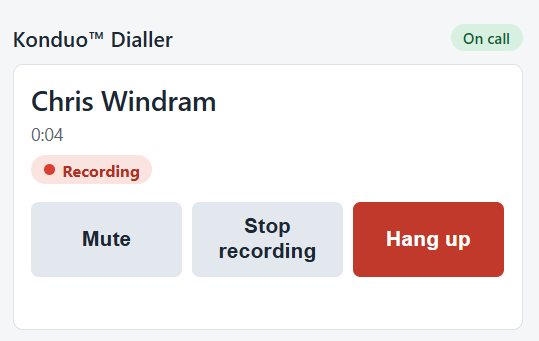
If the call is recorded, the person you are calling hears your gym’s recording announcement before you are connected, and a red Recording marker shows in the dialler.
During the call
- Mute mutes your microphone. Click Unmute to talk again.
- Stop recording stops the recording for the rest of the call.
- Hang up ends the call.
Konduo makes one call at a time. There is no hold or transfer.
Wrapping up the call
When the call ends, the dialler shows the Wrap up panel. Wrapping up takes a few seconds, and it is what keeps the person’s record accurate.
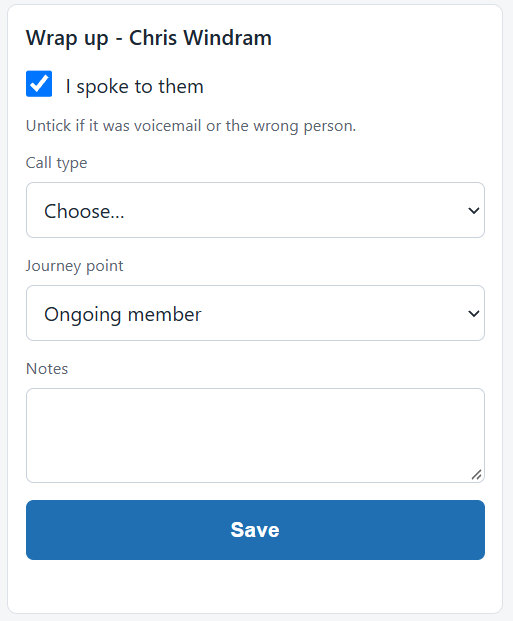
- I spoke to them is ticked if the call was answered. Untick it if you reached voicemail or the wrong person.
- Call type: choose what the call was about. This uses your gym’s own list of call types, and it is what your call reporting is based on, so please choose carefully.
- Journey point: update where the person is in their journey, if it has changed.
- Notes: anything worth recording about the call.
Click Save. What happens next depends on how the call started:
| How the call started | When you save |
|---|---|
| From a member or lead record | The call is completed as a call task on their record, with a touch point, and their journey point is updated. |
| From an existing call task | That call task is completed. |
| From a DropSlot telephone appointment | If you spoke to them, the appointment is marked attended. |
| Not answered, or you unticked “I spoke to them” | An existing call task goes back on the list to try again. If there was no task before the call, none is kept. |
| From the keypad | There is nothing to wrap up. |
Note: If a wrap-up is not saved within two hours, Konduo completes it automatically as a general-purpose call, so that the call is never left unrecorded. Wrapping up yourself is always better, because only you know what the call was about.
After the call
The call log
Every Konduo call appears on the member’s or lead’s record, under Call log. Recorded calls also appear under Recordings and transcripts, where you can play the recording, open the transcript and summary, or delete them.

Transcripts and summaries
If your gym transcribes calls, the transcript and summary are usually ready a few minutes after the call ends. The summary is written as the call’s outcome automatically. Calls shorter than 30 seconds are not transcribed.
If a summary could not be produced, the outcome says so, and asks you to write it yourself.
Your usage
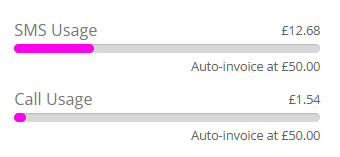
Your gym’s call charges build up during the month, and show as Call Usage on your dashboard, beside your SMS usage. See Konduo pricing.
Logging out
GymOS logs you out after 40 minutes without any activity, but never while you are on a call. If you log out while the dialler is open, the dialler closes; if you are on a call, it warns you first.