
Adding/creating a new member

A member record is either created as a result of a self-sign-up campaign or on an ad hoc basis, such as when a member walks into your gym and asks to join.
To add a new member to your GymOS system:
- Access the member listing by selecting Members from within the Manage section of the main navigation menu.
- Click the Add button.
The Add Member page will be displayed, which is the same as the Details tab on the member record, once the record has been created.
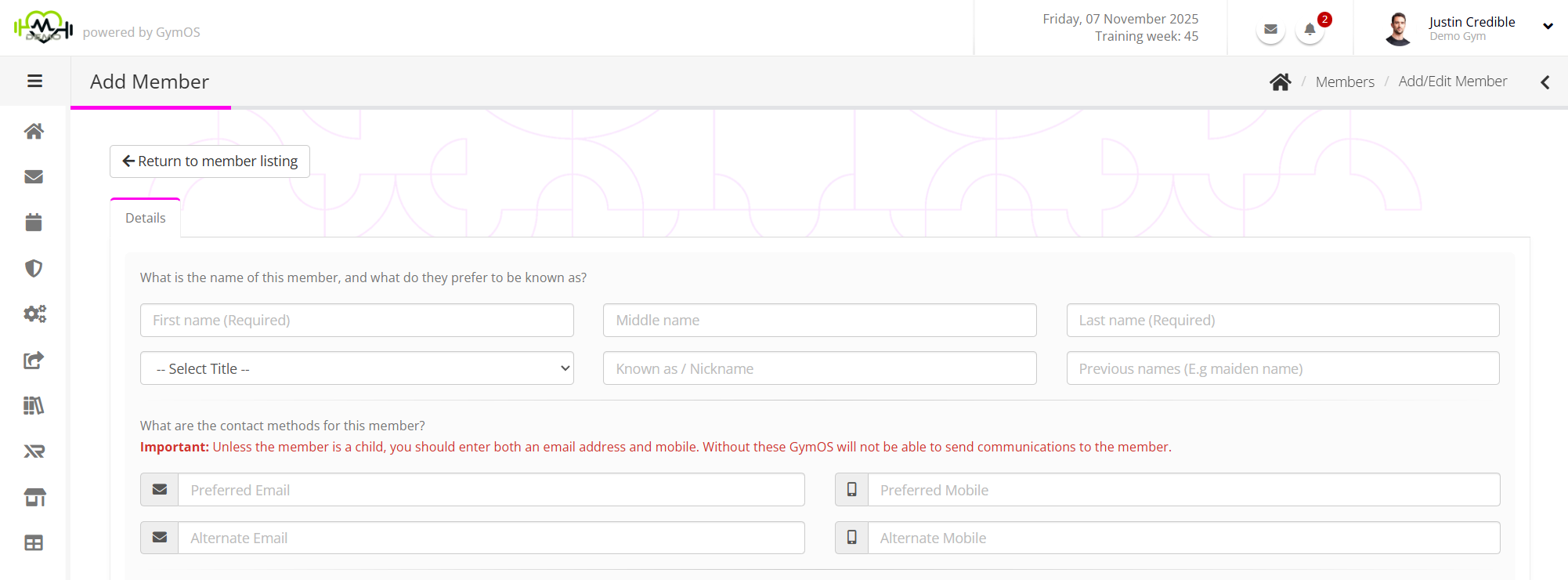
At minimum, you must provide a First name and a Last name for the member.
Whilst optional, if the member record is to be of any practical use, you should enter the member’s email address and mobile number.
Notes:
- Within the member database, each member’s email and mobile number should be unique. GymOS will not allow you to add an email address or mobile number that is already in use.
If the member is a child, use the families functionality to create a properly structured grouping that caters for different payers and communication routes. - If you are looking to create an employee, you will need to provide both their email address and mobile number. You will not be able to promote them to an employee without this information.
If you wish to set and issue a password to a member, you can do so at the bottom of the page. If you leave the password blank, the member’s password will be automatically generated. Either way, they have the opportunity to reset their password via the link in the default welcome email (unless it has been turned off).

Clicking Save will validate and create the member record. If the data has been entered correctly, you will be taken to the new member record.