Conversations in the FitnessHub app
Your team can read and answer messages from their phones, in the FitnessHub app. It shows the same conversations as the administration portal, and follows the same rules. This article covers what staff can do in the app. What your members see is covered separately.
You need the latest version 2.8.2 or above of the FitnessHub app, and to be signed in as a member of staff.
Opening your messages
Tap the speech bubbles icon at the top of any page. A number on it shows how many people have something new for you. The page that opens is titled Messages.
The conversation list
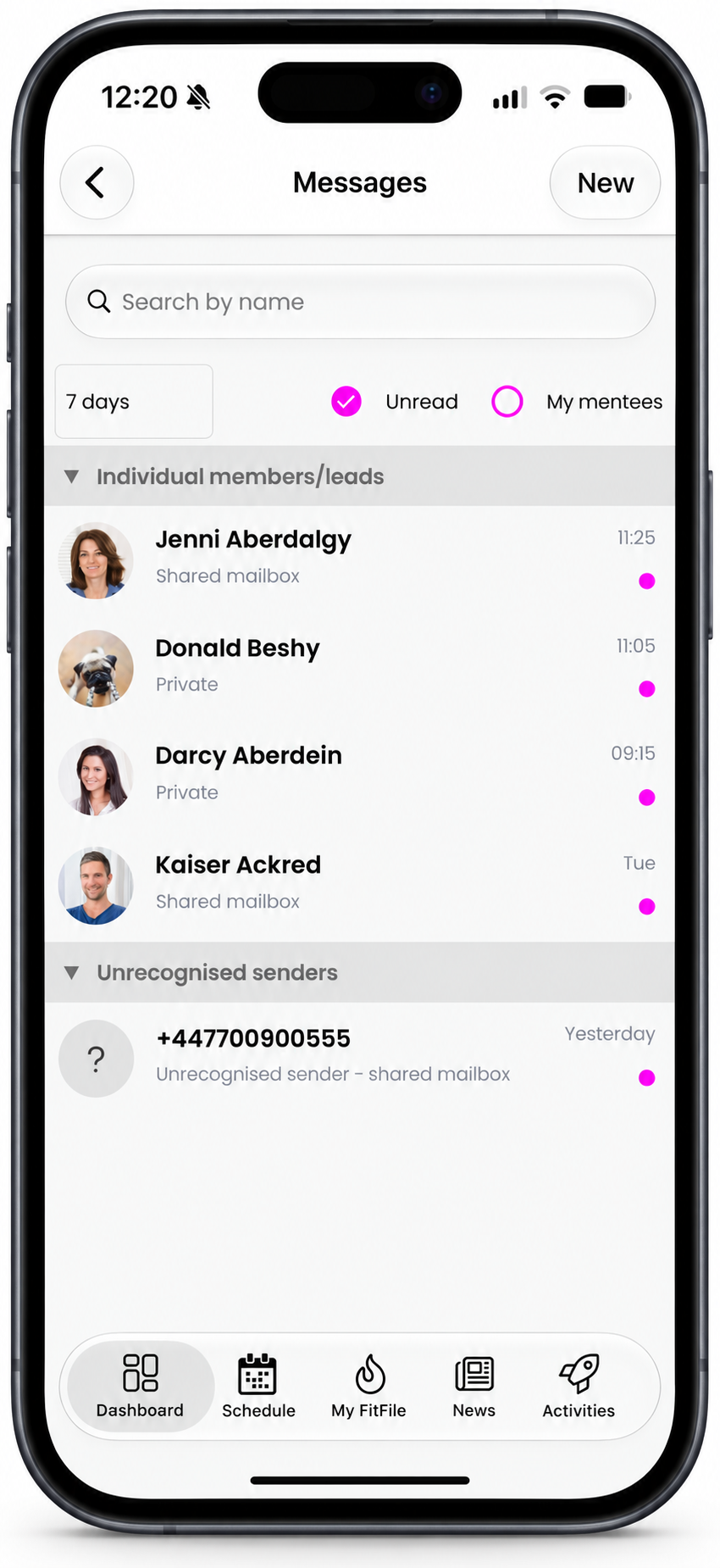
You see one row for each person, as in the portal, under the same headings: Conversation groups, Individual members/leads and Unrecognised senders. Tap a heading to close or open it.
| Control | What it does |
|---|---|
| Search by name | Type a name, then press the search key on the keyboard. |
| The period | 30 days to begin with, or 7 days, 90 days or a year. |
| Unread | Ticked to begin with, so the list opens on what is new. Untick it to see everything. |
| My mentees | Shows only members you mentor. |
Pull the list down to refresh it. Under each name, a line says what the row holds: Shared mailbox, Shared mailbox and private, Private, Group or Community. A dot marks a row with something unread.
Reading a conversation
Tap a row. The newest messages are at the bottom, and Load earlier messages at the top fetches older ones.
- Emails, texts, push notifications and WhatsApp messages each carry a label. Chat has none.
- Messages from your own conversation with the person are marked Private.
- A line marked New shows where your unread messages begin.
- An email shows its subject and a short preview. Tap it to read it in full. Pictures are held back until you tap Show images.
- A photo sent by WhatsApp is shown in the conversation. A voice note, a video or a document opens when you tap it.
- A call made with Konduo shows as a line, with how long it lasted.
- An automated message shows as one compact line. Tap it to read it.
Opening a conversation marks it as read.
Replying
Type in the box at the bottom and tap the send button.
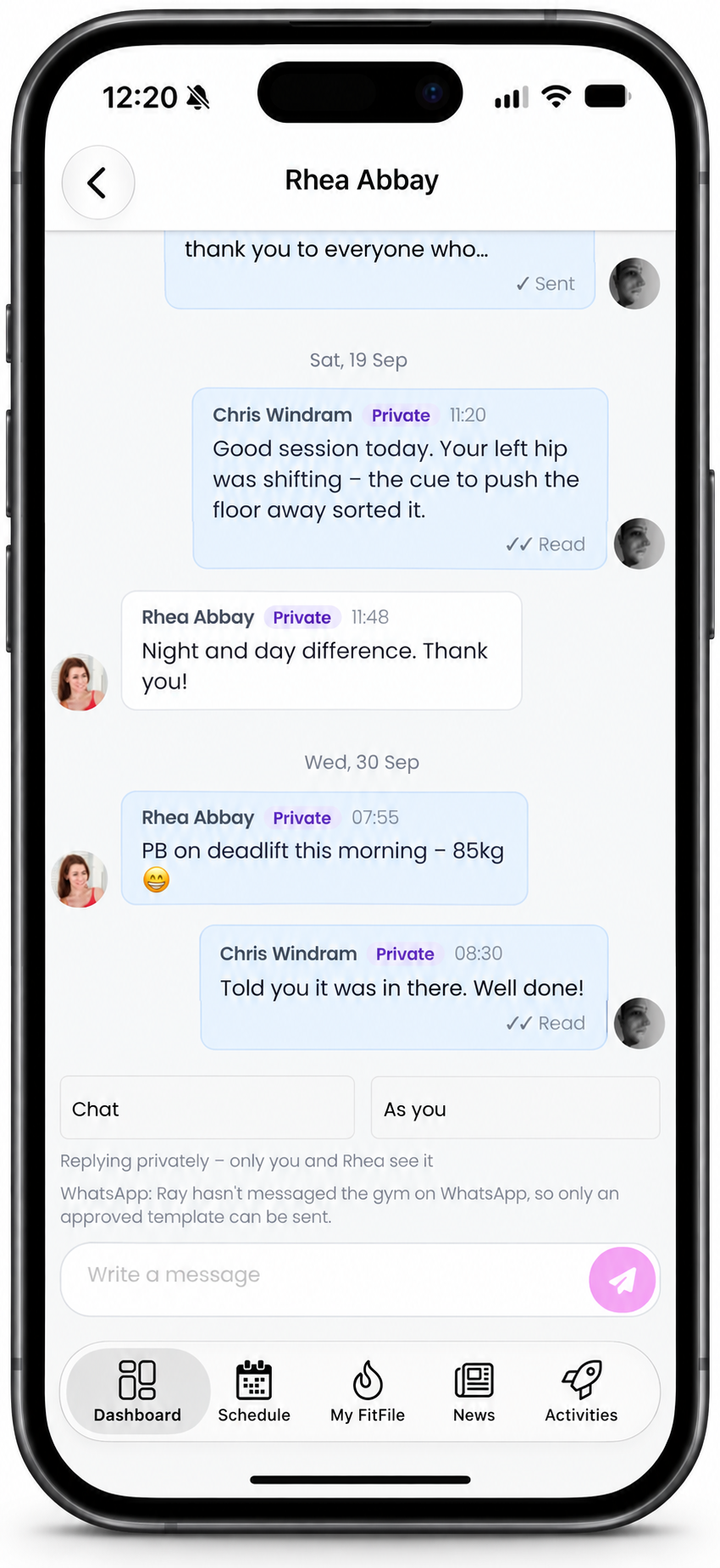
- Send by chooses the channel, where there is a choice: Chat, SMS, Email or WhatsApp. A grey line explains a channel that is missing, for example Chat isn’t available – Sam doesn’t have the app.
- Reply as chooses between your gym and you, for chat and email. A line beneath says who will see your reply. Texts and WhatsApp messages always come from your gym.
- For WhatsApp, outside the 24-hour window, the box is replaced by Choose an approved template.
The rules are exactly those of the portal. See Replying in a conversation.
Starting a new message
Tap New at the top of the Messages page.
- Choose how to send it under Send by: Chat, Email, SMS, WhatsApp or Push.
- Type at least three letters of a name, a group or a membership, and tap who it is to. You can choose several.
- Write your message. An email has a subject, and a push has a title.
- Tap Send, at the top of the page.
- An email from the app is sent from you, and replies come back to your own conversation with that person.
- Chat, texts, WhatsApp messages and push notifications are sent from your gym.
- A text or WhatsApp message to a group or a membership asks first, in a box titled Send fees.
- A message from the app is sent straight away.
Deleting a chat message
Press and hold a chat message, then tap Delete. You can delete your own messages and a member’s. A manager can delete any chat message. See Chat, groups and the community.
Notifications and the number on the icon
Tapping a notification opens the conversation it is about. Which messages notify you is explained in Notifications – who is told about what.
To stop notifications for general messages to the gym, open My Profile and, under Staff notifications, switch off Every message to the central mailbox. You are still notified of messages sent to you personally and from members you mentor.
- The number on the messages icon, and on the app’s own icon, is the same number as the envelope in the portal.
- If you read a conversation in the portal, the app’s icon is corrected the next time you open the app, or when the next notification arrives.
- Some Android phones show a dot on the app’s icon in place of a number.
- On an iPhone, the icon shows a number only if you have allowed badges for the app. The number inside the app is always shown.
What needs the administration portal
The app is for keeping up with messages on the move. For these, use the portal:
- saving a draft, scheduling a message, and Drafts/Pending Messages;
- attaching files, and opening the attachments on an email;
- immersive emails;
- archiving a conversation, or turning replies off;
- reading a colleague’s own conversation with a member, which is on the member’s record;
- creating a WhatsApp template;
- listening to a call recording.
Common questions
My list is empty when I open it. Why?
It opens on unread messages only. Untick Unread to see every conversation.
Why can I not see older conversations?
Change 30 days to a longer period.
I typed a name and nothing happened.
Press the search key on the keyboard.
Who sees my reply?
Read the line under Reply as. As you is private. As your gym is shared with your colleagues.
I cannot open the attachment on an email.
The app shows how many there are. Open the email in the portal to read them.
I tapped a notification and nothing happened.
That conversation was already open on your screen.
I cannot find the messages icon.
Your gym is not using Conversations yet, or your app needs updating.
How do I post to everybody?
Open the community and chat. To text or email everybody, tap New and choose a group or a membership.